
Overview
Project Location Distance Search is a project tag that automatically filters the home screen location list to locations near the mobile user's current position.
Use it when a project contains many locations and users should normally see only the work locations within a defined distance of where they are standing.
When the tag is configured on a project, selecting that project in Soarvo Mobile fills the home screen distance filter automatically. The app then compares the user's current position with each location's anchor point and only shows locations inside the configured distance.
Three things Project Location Distance Search enables
- Nearby work filtering – users see the locations close to their current position instead of the full project list.
- Project-level defaults – the distance filter is applied automatically when the project is selected.
- Refresh-aware configuration – if the project tag changes in the web portal, pulling to refresh in the mobile app reapplies the latest project distance value.
How the app finds the distance tag
Soarvo Mobile looks for a project tag in this format:
MobileLocationDistanceSearch(distance)The tag name is matched case-insensitively, so MobileLocationDistanceSearch, mobilelocationdistancesearch, and MOBILELOCATIONDISTANCESEARCH are equivalent.
The distance can be written with or without a space between the number and the unit:
| Tag | Meaning |
|---|---|
MobileLocationDistanceSearch(20m) |
Show locations within 20 metres. |
MobileLocationDistanceSearch(20 m) |
Show locations within 20 metres. |
MobileLocationDistanceSearch(500cm) |
Show locations within 5 metres. |
MobileLocationDistanceSearch(2km) |
Show locations within 2 kilometres. |
MobileLocationDistanceSearch(30) |
Show locations within 30 metres. |
Supported units
| Unit | Meaning |
|---|---|
cm |
Centimetres |
m |
Metres |
km |
Kilometres |
| blank | Metres |
Tip: Only one numeric value is supported. Decimal values are valid, for example MobileLocationDistanceSearch(0.5km).
Configure the project tag
- Open the project in the Soarvo web portal.
- Edit the project's tags. Via the 'Settings' option in a project cards context menu, which can be opened by clicking the three dots icon on the card. Like in the screenshot below:
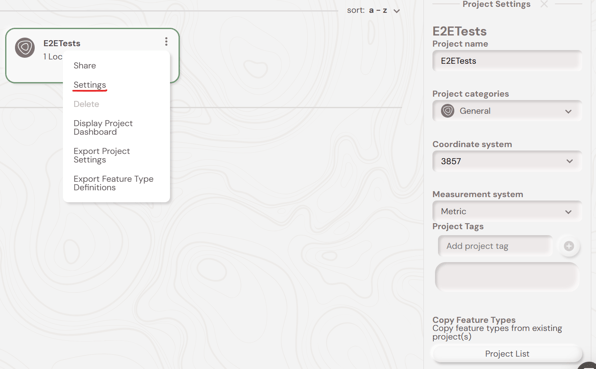
- Add a tag using the
MobileLocationDistanceSearch(distance)format. - Replace
distancewith the required search distance, for exampleMobileLocationDistanceSearch(100m). - Refresh the Home screen in Soarvo Mobile.
- Select the tagged project from the project dropdown.
Recommended setup
| Setting | Value |
|---|---|
| Project tag | MobileLocationDistanceSearch(100m) |
| Distance value | Choose the normal working radius for the project. |
| Location setup | Each location should have an anchor point. |
| GPS setup | Users must allow location access on the device. |
Mobile app behavior
When a project does not have the distance tag, Soarvo Mobile behaves as normal and the Home screen distance filter is left unchanged unless the user edits it manually.
When a project has the distance tag:
- Selecting the project automatically sets the Home screen distance filter to the tag value.
- The location list is filtered to locations in that project, with a matching status filter, and within the configured distance of the user's current position.
- The distance value is shown in the Home screen filter dialog.
- If the user had manually typed a different distance before selecting the project, the project tag value replaces it.
- If the selected project's tag changes after a refresh, the updated tag value is applied.
- When switching from a tagged project to an untagged project, the app clears the distance value that came from the previous project tag.
Tip: Users can still open the filter dialog and manually change the distance after selecting a project. That manual value remains active until another project selection or refresh reapplies a project tag.
Troubleshooting
| Issue | Check |
|---|---|
| The distance filter does not appear when selecting the project | Confirm the project tag uses MobileLocationDistanceSearch(distance) and the app has refreshed projects. |
| No locations are shown | Confirm the device has location permission, GPS is available, and the locations have valid anchor points. You should also pull to refresh on the list to update the locations and projects. |
| Expected locations are hidden | Check the active status filter, location name search, and configured distance. |
| Locations without anchor points are missing | This is expected while the distance filter is active. Add an anchor point to those locations or remove the distance tag. |
| The distance seems too small | Confirm the unit is correct. A blank unit means metres. Invalid non-blank values fall back to 20 metres. |
| A manually entered distance is replaced | This is expected when selecting a project with a MobileLocationDistanceSearch tag. |
| The old project distance stays active after switching projects | Confirm the newly selected project has refreshed metadata. If the new project has no distance tag, the app clears the previous tag-applied value. |
What's Next?