
👤 Roles — Can access: Mobile User · Can edit settings: Mobile User
Overview
Manhole and pipe snapping lets a linear feature (e.g. a pipe) snap its start and end nodes to point features (e.g. manholes), with attribute values flowing automatically into the pipe for calculations like cover level differences and falls.
ℹ️ App version: Soarvo Mobile 0.0.98+.
How It Works
When a linear feature with snapping is created, it pulls attribute values from the manholes at its start and end. If a manhole changes, the pipe's geometry and calculations update automatically.
Setting Up the Point Feature Type (e.g. Manhole)
In the web portal, edit the manhole feature type:
- Add a short-text attribute named
_recalc_snaps. - Set its value to
!MODIFIER-HIDEto hide it from the form.
This triggers recomputation of any snapped linear features when the manhole is edited.

Setting Up the Linear Feature Type (e.g. Pipe)
Add attributes using these default value tokens:
!SNAPPEDSTART(attributeName)— value from the manhole at the pipe's start.!SNAPPEDEND(attributeName)— value from the manhole at the end.
Example — cover level fall:
- Manhole feature type has
COVER_LEV(cover level in metres) attribute. - Pipe feature type has
UpstreamCoverLevel(default!SNAPPEDSTART(COVER_LEV)) andDownstreamCoverLevel(default!SNAPPEDEND(COVER_LEV)) attributes.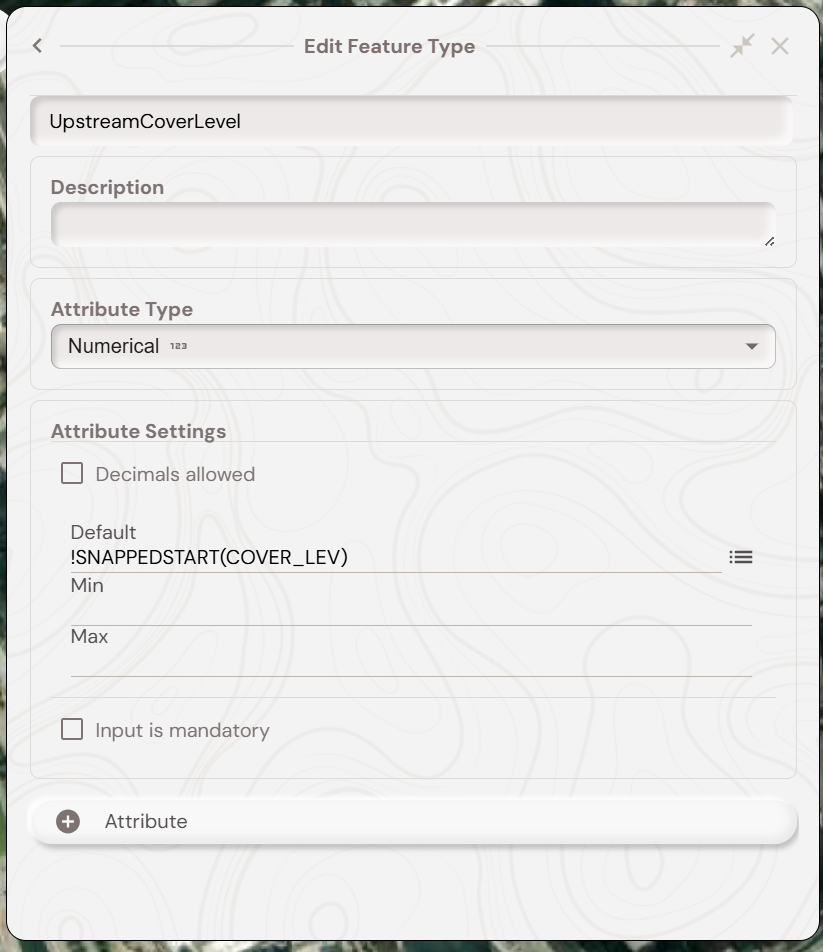
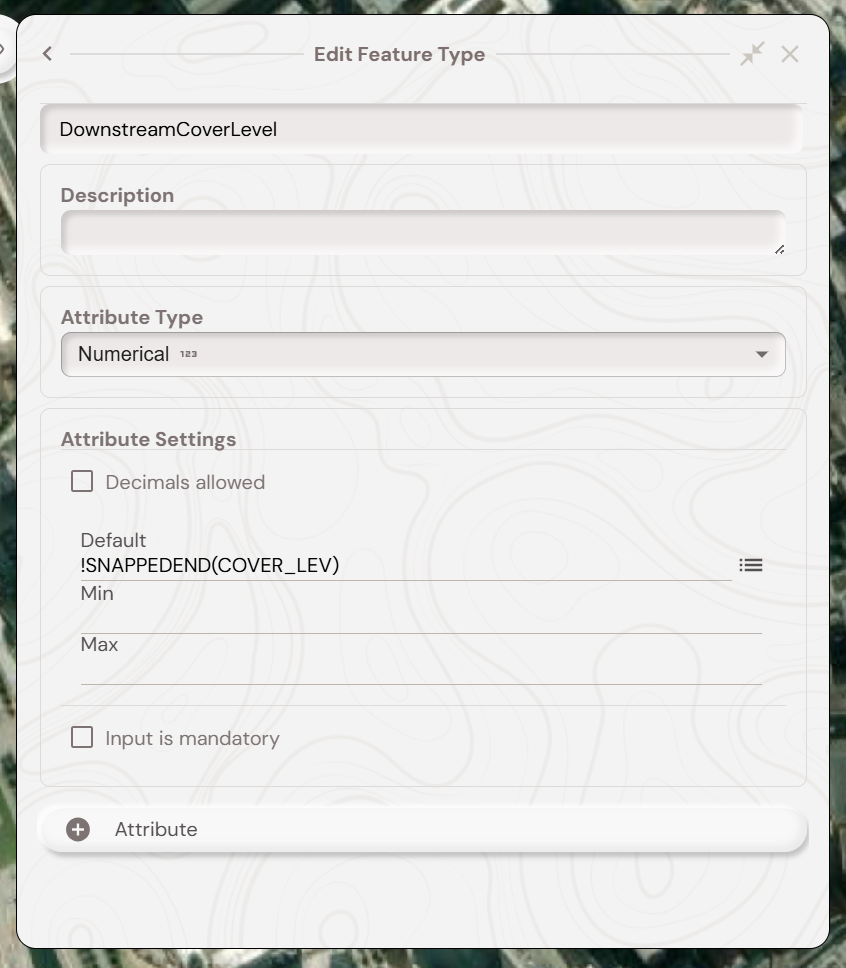
- Pipe feature type has
Diffwith default!CALC $DownstreamCoverLevel - $UpstreamCoverLevel.
💡 Tip: The
$ prefix makes the calculation reactive — Fall recalculates whenever its source values change.Captured Workflow
- Capture both manholes, entering their
COVER_LEVvalues. - Start a new pipe feature; snap its start and end nodes to the manholes.
UpstreamCoverLevel,DownstreamCoverLevel, andDiffpopulate automatically.- Editing either manhole recomputes the pipe on save.
What's Next?