
Overview
Inspection Only Mode is a project tag that makes features readonly after a configured amount of time has passed since they were captured.
Use it when users should be able to record or inspect data in the field, but should not be able to edit or delete that data after the allowed inspection window has expired.
When the tag is configured on a project, Soarvo Mobile checks each selected feature's _capturedAt value. If the feature was captured more than the configured number of hours ago, the feature can still be viewed and navigated to, but its edit and delete actions are hidden.
Three things Inspection Only Mode enables
- Time-limited editing – users can edit newly captured features during the configured inspection window.
- Readonly feature history – after the window expires, captured features remain visible but cannot be edited or deleted from the selected feature sheet.
- Project-level control – the readonly rule is enabled by adding one tag to the project.
How the app finds the Inspection Only Mode tag
Soarvo Mobile looks for a project tag in this format:
InspectionOnlyMode(hours)The tag name is matched case-insensitively, so InspectionOnlyMode, inspectiononlymode, and INSPECTIONONLYMODE are equivalent.
The value inside the brackets is the number of hours a feature remains editable after it was captured.
| Tag | Meaning |
|---|---|
InspectionOnlyMode(8) |
Features become readonly 8 hours after capture. |
InspectionOnlyMode(24) |
Features become readonly 24 hours after capture. |
InspectionOnlyMode(0.5) |
Features become readonly 30 minutes after capture. |
InspectionOnlyMode(0.1) |
Features become readonly after 6 minutes. |
Tip: Decimal values are supported. The value is always interpreted as hours.
Note: If the value is missing, blank, or cannot be parsed as a number, Inspection Only Mode is not enabled.
Configure the project tag
- Open the project in the Soarvo web portal.
- Edit the project's tags via the projects settings. Accessed by clicking the project cards context menu (the three dots icon). Like shown in the below screenshot:
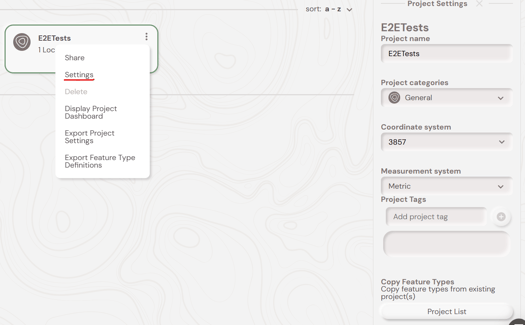
- Add a tag using the
InspectionOnlyMode(hours)format. You type the tag value into the 'Add project tag' box and then click the right plus button. - Replace
hourswith the required edit window, for exampleInspectionOnlyMode(8)for 8 hours. - Refresh the project data in Soarvo Mobile by doing a 'pull down to refresh' action on the homescreens location list.
Recommended setup
| Setting | Value |
|---|---|
| Project tag | InspectionOnlyMode(8) |
| Time value | Number of hours after capture that editing should remain available. |
| Feature metadata | Features must have a _capturedAt attribute. |
| User workflow | Users should complete any required edits before the inspection window expires. |
Mobile app behavior
When a project does not have the Inspection Only Mode tag, Soarvo Mobile behaves as normal.
Inside the time window
- The feature can be viewed.
- The Navigate action remains available.
- The Edit and Delete actions remain available, subject to the usual access rules.
Outside the time window
- The feature can still be viewed.
- The Navigate action remains available.
- The Edit action is hidden.
- The Delete action is hidden.
- Child feature or inspection actions that require edit access are hidden.
Note: Inspection Only Mode does not hide the feature from the map or feature list. It only changes whether the selected feature can be edited or deleted from the mobile app.
What counts as expired
A feature is treated as expired when all of these are true:
- The current project has an
InspectionOnlyMode(hours)tag. - The selected feature has a
_capturedAtattribute. - The
_capturedAtvalue can be parsed as a date and time. - The current device time is after
_capturedAtplus the configured number of hours.
Example: if the project tag is InspectionOnlyMode(8) and a feature was captured at 09:00, the feature becomes readonly after 17:00 according to the device's current time.
The _capturedAt attribute
Soarvo Mobile automatically adds _capturedAt when a feature is created in the mobile app. The app writes it in this format:
dd MMM yyyy HH:mm:ssFor example: 15 Sep 2026 14:30:00
When checking Inspection Only Mode, the app accepts these captured-at formats:
| Format | Example |
|---|---|
dd MMM yyyy HH:mm:ss |
15 Sep 2026 14:30:00 |
dd-MMM-yyyy HH:mm:ss |
15-Sep-2026 14:30:00 |
| ISO date/time | 2026-09-15T14:30:00 |
The _capturedAt value is set when the feature is created. Editing an existing feature does not create a new _capturedAt value.
Note: If a feature does not have _capturedAt, or the value cannot be parsed, Inspection Only Mode does not force that feature to be readonly.
Troubleshooting
| Issue | Check |
|---|---|
| Inspection Only Mode does not enable | Confirm the project tag uses InspectionOnlyMode(hours) and the app has refreshed project data. |
| Features never become readonly | Confirm the tag value is a valid number of hours and each feature has a parseable _capturedAt value. |
| A newly created feature becomes readonly too quickly | Confirm the value is in hours. For example, 0.5 means 30 minutes, not 0.5 days. |
| Edit and Delete are hidden but Navigate remains visible | This is expected after the inspection window expires. The feature remains viewable but readonly. |
| Old imported features can still be edited | Confirm those features have _capturedAt. Features without _capturedAt are not forced readonly by Inspection Only Mode. |
| Behavior seems inconsistent between devices | Check the device date and time settings, because the readonly check uses the device's current time. |
What's Next?