
Generic Bluetooth GNSS Receiver Pairing
⚠️ Availability: Android only, Soarvo Mobile 0.0.106+. iOS not yet support.
Overview
Soarvo Mobile allows you to connect any GPS receiver that’s supported by Android that outputs NMEA-0183 sentences. You can optionally provide RTCM corrections via NTRIP if the receiver supports it too. While we haven’t tested every receiver, below is a list of recievers we have tested that should work:
- u-blox F9 HPG 1.32
Not all receivers that output NMEA sentences will do so out of the box, you need to configure them. The device’s user manual should have instructions on how to configure it to output NMEA sentences. You will also need to consult the receivers user manual for how to pair the receiver, via Bluetooth, to the Android device.
Once the receiver is paired to the Android device you can follow along to the below video. The video also shows setting up RTCM corrections via NTRIP, this is optional – if the ‘NTRIP URL’ configuration field is empty, no RTCM corrections are used.
If you want to use RTCM corrections via NTRIP, ensure that the format of the ‘NTRIP URL’ configuration field is like ‘{PROTOCOL}://{ADDRESS}:{PORT}. For example, http://155.42.13.120:2101. If your corrections provider does not provide you with a protocol, try http.
nordalp X6 PRO pairing setup
⚠️ Availability: Android only, Soarvo Mobile 0.0.166+. iOS not yet supported.
Overview
The nordalp X6 PRO is an RTK-enabled GNSS rover that integrates with Soarvo Mobile for survey-grade positioning.
Step 1 — Set up the nordalp RTK app
- Open the nordalp RTK app on your Android device.
- Connect to the provider to access the Configuration menu.
- Enable GST NMEA messages.
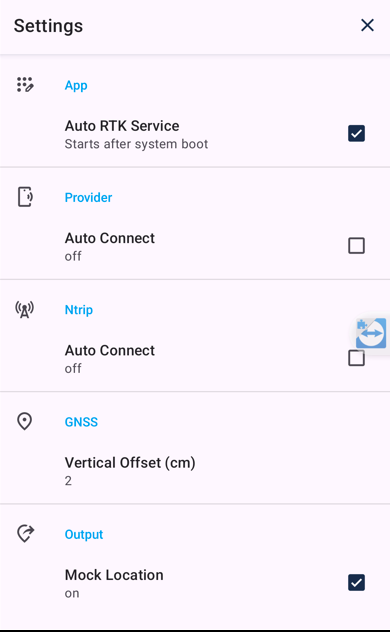
- In app settings, set Auto Connect to off for both the provider and NTRIP.
- Tap Disconnect if still connected.
- Exit the nordalp RTK app. Optionally Force Stop it (long-press icon → App Info → Force Stop).
Step 2 — Configure Soarvo Mobile
- Open Soarvo Mobile and sign in.
- Open any location.
- Go to GPS and Device Manager.
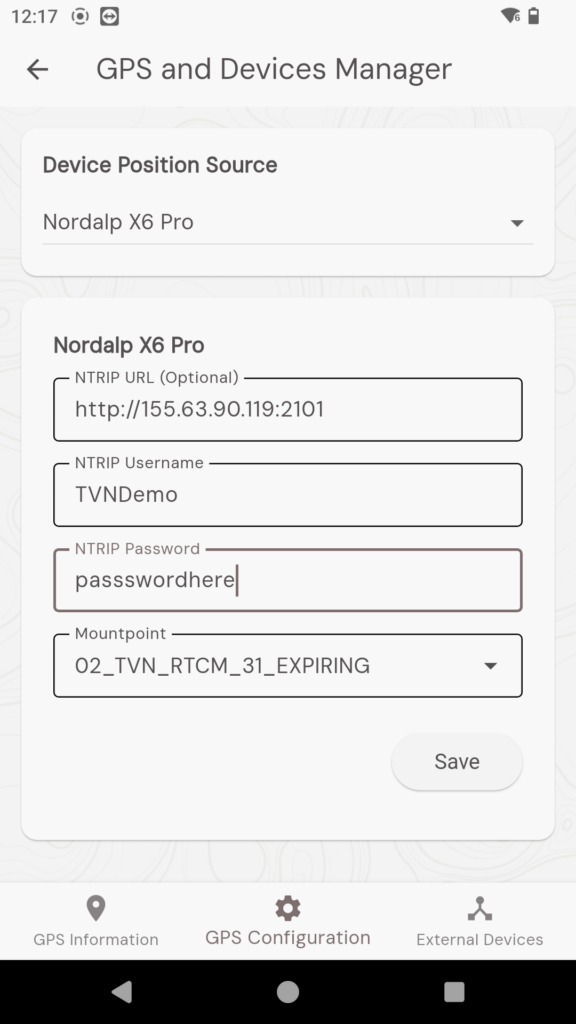
- Under Position Source, select Nordalp X6 Pro.
Step 3 — Add NTRIP corrections (optional)
In GPS and Device Manager, enter:
- NTRIP URL — format:
{PROTOCOL}://{SERVER_ADDRESS}:{PORT}(e.g.http://ntrip.example.com:2101) - Mountpoint — your provider's stream
- Username and Password — from your NTRIP provider
The X6 PRO then receives corrections and delivers RTK-grade positions to Soarvo Mobile.
Verifying RTK Fix
In the GPS panel, the position source should read Nordalp X6 Pro and accuracy drops to centimetre-level once RTK Fixed is achieved.
What's Next?