
See activity, inspections and issues across the project, and drill into any record.
Before you start
- A project with inspection data
Steps
Step 1: Open the dashboard
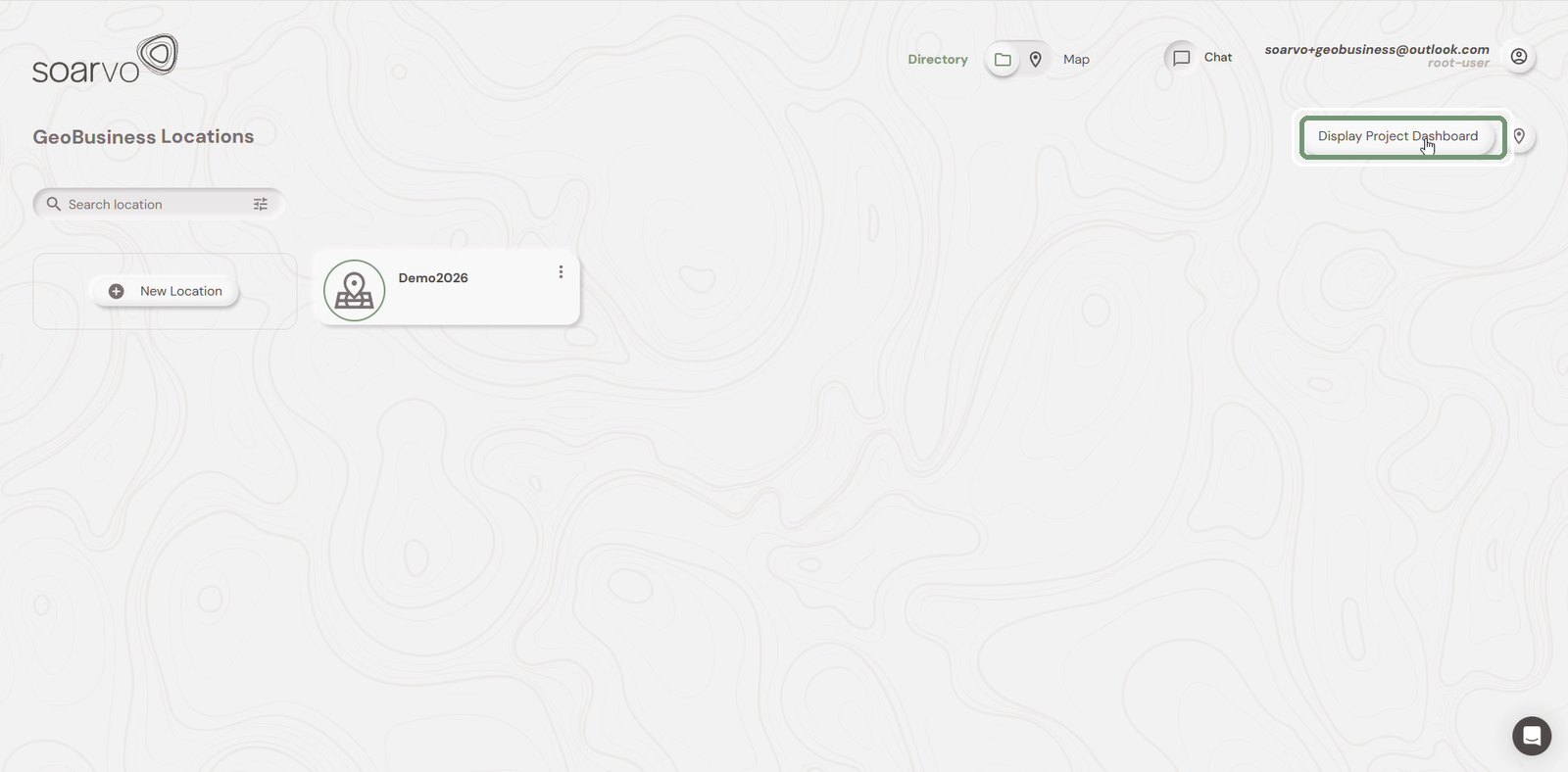
Open your project and click Display Project Dashboard.
Step 2: Check overall activity
The Activity tab shows today's count, the total count and user activity over time.
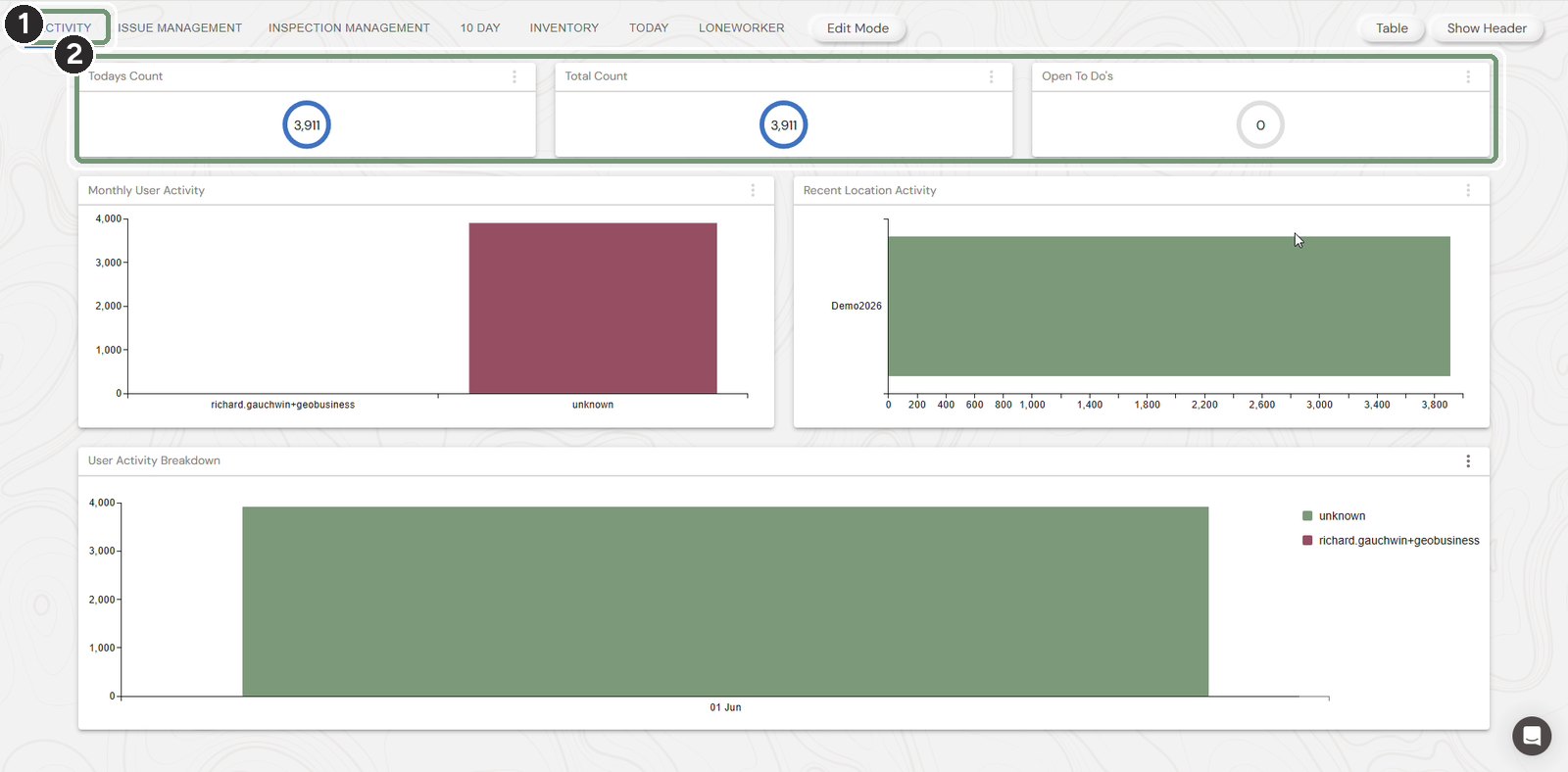
The numbered boxes show the order to work in.
Step 3: Follow the inspections
Click Inspection Management to see what is assigned, recently inspected, overdue and coming up.
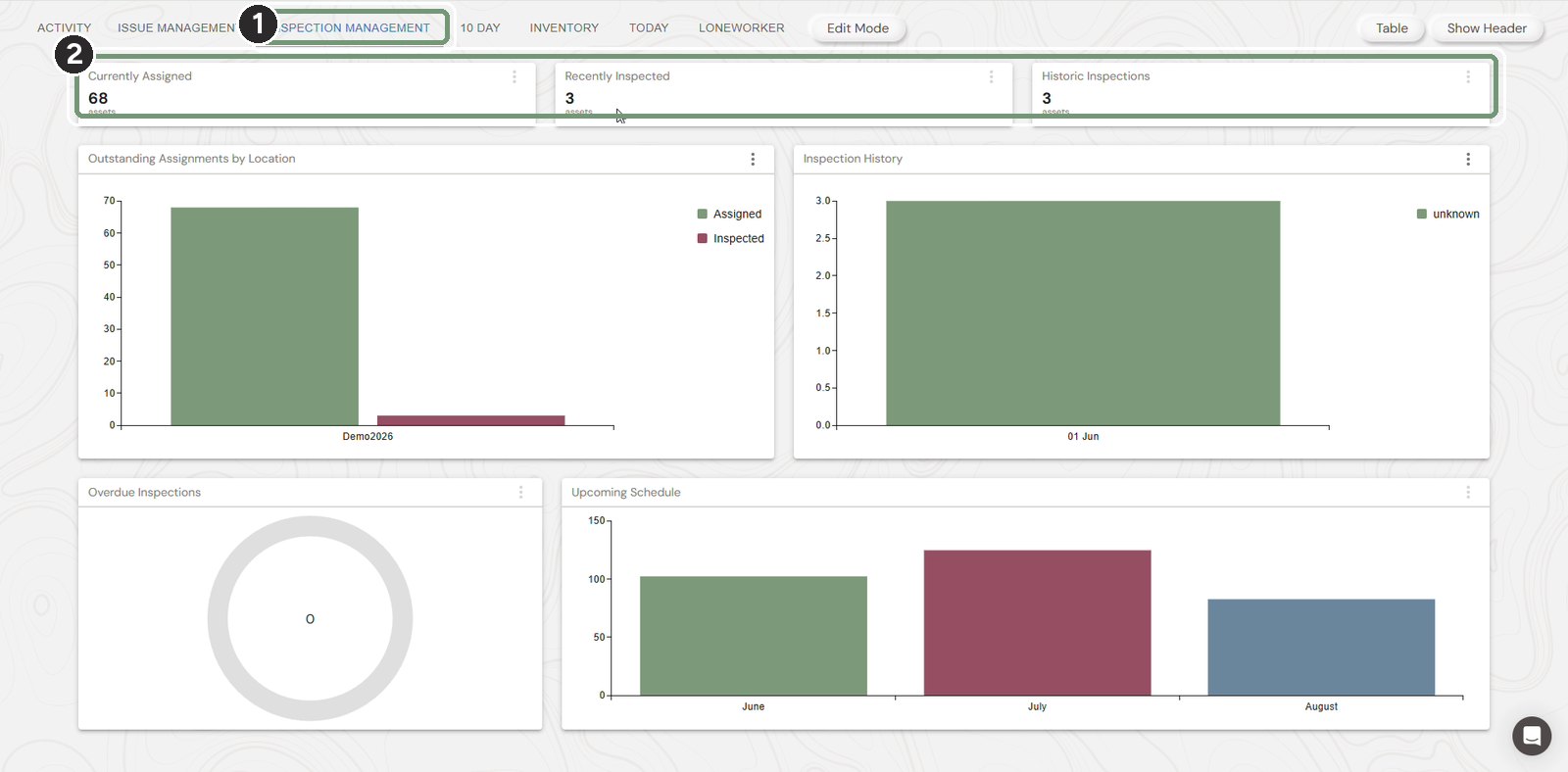
The numbered boxes show the order to work in.
Step 4: See the records in a table
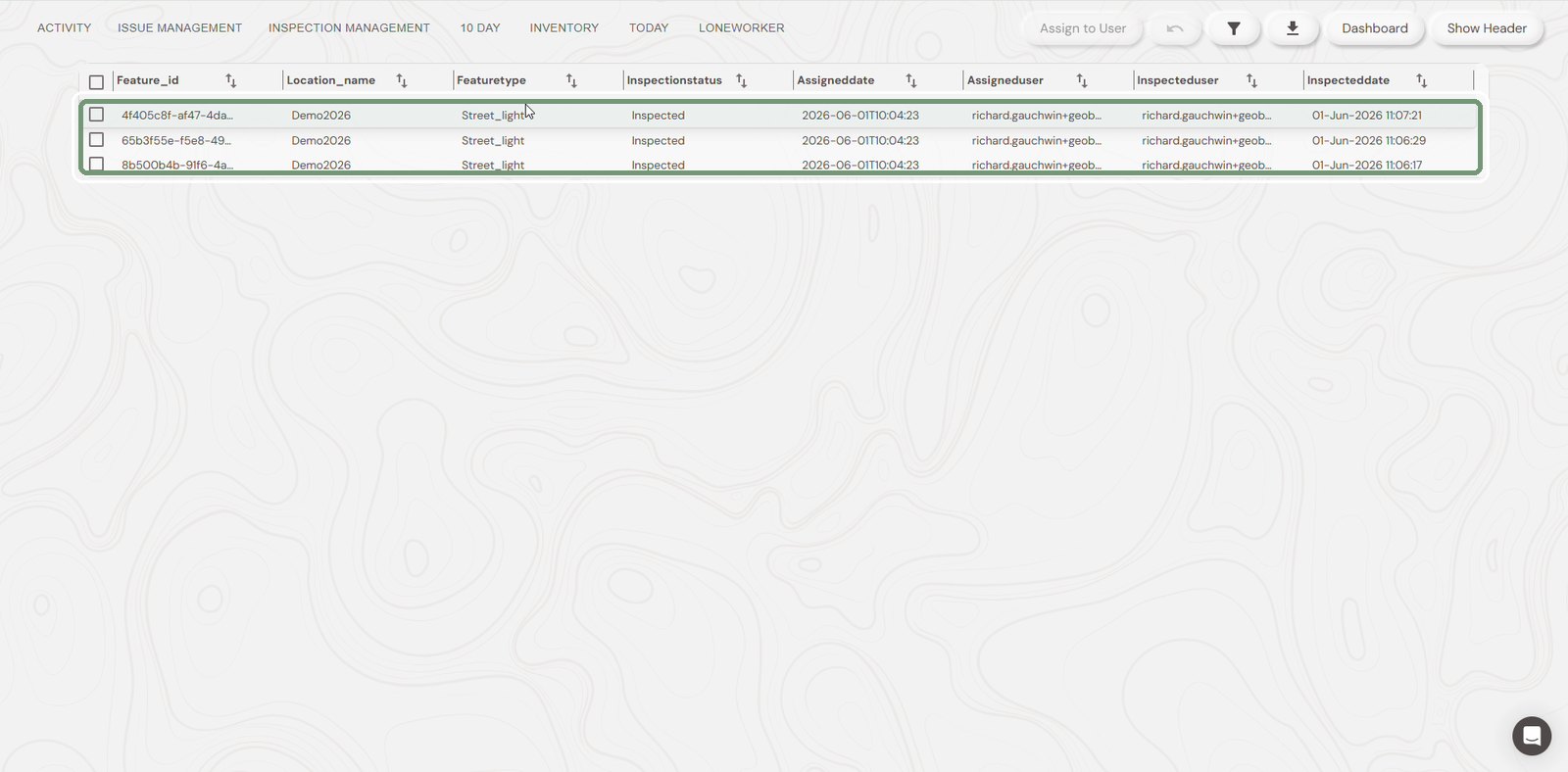
Click Table (top right) to list every record behind the charts.
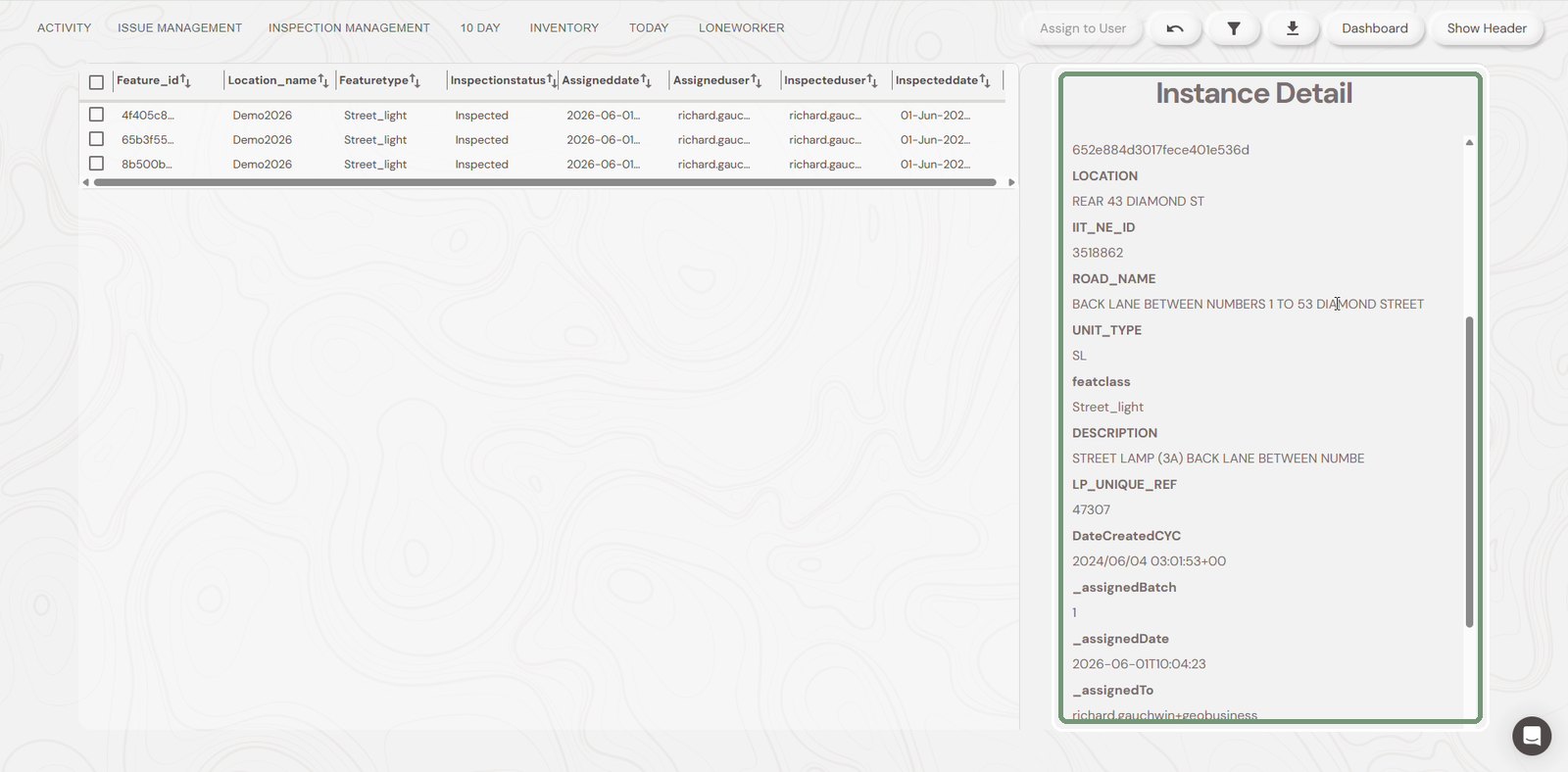
Step 5: Open a record
Click a row to see its full details in the Instance Detail panel.
Step 6: Review issues
Click Issue Management to see reported, assigned, on hold, resolved and closed issues, with KPIs and charts.
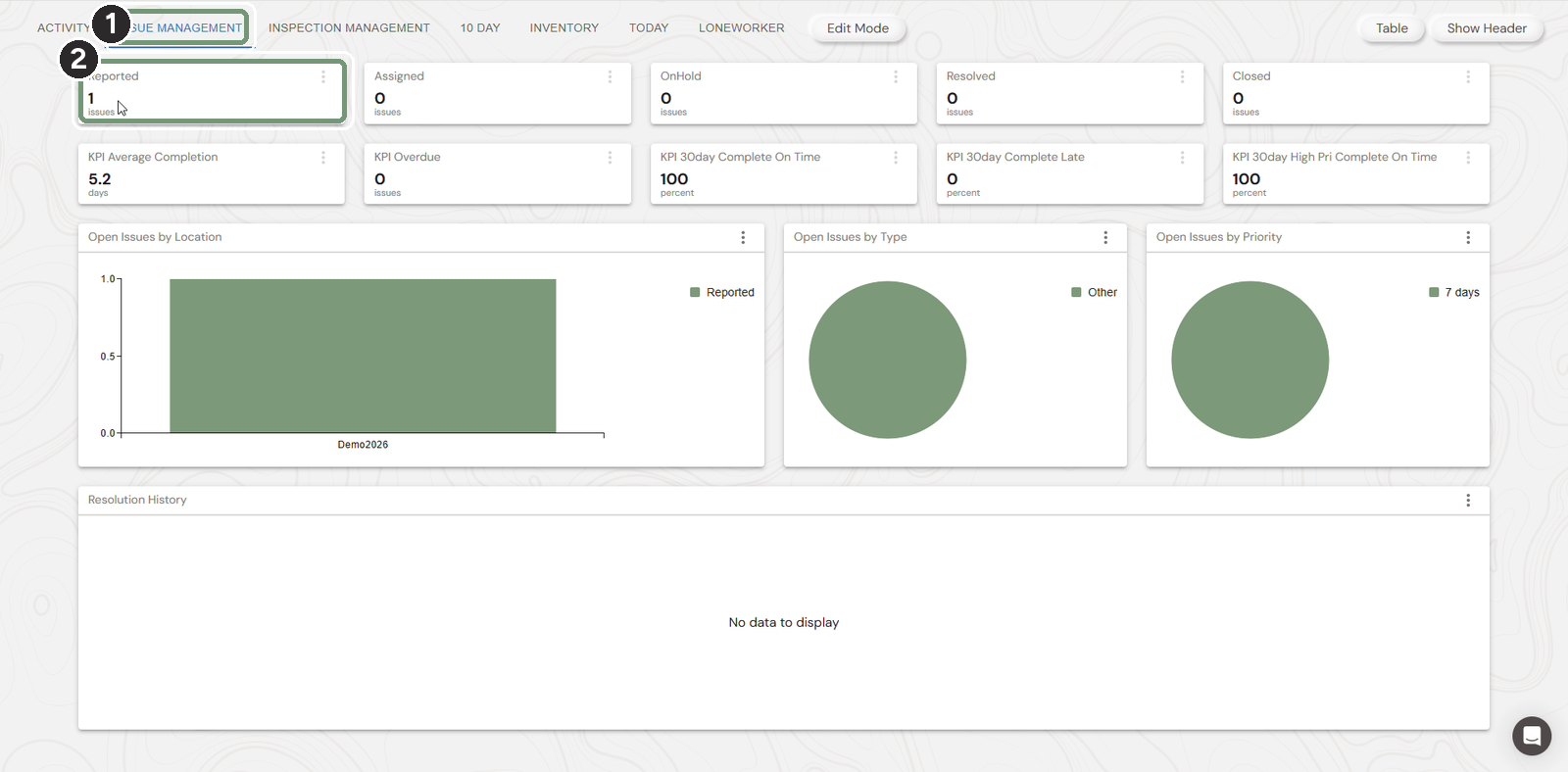
The numbered boxes show the order to work in.
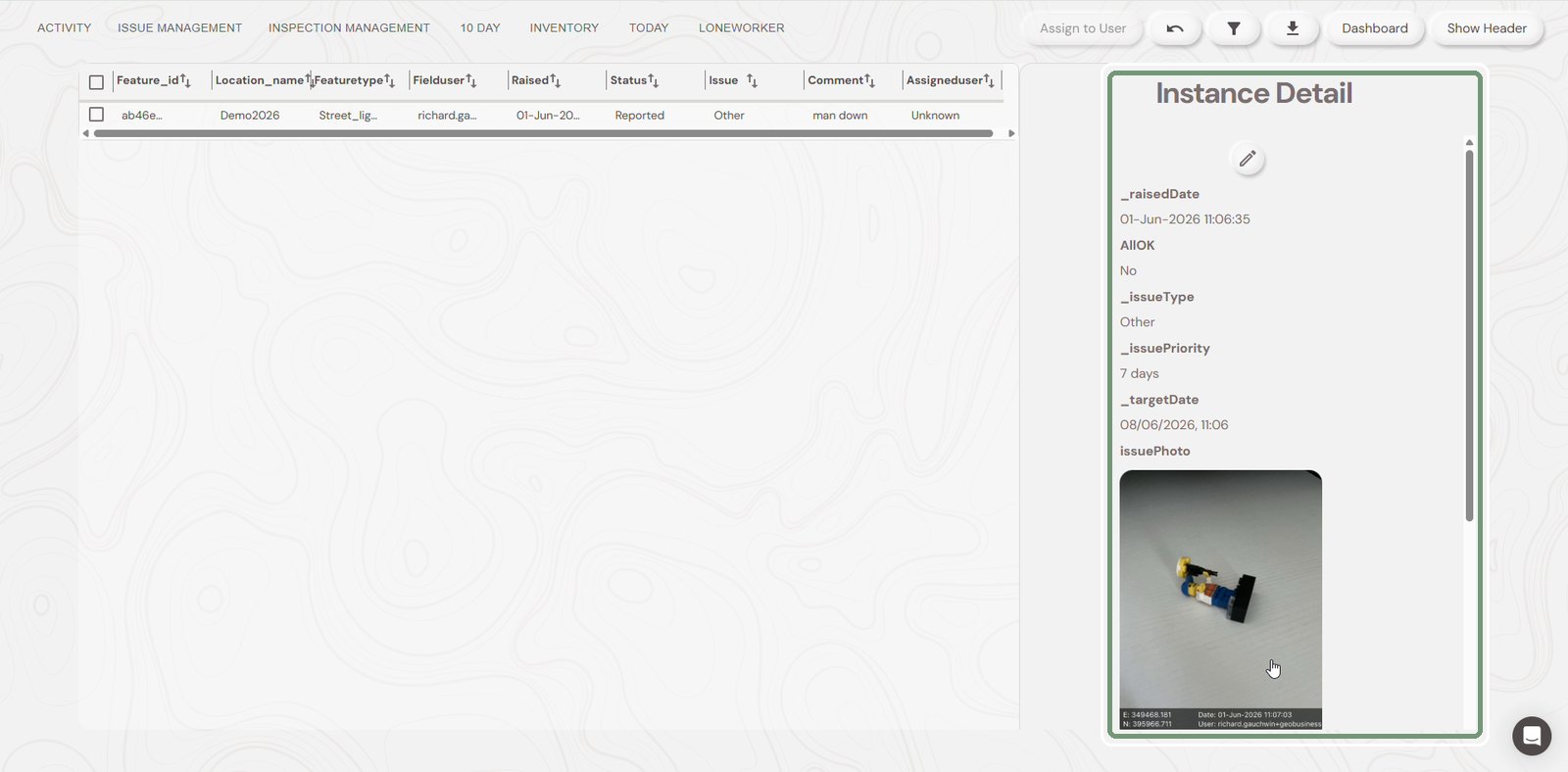
Step 7: Look at the evidence
Open an issue in the table to see the field user's answers and photo.
Step 8: Send an issue back to the field
Tick the issue, click Assign to User and choose who should fix it. It appears on their mobile app.
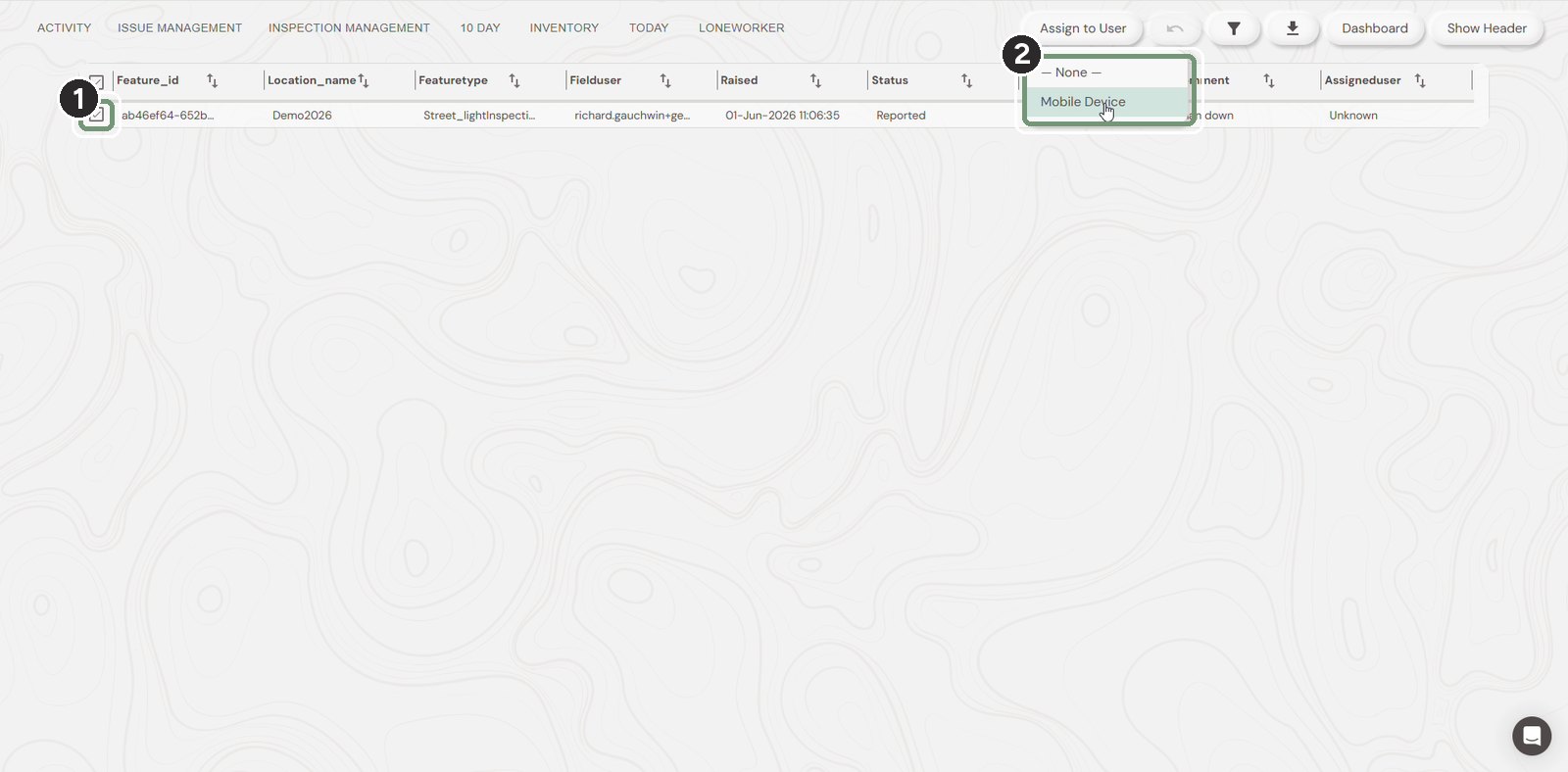
The numbered boxes show the order to work in.
Need help?
Contact the Soarvo support team, or book a demo at soarvo.com.