
Give each category in your data its own colour and symbol, so the map is easy to read at a glance. This example colours street lights by ward.
Before you start
- A project with data already loaded
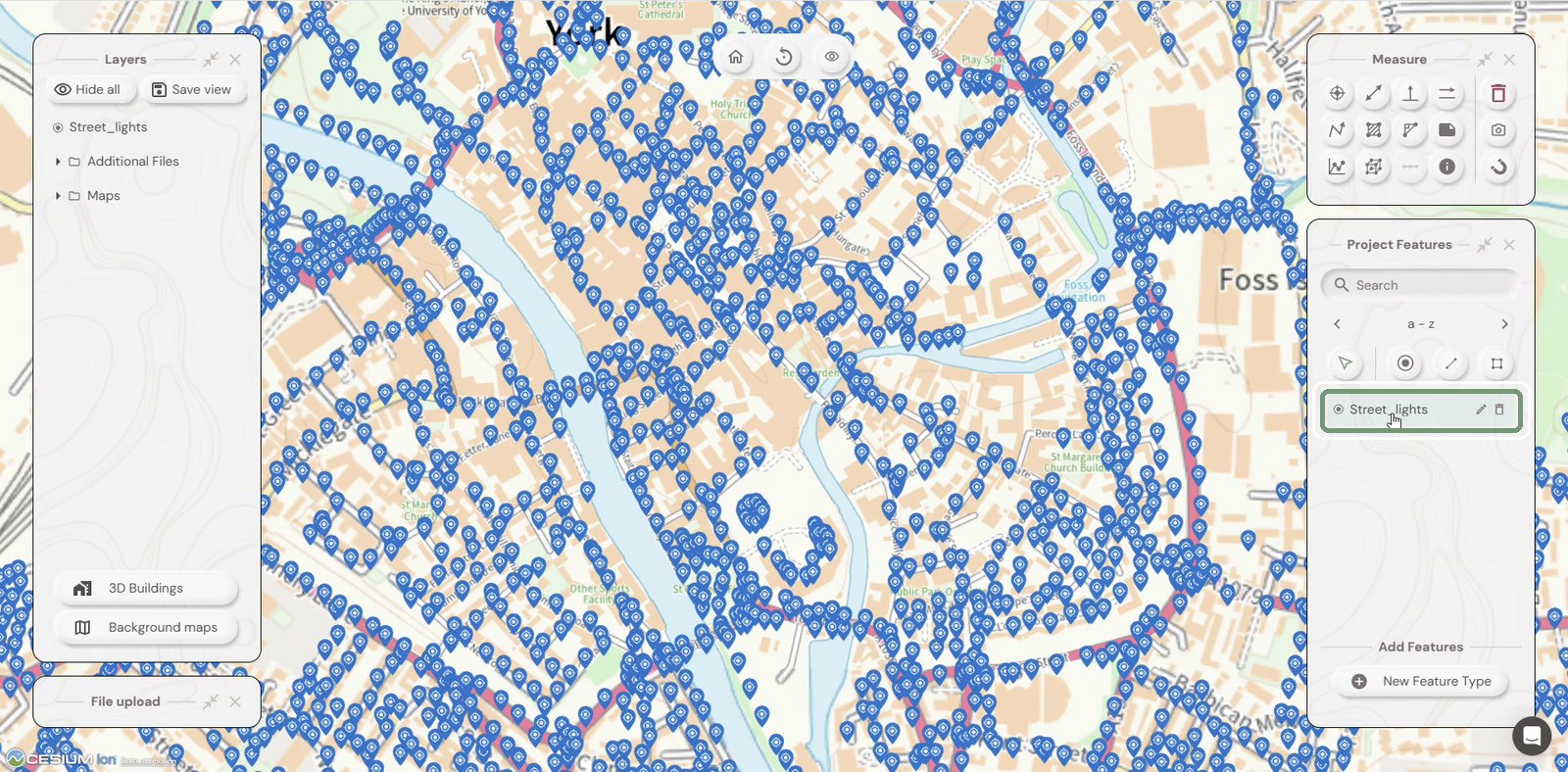
Step 1: Edit the feature type
In Project Features, hover over your layer (here Street_lights) and click the pencil icon.
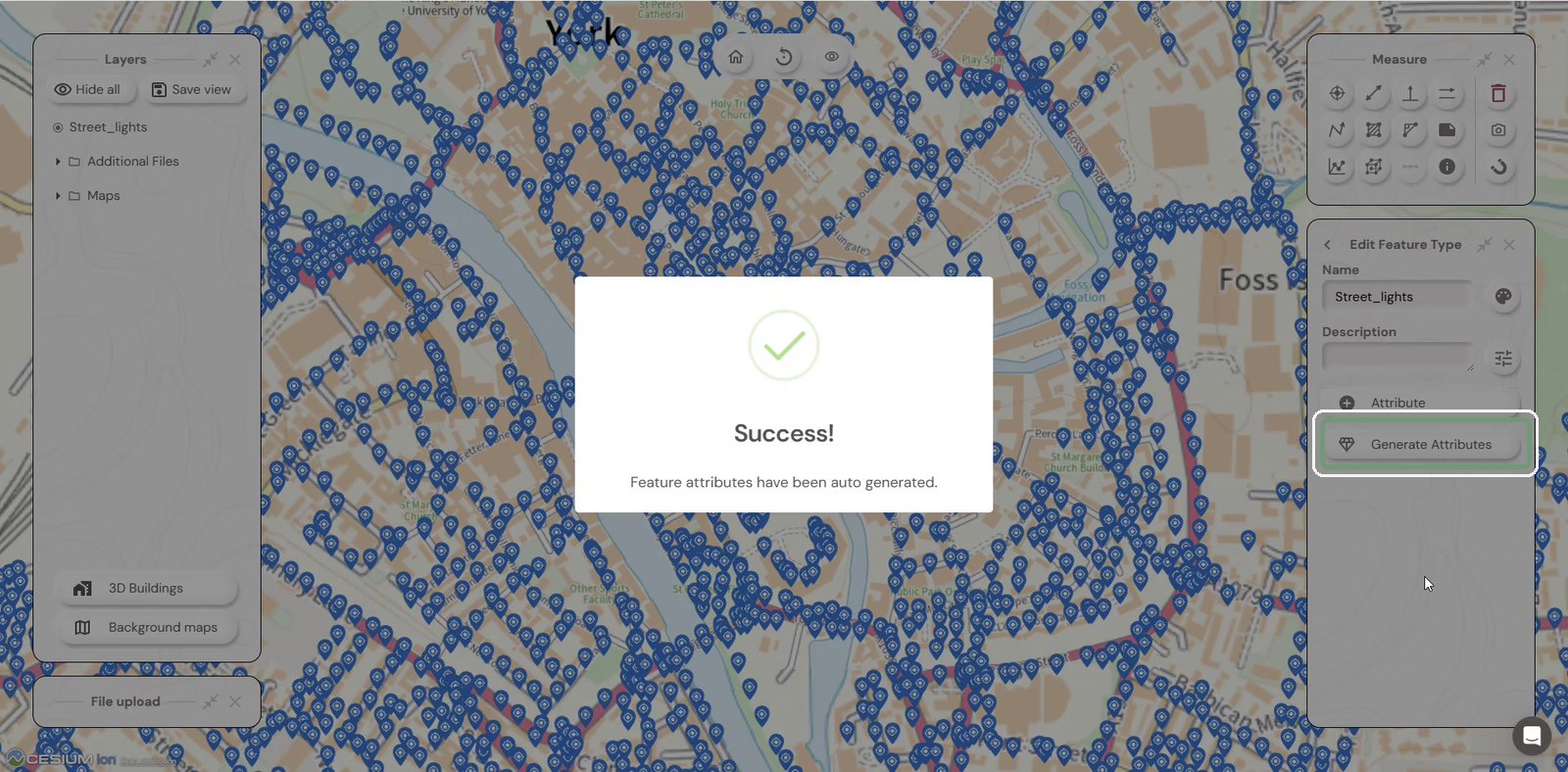
Step 2: Generate the attributes
Click Generate Attributes. Soarvo reads the columns in your data and creates an attribute for each one.
Step 3: Open Feature Appearance
Your attributes are now listed. Click the palette icon next to the Name to open Feature Appearance.
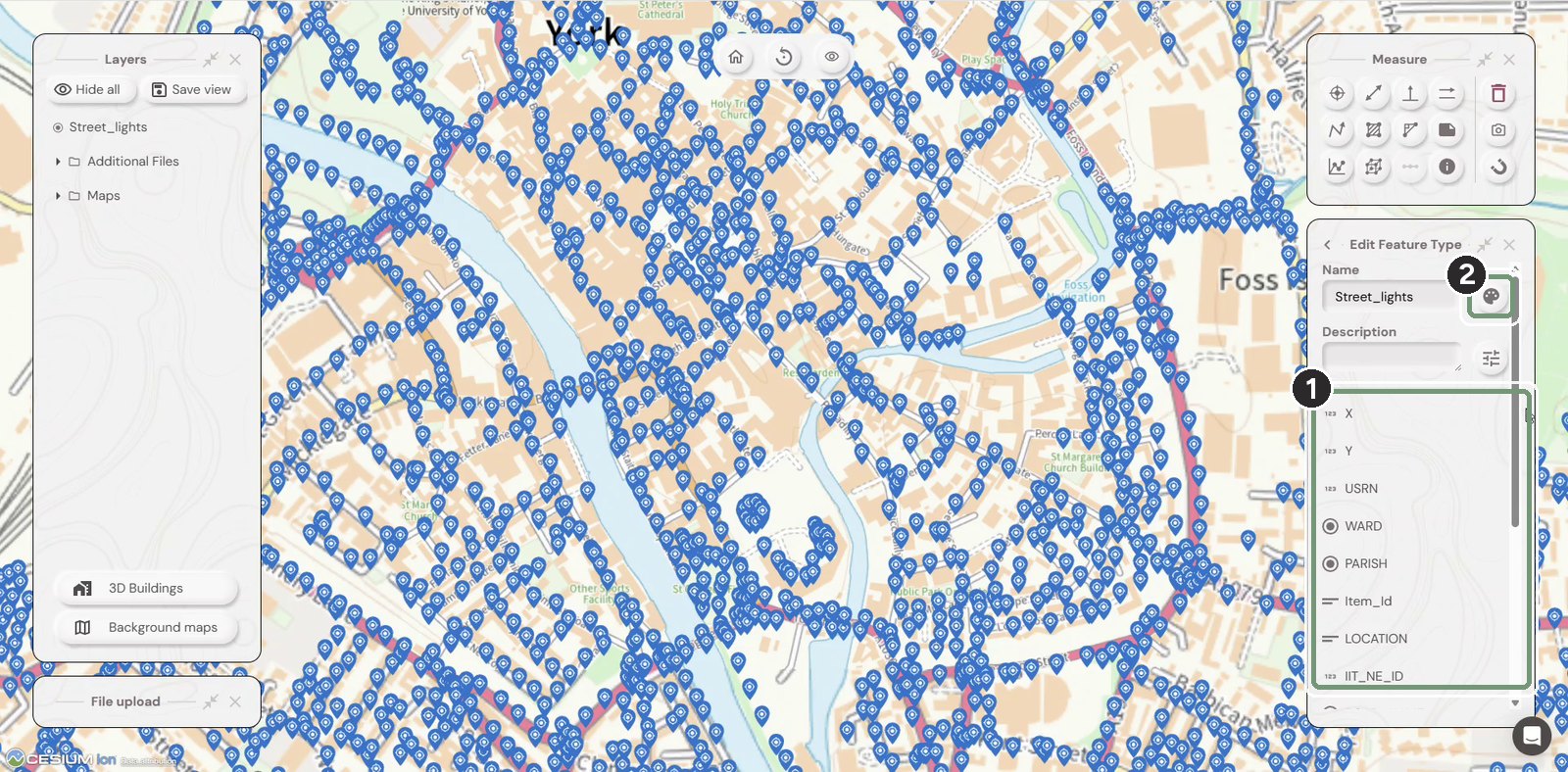
The numbered boxes show the order to work in.
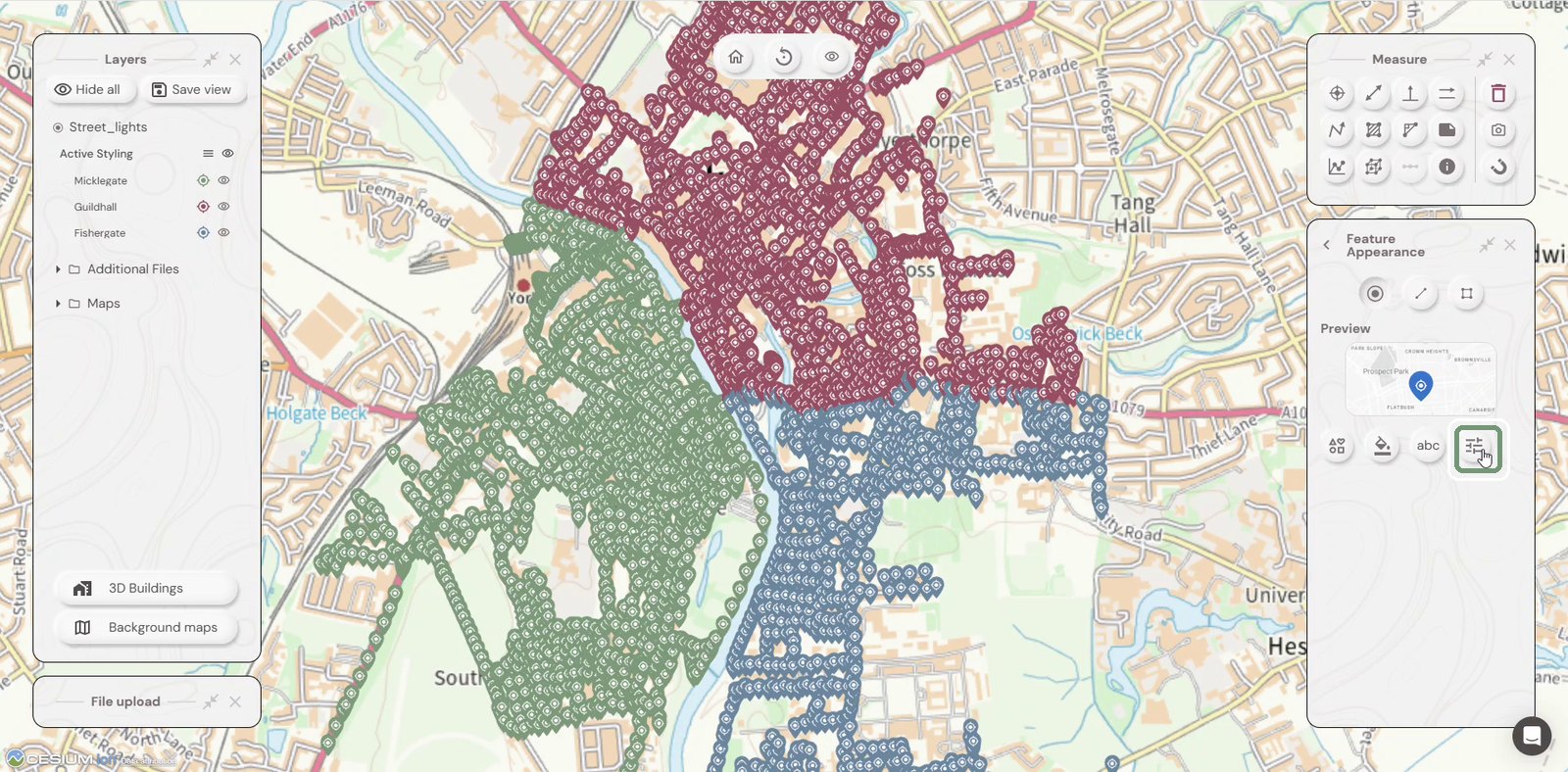
Step 4: Open Advanced Styling
Click the Advanced Styling icon (the sliders).
Step 5: Choose the field to style by
In Select Field, pick the attribute you want to colour by. Here we use WARD.
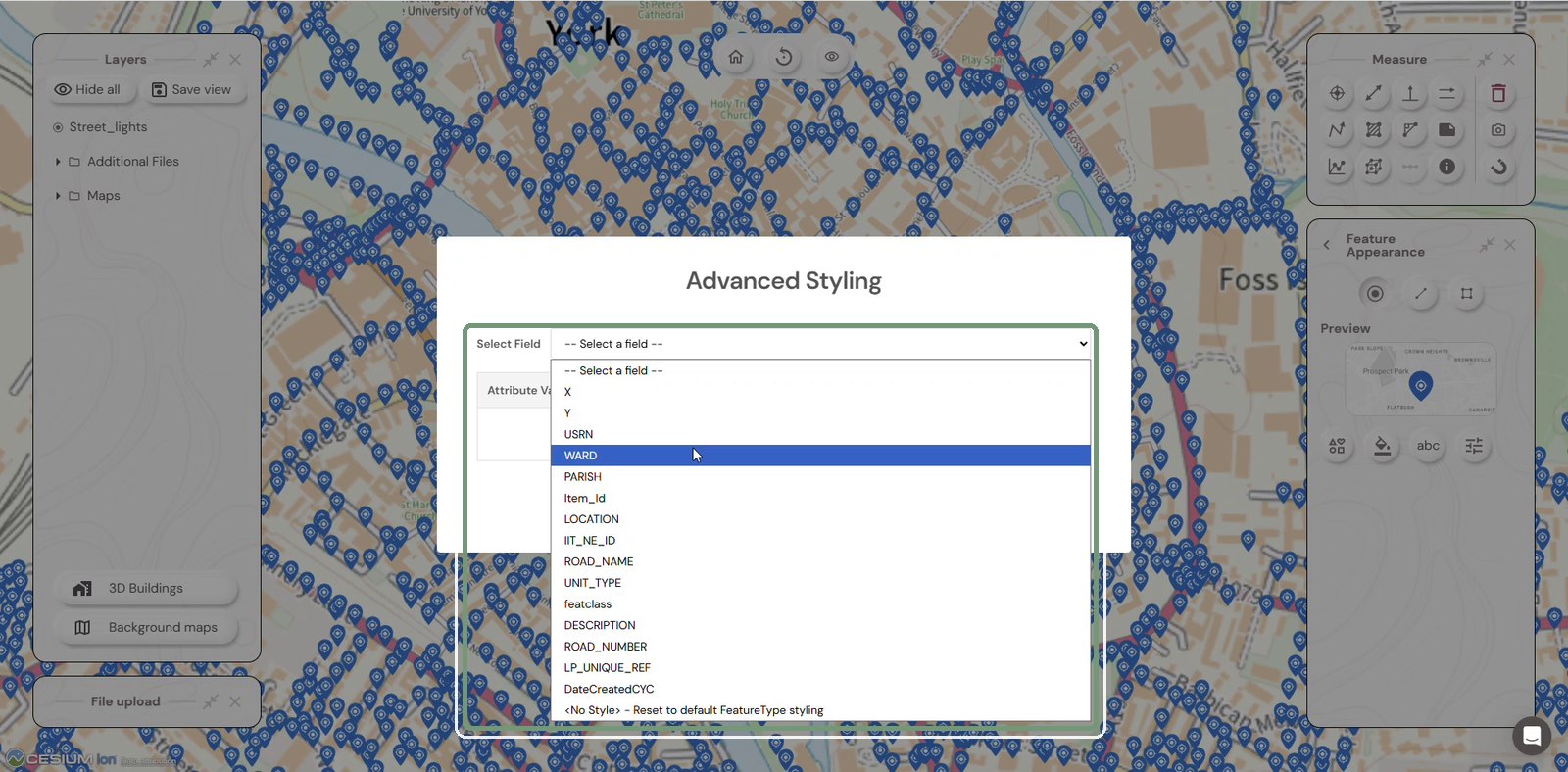
Step 6: Pick colours and symbols
Each value gets its own row. Set a Color and Symbol for each one, then click Save.
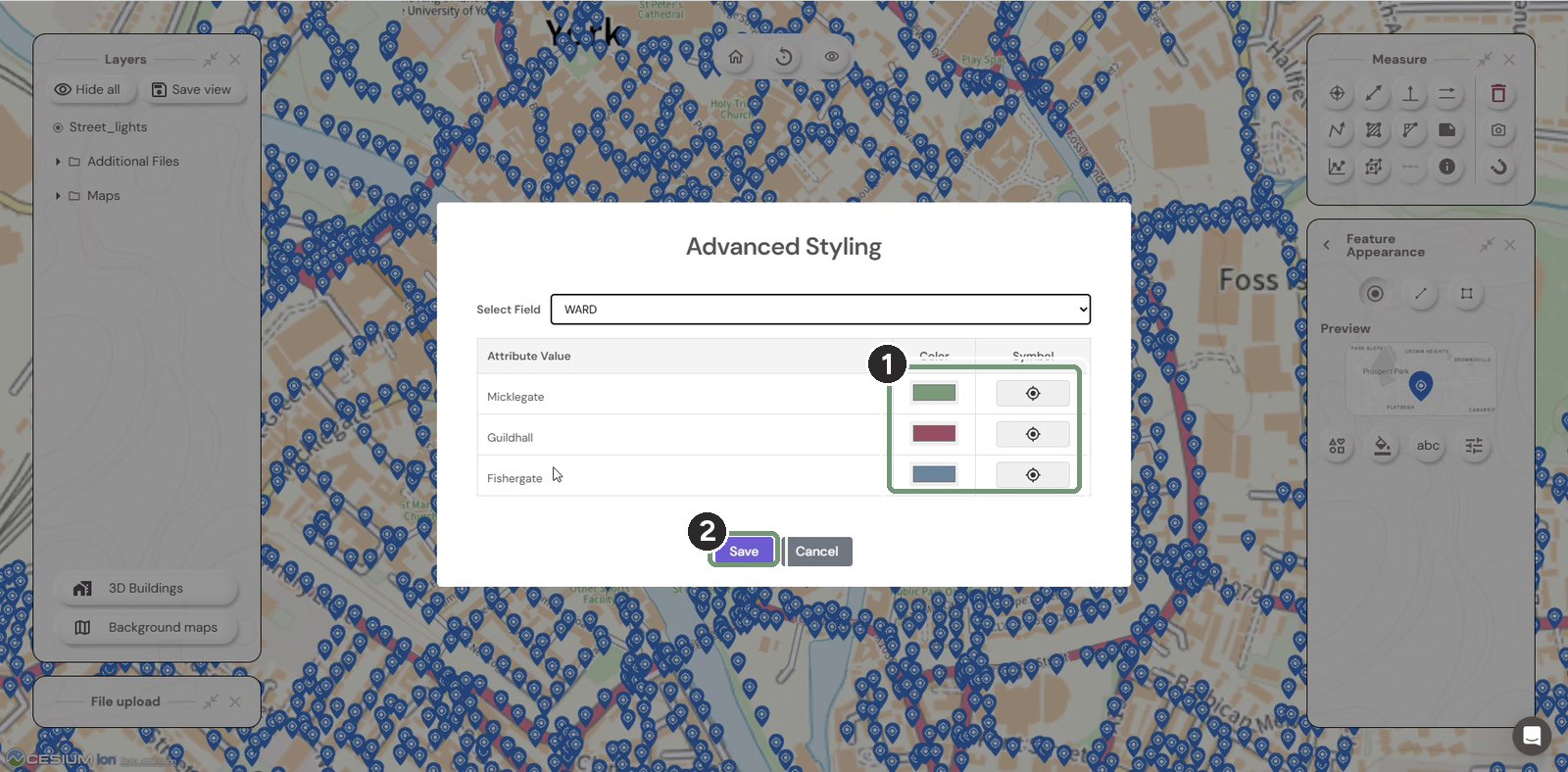
The numbered boxes show the order to work in.
Step 7: Check the legend
The map updates straight away. A legend appears under Active Styling in the Layers panel.
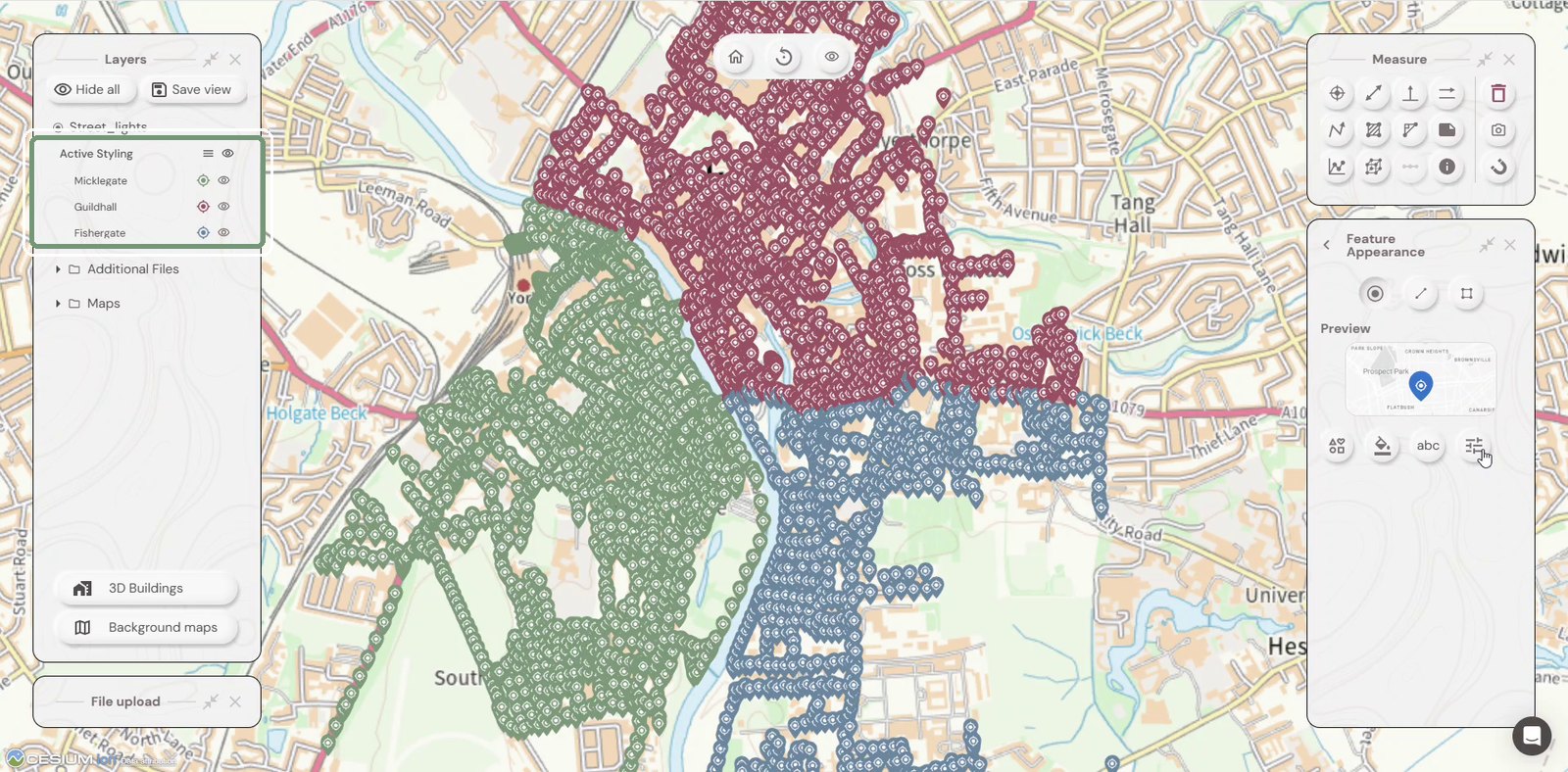
Step 8: Show or hide categories
Click the eye icon next to a value to hide or show just that category.
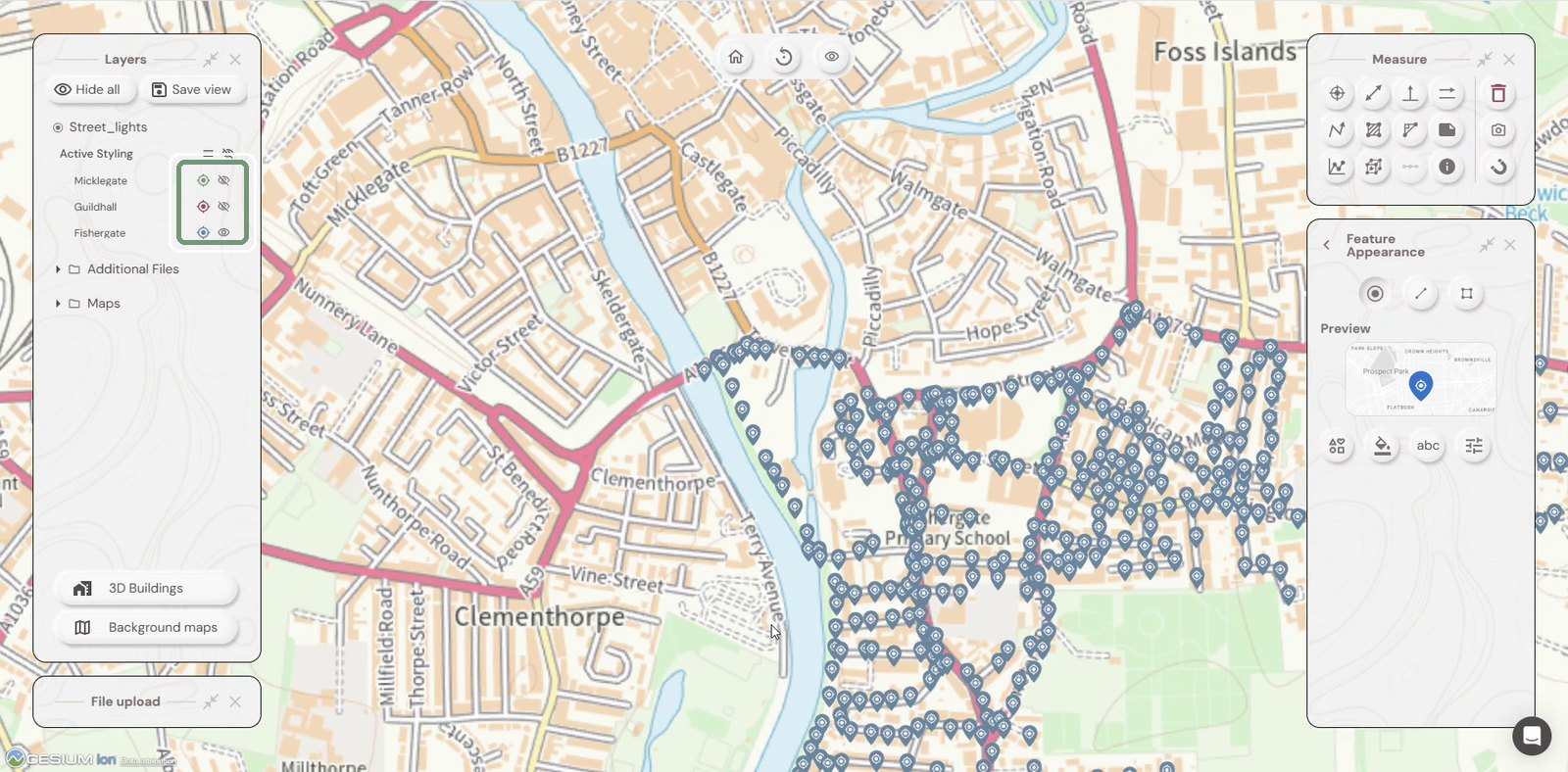
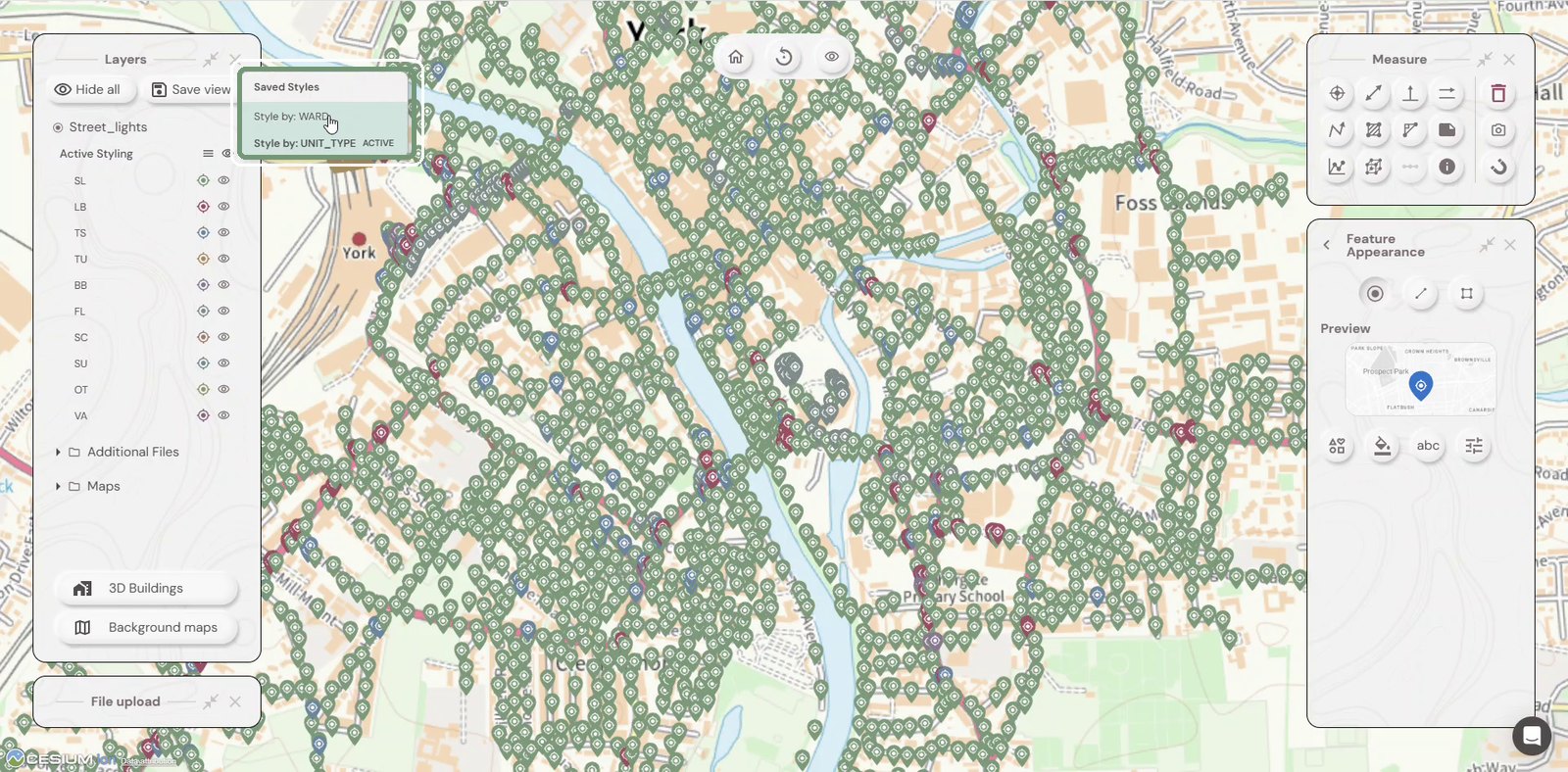
Step 9: Switch between saved styles
Every style you save is kept. Click the menu icon next to Active Styling to switch between them, for example Style by: WARD or Style by: UNIT_TYPE.
Need help?
Contact the Soarvo support team, or book a demo at soarvo.com.