
Add an inspection form to your assets, select the assets along a route, and assign them to a field user's mobile device.
Before you start
- A project with asset data loaded
- A user with the mobile-user role
Step 1: Add an inspection workflow
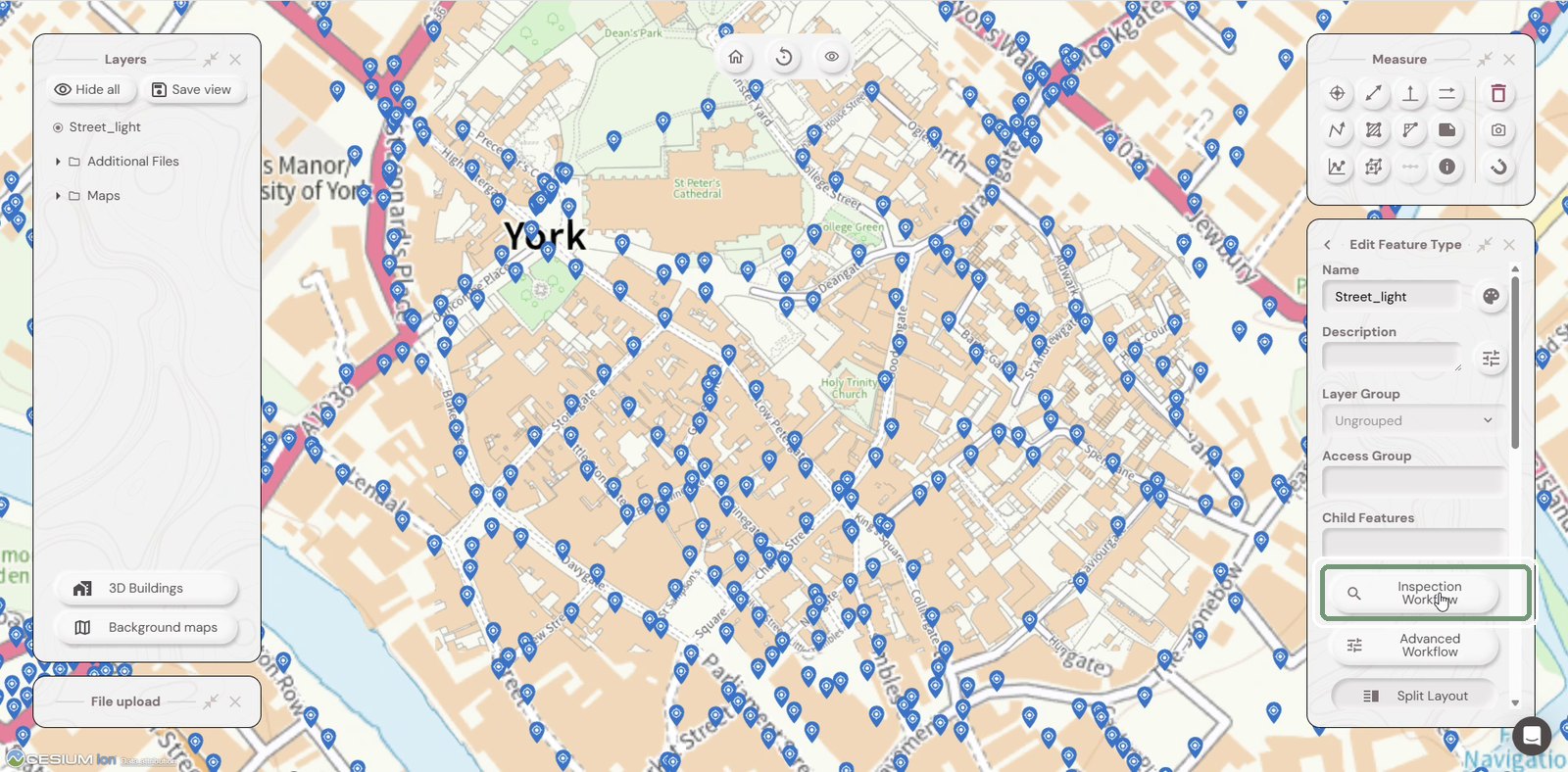
Edit your feature type (here Street_light) and click Inspection Workflow. Soarvo creates a matching inspection feature type, here called Street_lightInspection.
Step 2: Check the inspection form
The new form comes with ready-made fields, such as AllOK, issue type, priority, photo, comment and status. Click a field to change it, for example edit the list of issues in the _issuetype field to make it relevant to your data.
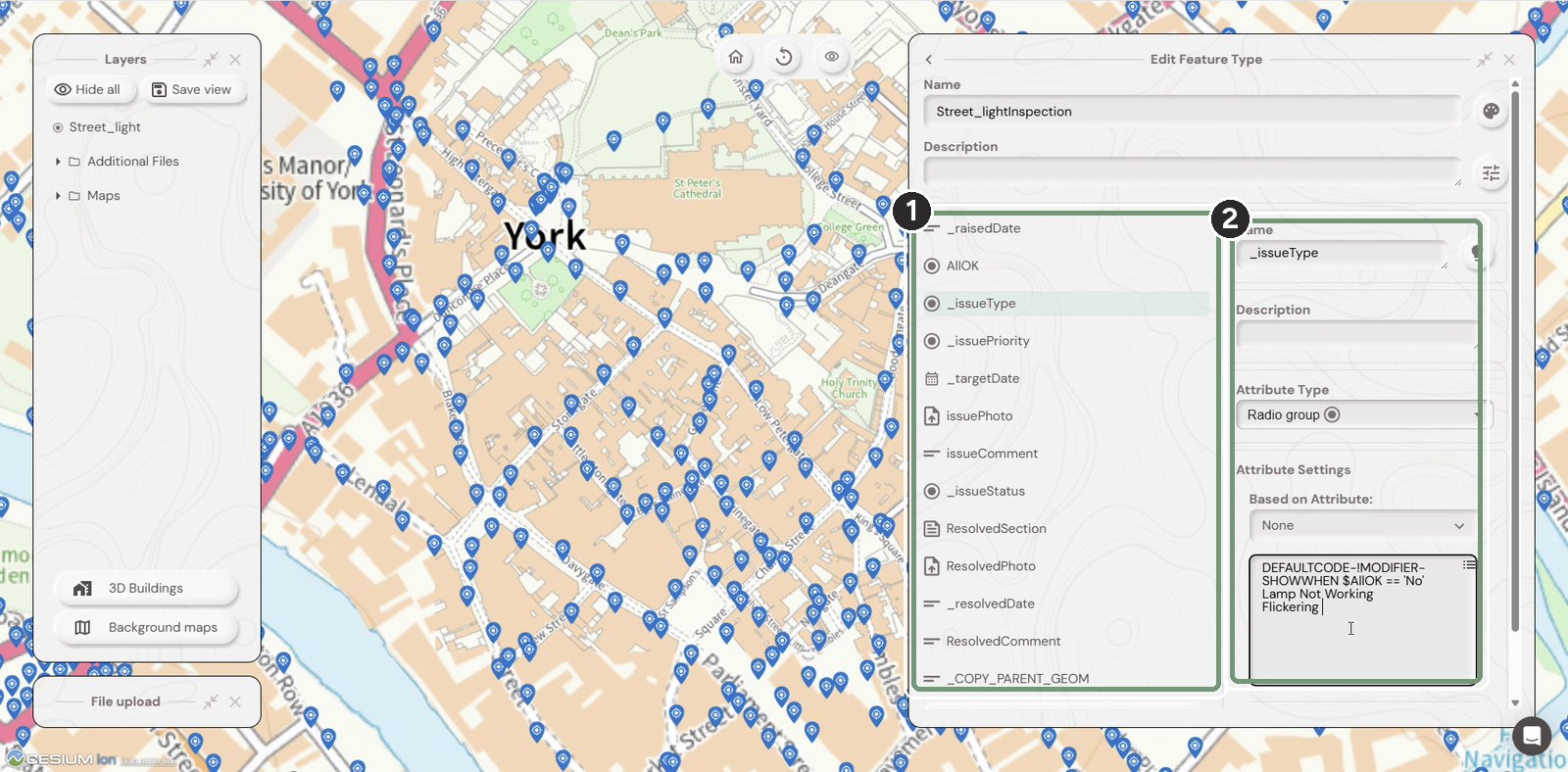
The numbered boxes show the order to work in.
Step 3: Create a route layer
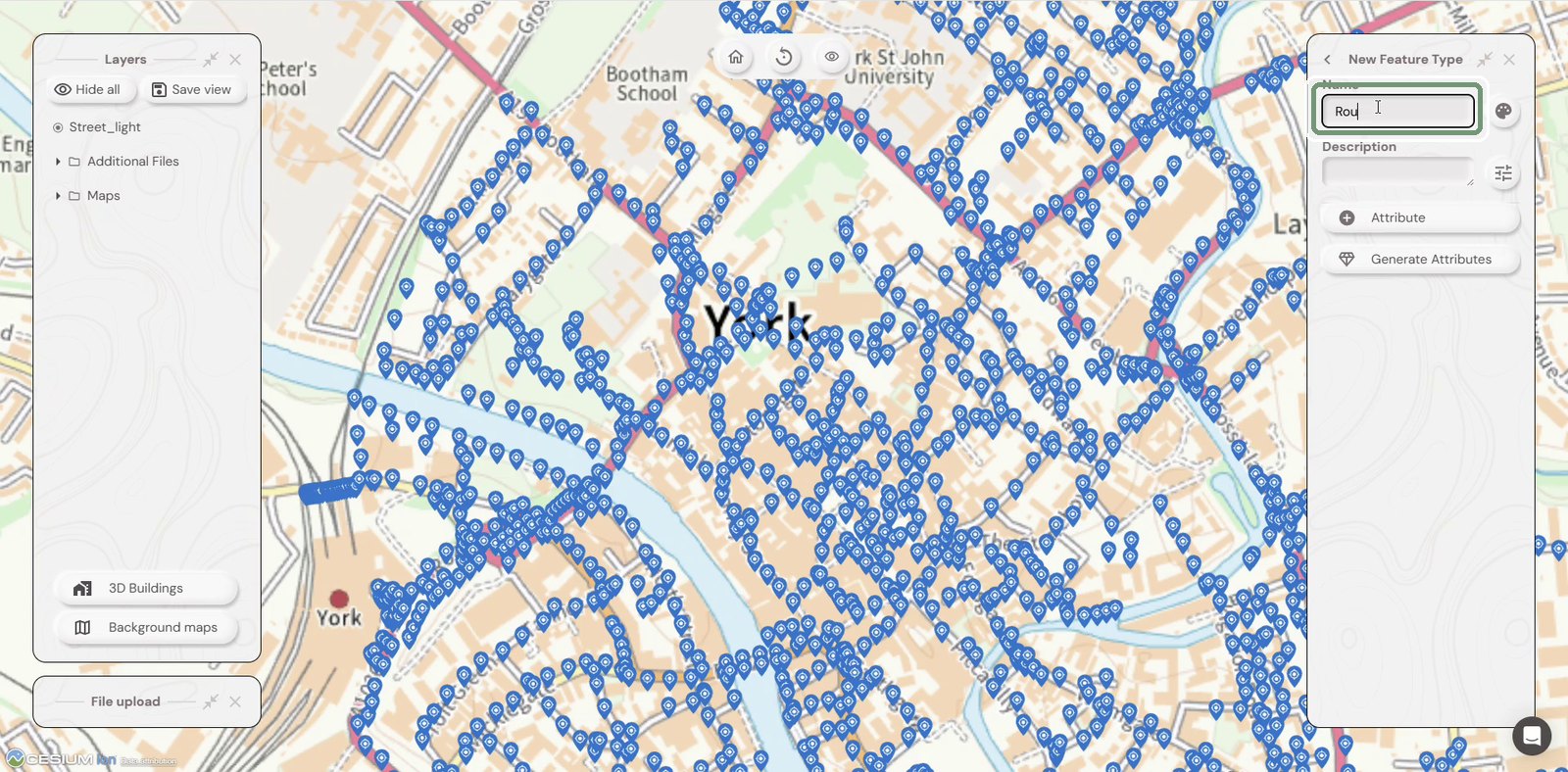
Click New Feature Type and give it a name, such as Route.
Step 4: Draw the route
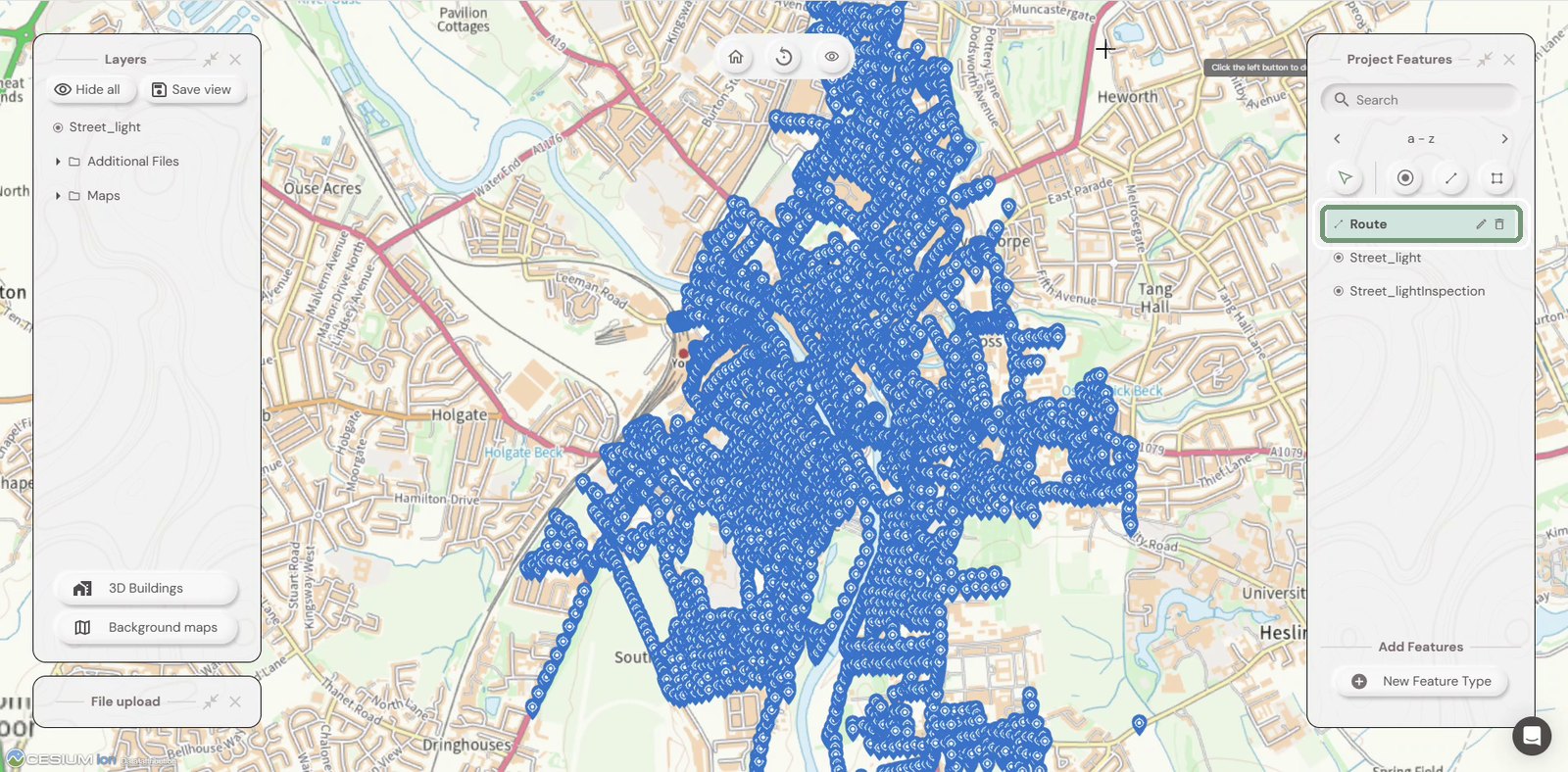
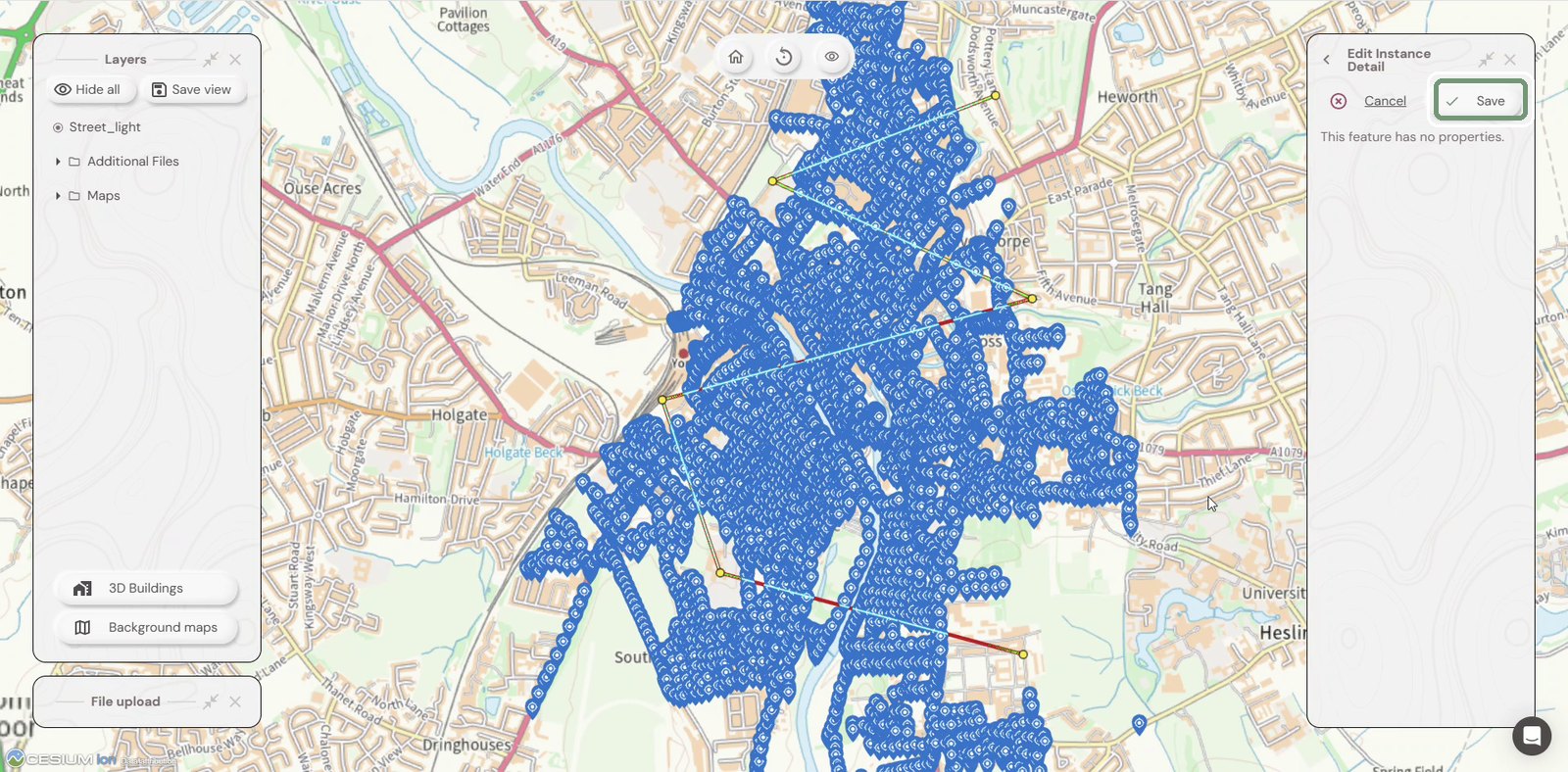
Select Route in Project Features, then click points on the map to draw the route you want inspected.
Step 5: Save the route
When the route is finished, click Save.
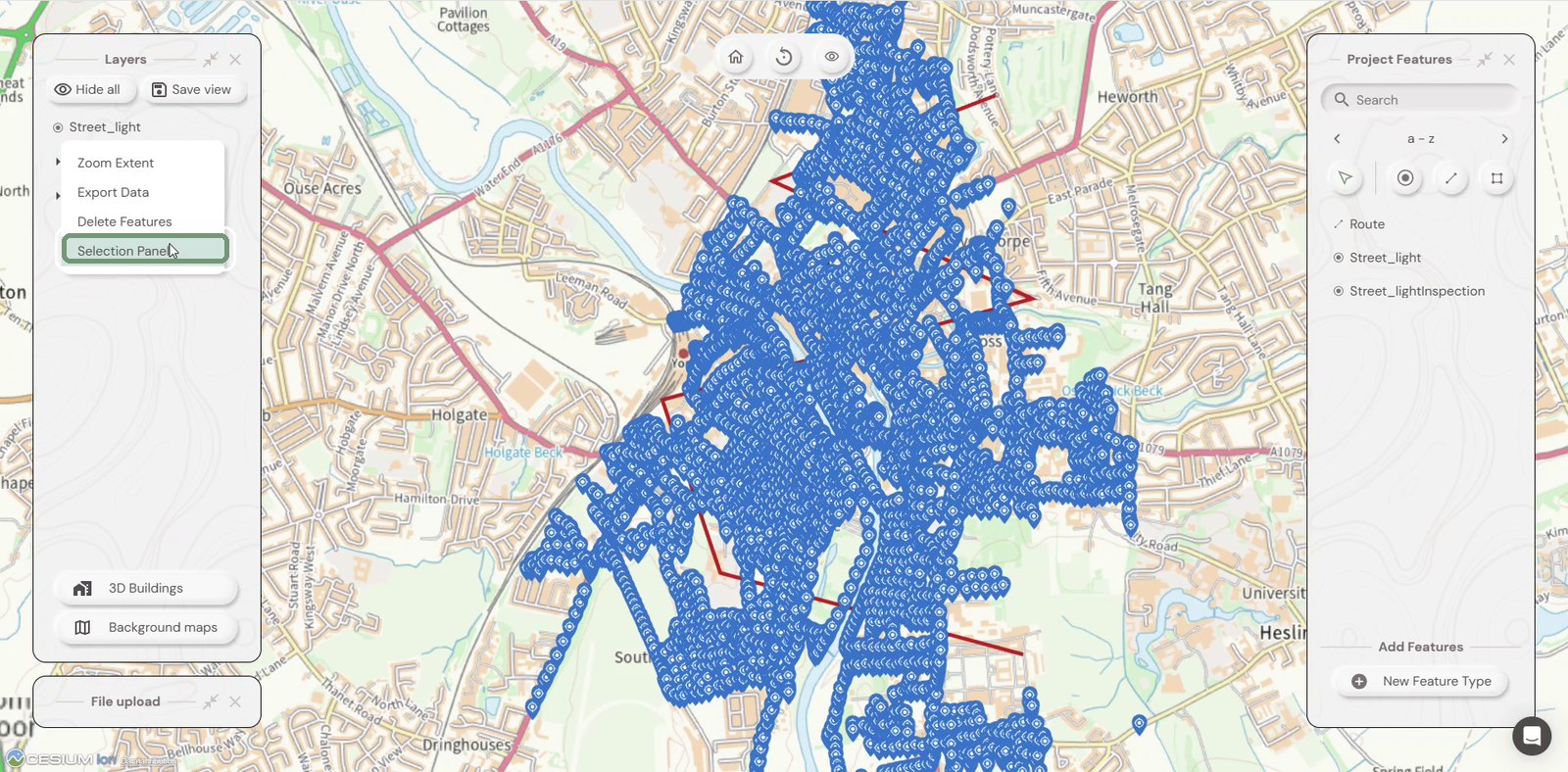
Step 6: Open the Selection Panel
In the Layers panel, click the ⋮ next to your asset layer and choose Selection Panel.
Step 7: Select along the route
Click the selection mode menu and choose Along Existing Route.
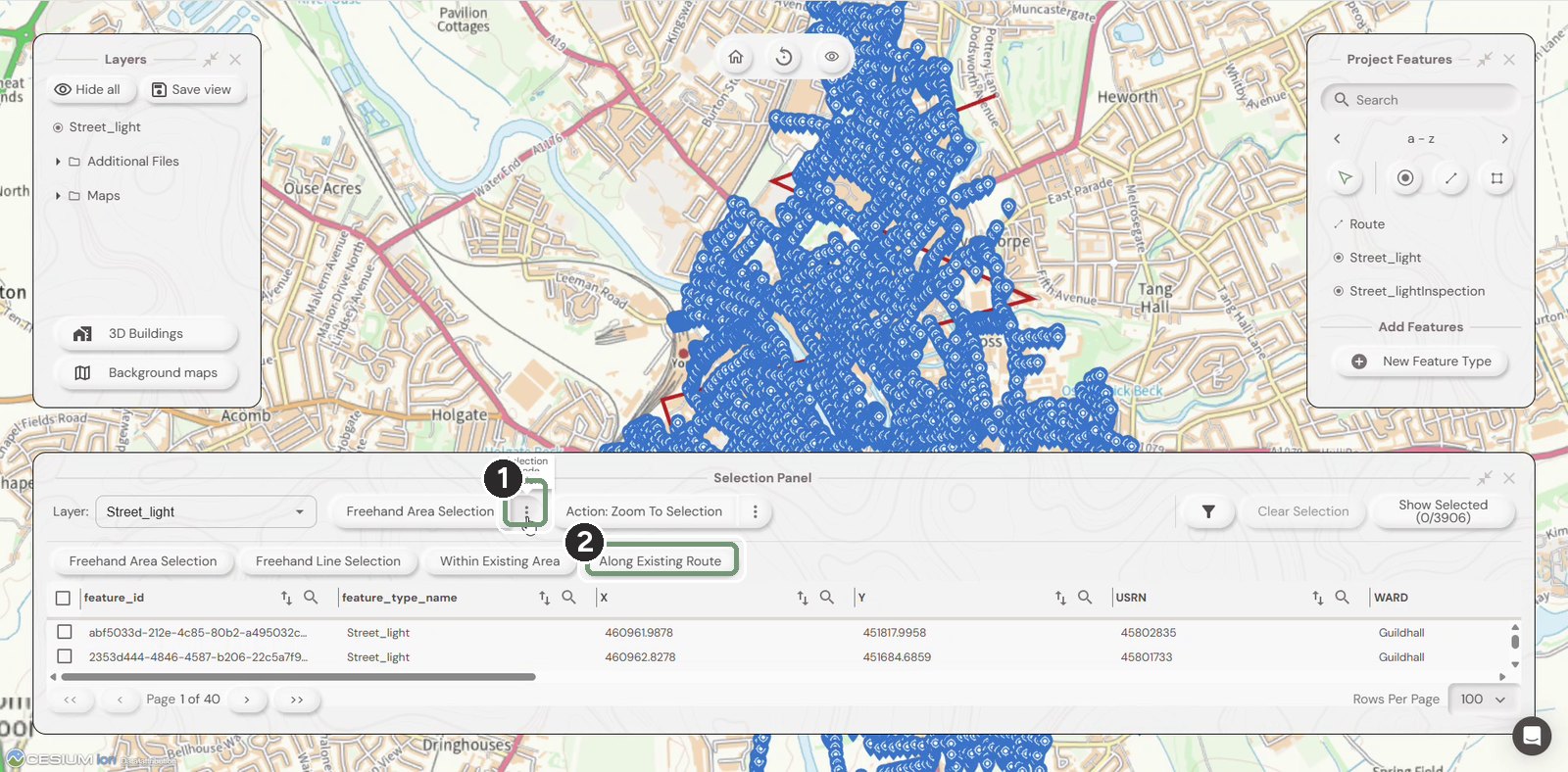
The numbered boxes show the order to work in.
Step 8: Set a buffer and pick the route
Enter a Buffer Line by (m) distance, for example 10, then click the route on the map. Every asset within that distance is selected. Show Selected shows how many.
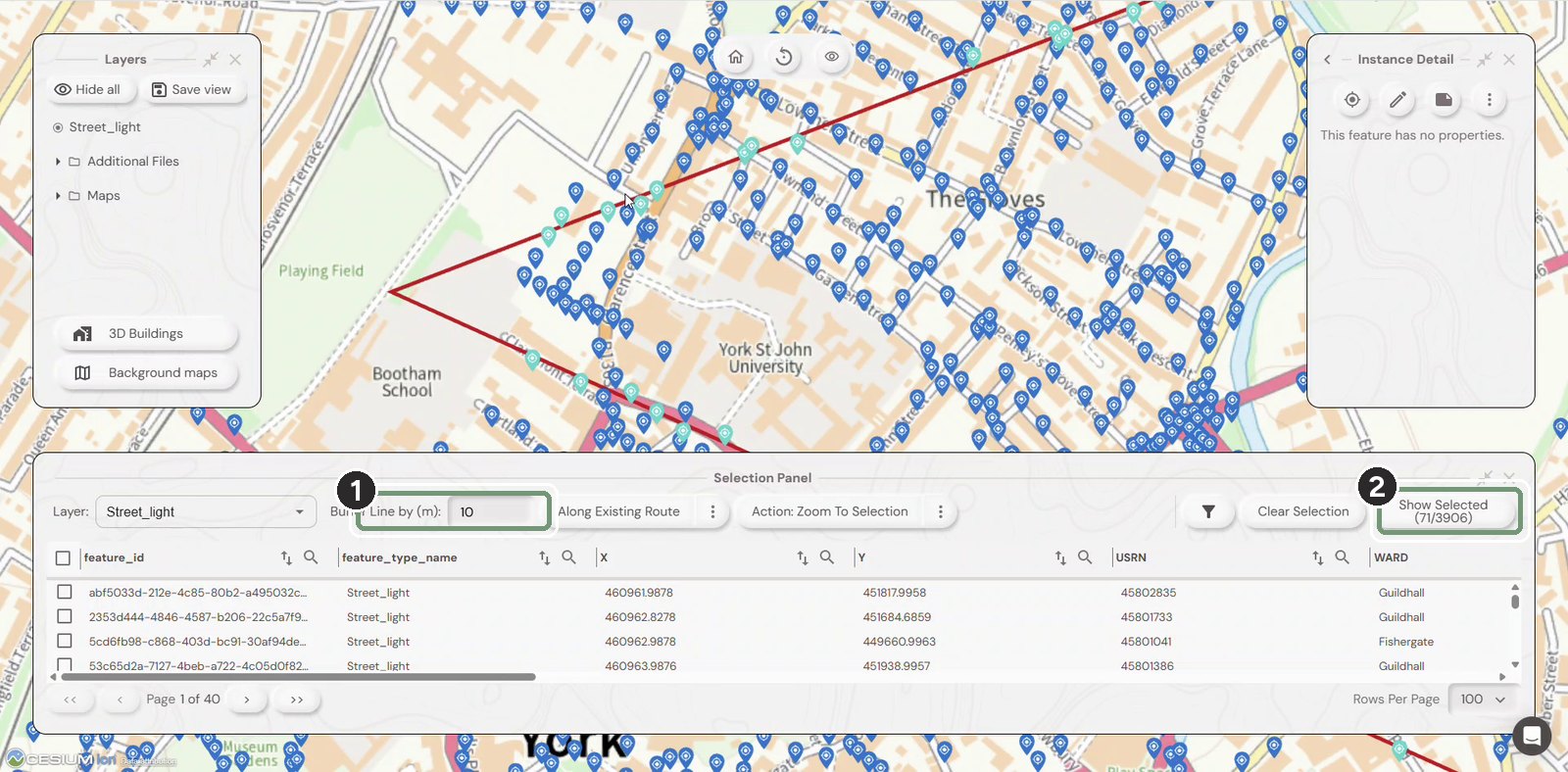
The numbered boxes show the order to work in.
Step 9: Choose Assign to User
Click the Action menu and choose Assign to User.
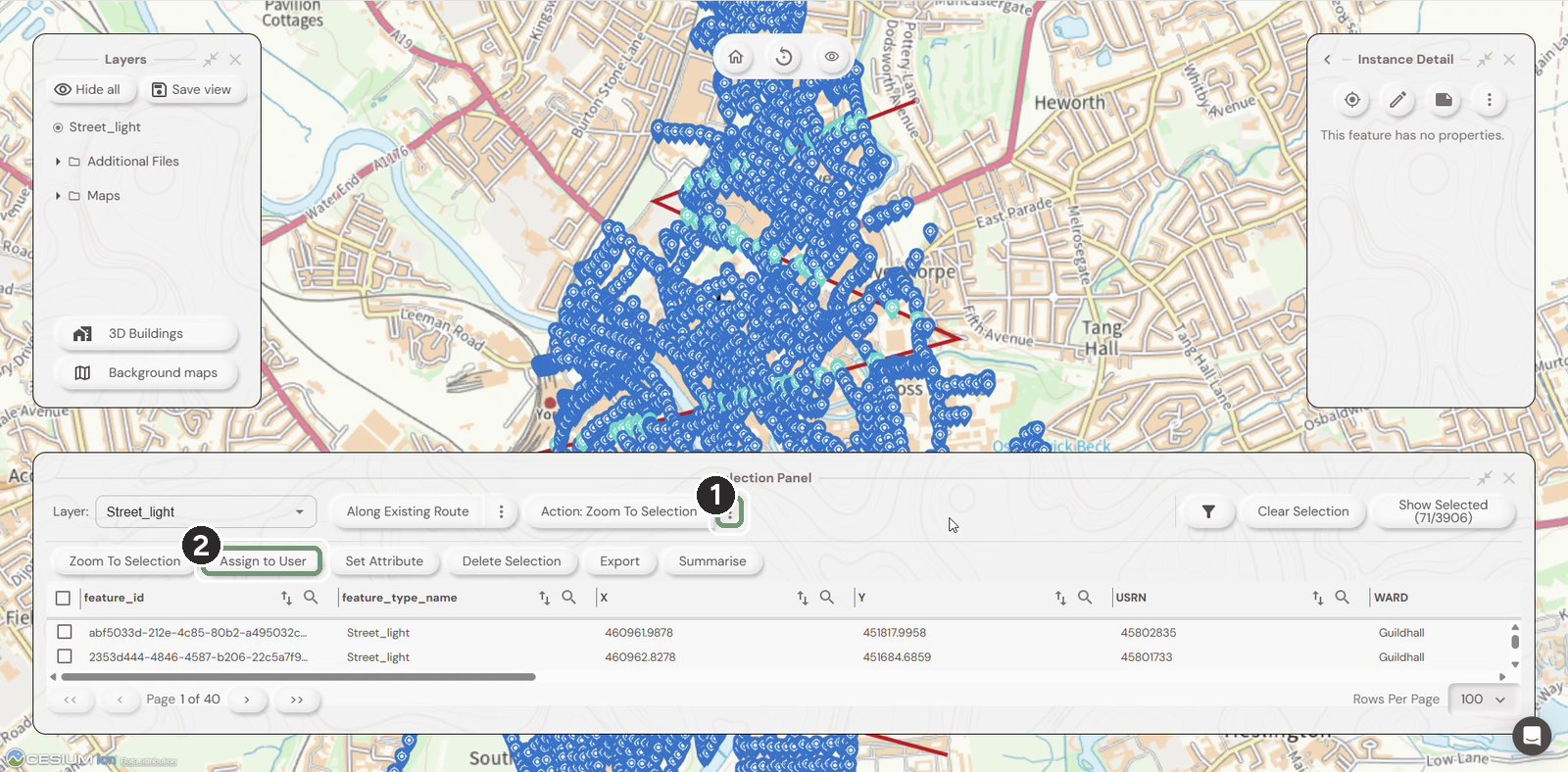
The numbered boxes show the order to work in.
Step 10: Assign the work
In Field User, pick the person or device, then click Action: Assign to User. The assets are sent to their Soarvo mobile app.
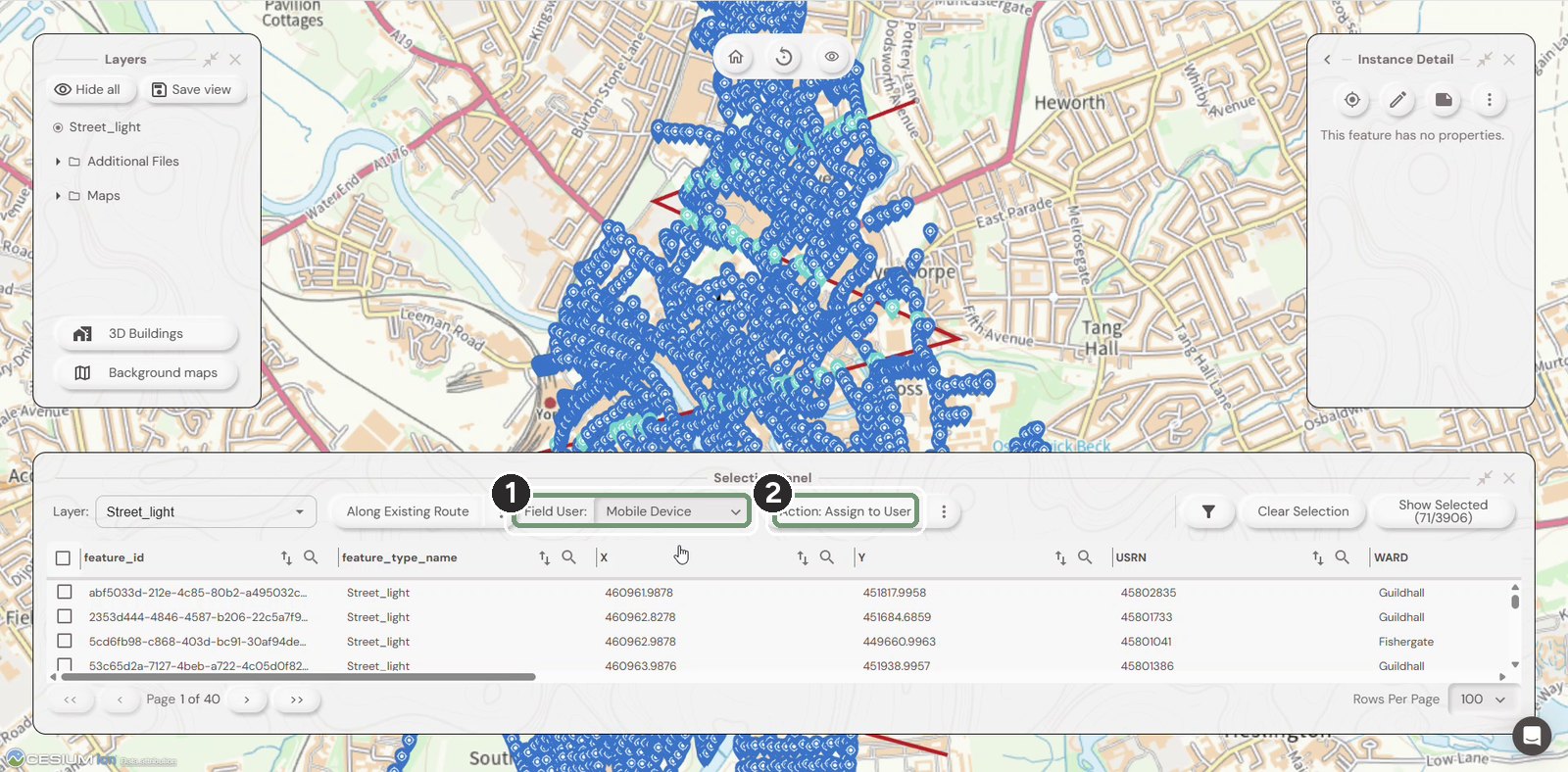
The numbered boxes show the order to work in.
Need help?
Contact the Soarvo support team, or book a demo at soarvo.com.