
Check work completed in the field, with the before and after photos side by side in the record.
Before you start
- Access to the project dashboard
Step 1: Open Issue Management
Open the project dashboard and click Issue Management. The Resolved count shows issues fixed in the field.
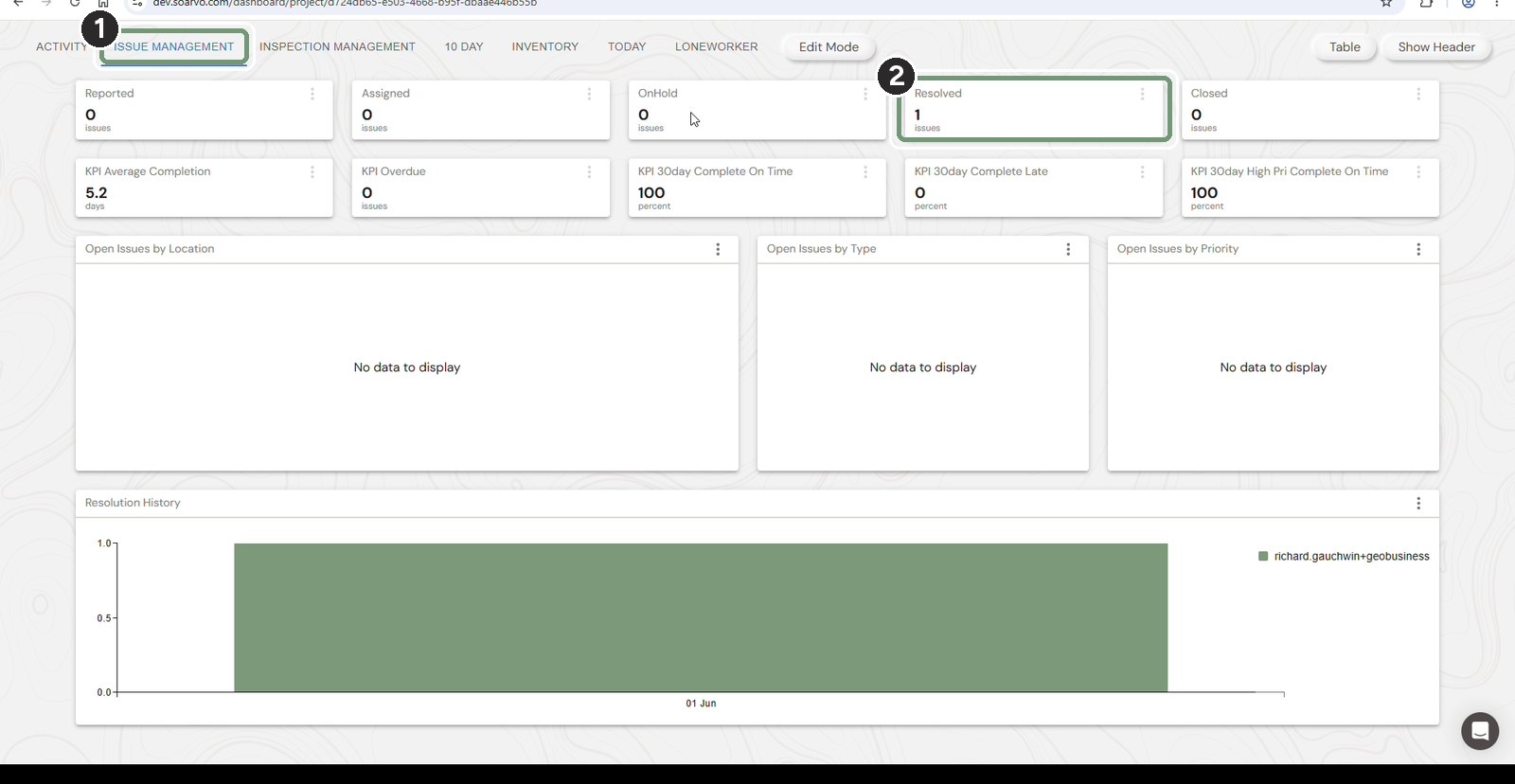
The numbered boxes show the order to work in.
Step 2: Find the resolved issue
Click Table to list the issues. Use the Status column to find the resolved ones.
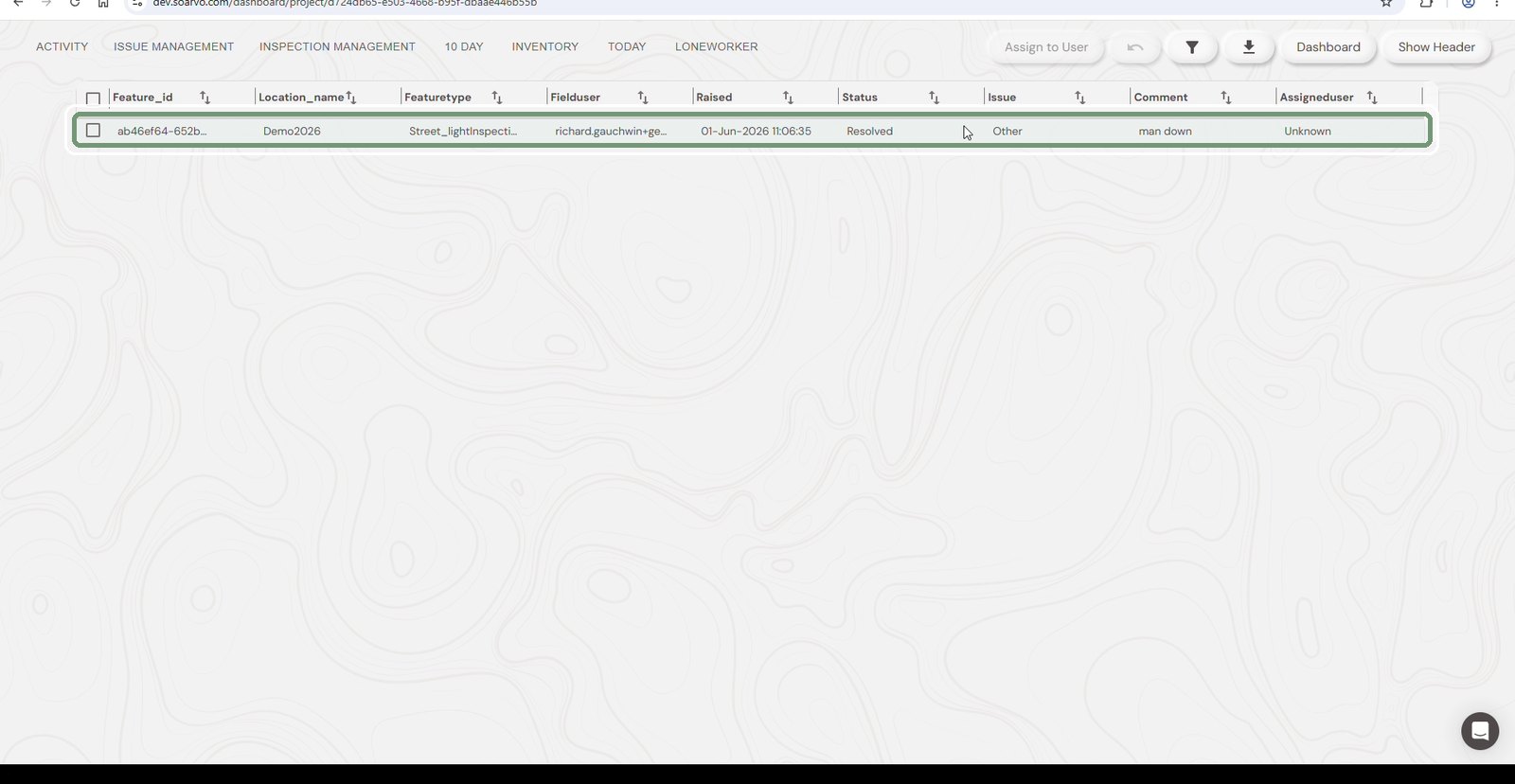
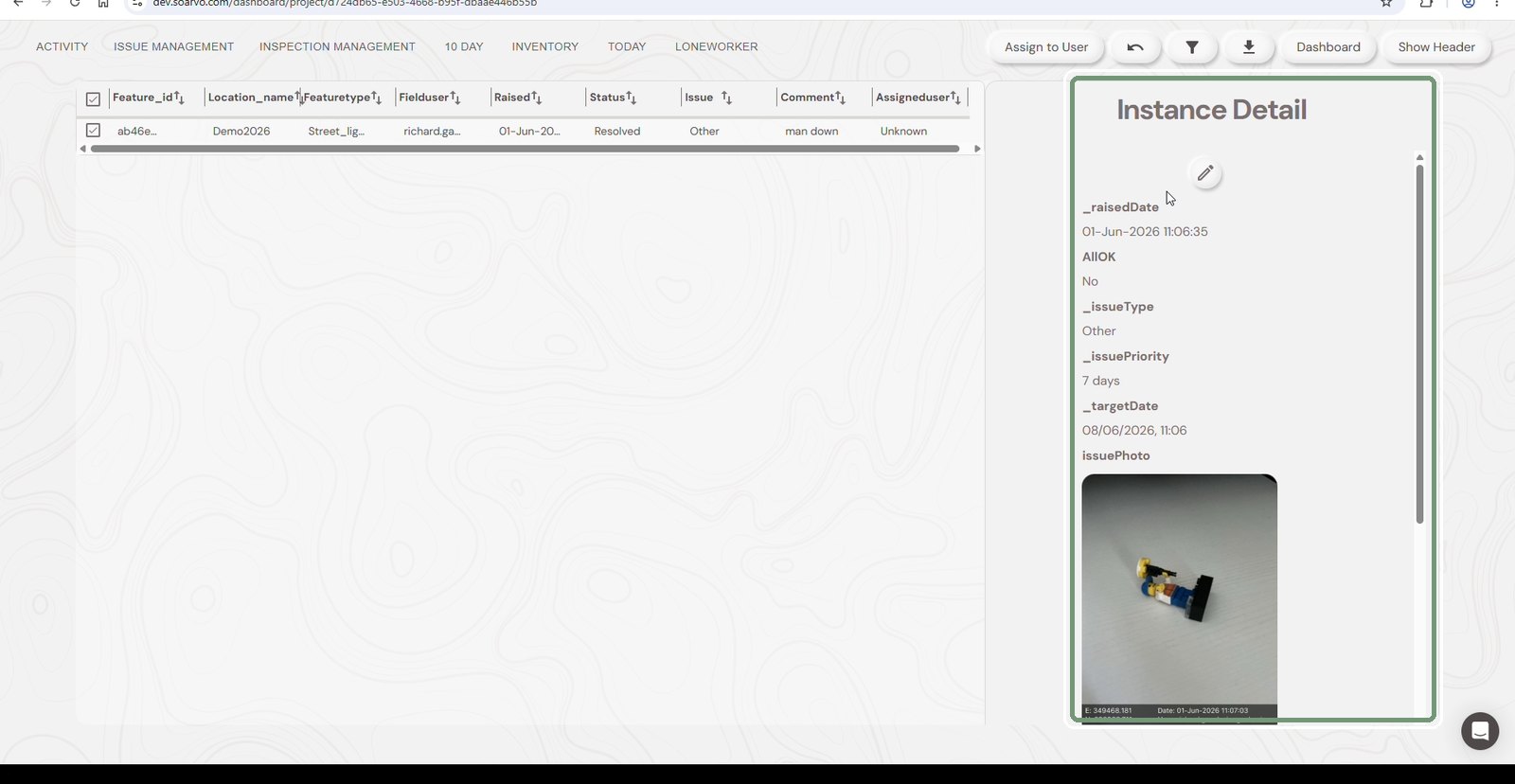
Step 3: Check the original issue
Click the row. Instance Detail shows when it was raised, the issue type, priority and the original photo.
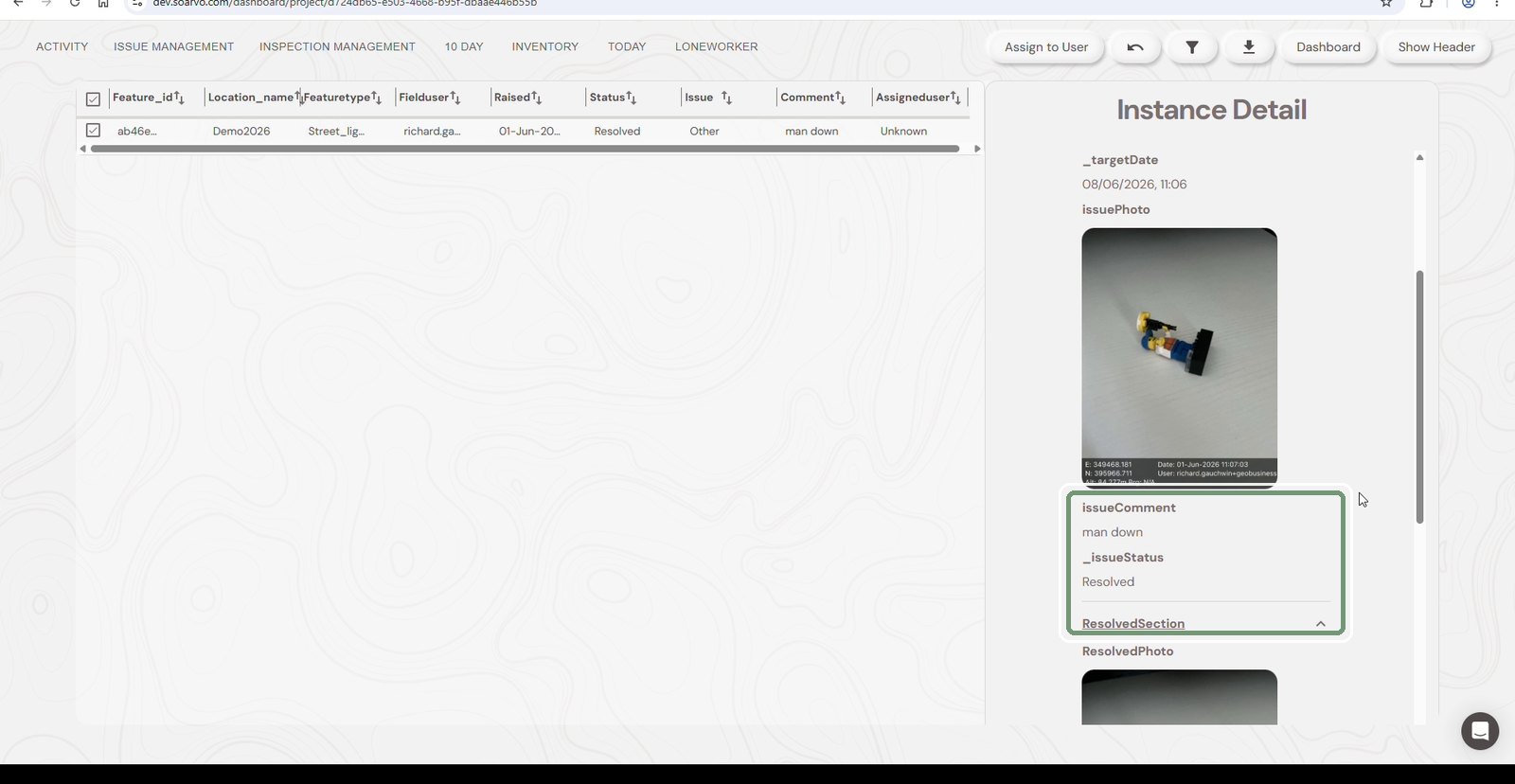
Step 4: Open the Resolved section
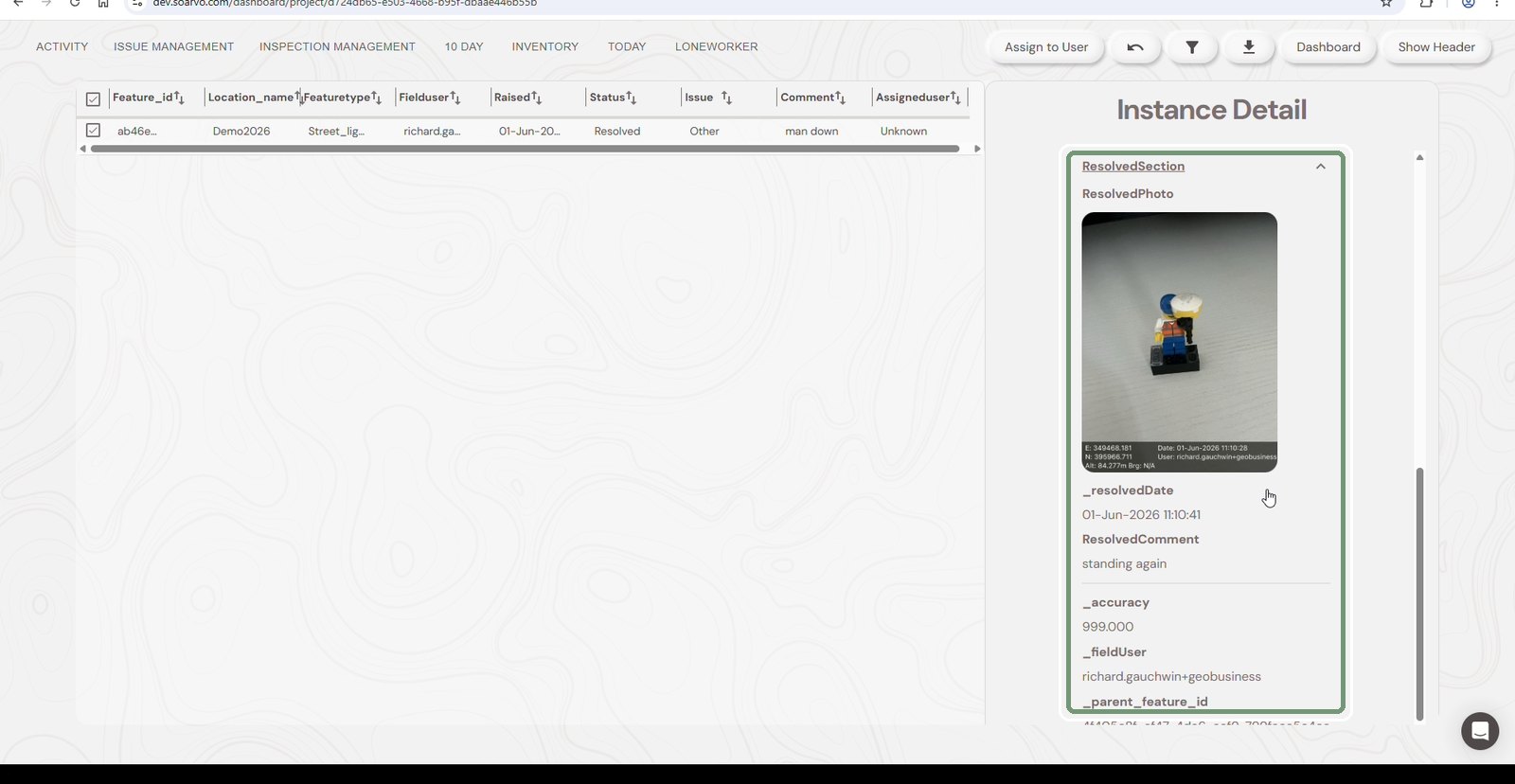
Scroll down to the comment and status, then expand ResolvedSection.
Step 5: Check the fix
See the resolved photo, the date and time it was fixed, the comment and who resolved it. Download the data with the download icon at the top if you need it for reporting.
Need help?
Contact the Soarvo support team, or book a demo at soarvo.com.