
Find an issue that has been assigned to you, fix it and record the resolution with a photo.
Before you start
- The Soarvo mobile app, signed in
- An issue assigned to you
Steps
Step 1: Find the issue
Open your location. Issues waiting for you are shown on the map. Tap the one you are fixing.
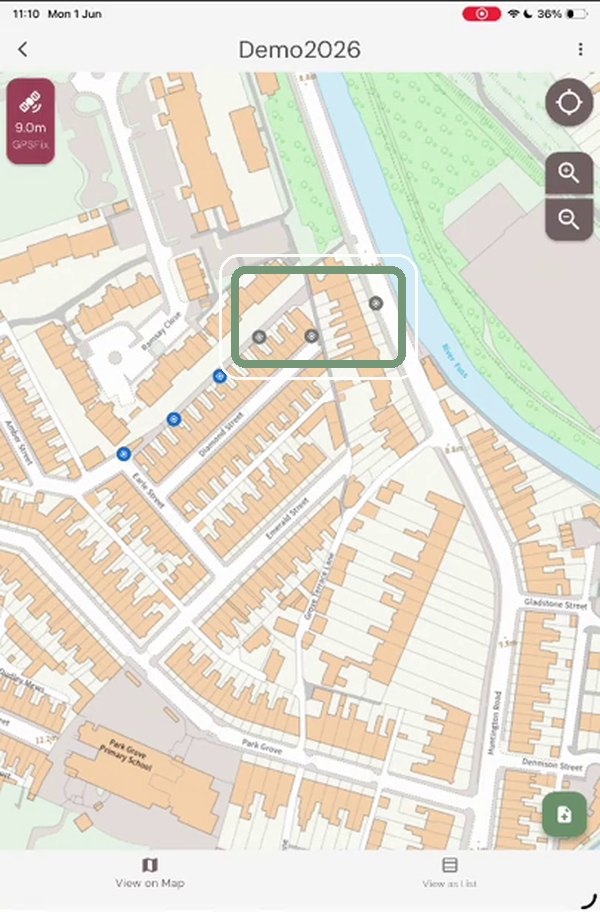
Step 2: Pick the inspection record
If more than one feature is at that spot, choose the inspection record (here Street_lightInspection).
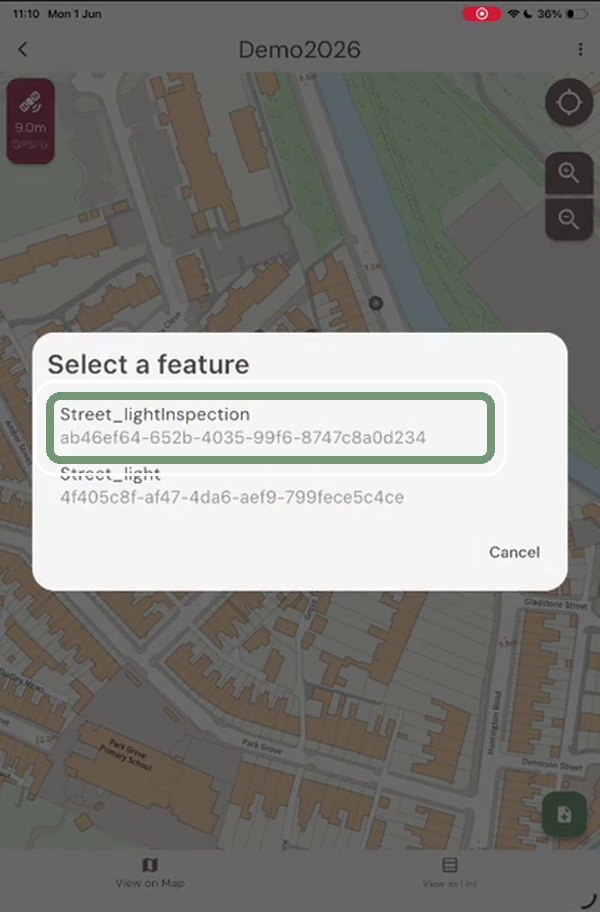
Step 3: Edit the record
Check the original issue, photo and comment, then tap Edit.
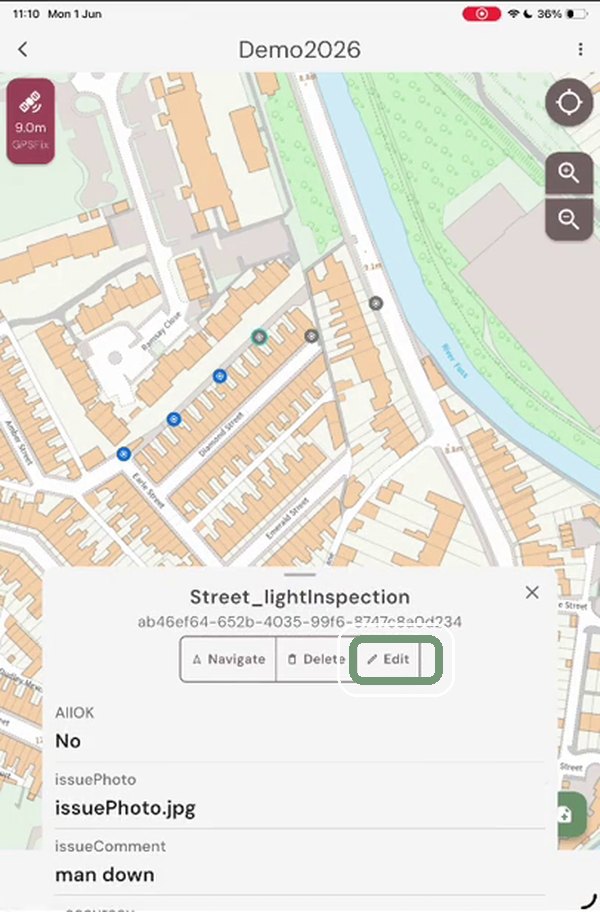
Step 4: Mark it resolved
Change issueStatus to Resolved. The Resolved Section opens.
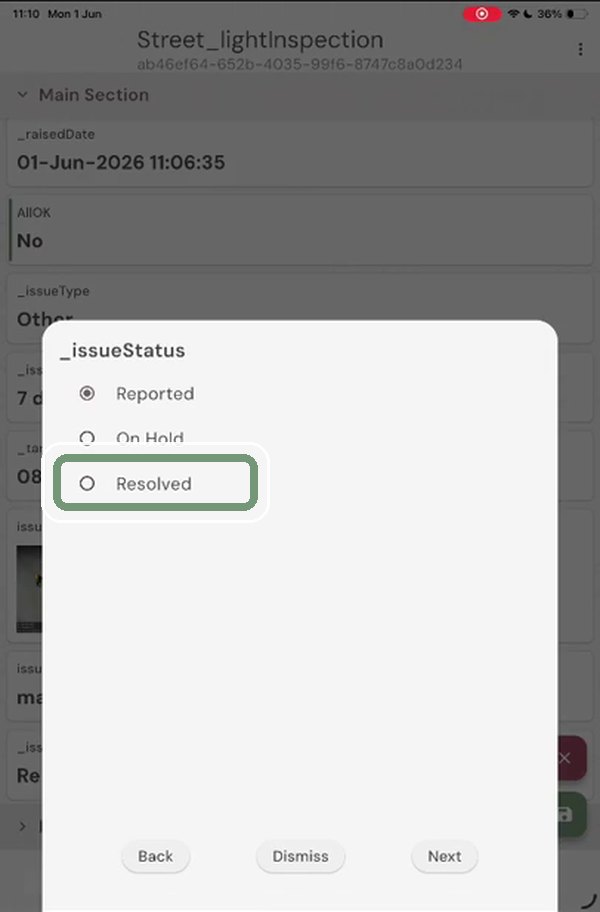
Step 5: Add a photo and comment
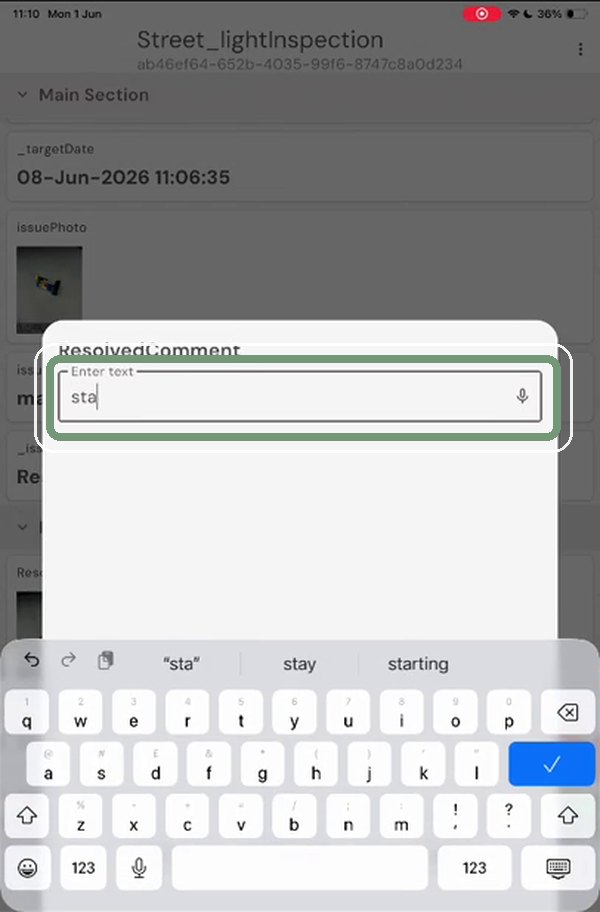
Take a photo of the finished repair and add a ResolvedComment.
Step 6: Save
Check the resolved photo, date and comment, then tap the green save button. The office dashboard updates.
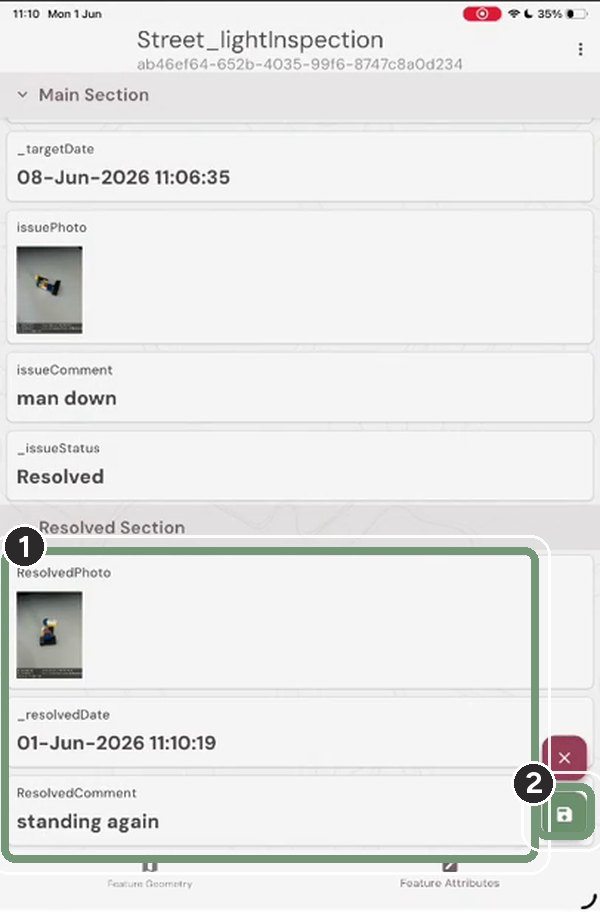
The numbered boxes show the order to work in.
Need help?
Contact the Soarvo support team, or book a demo at soarvo.com.