
Overview
a _styleOverride attribute in a feature lets a feature override part of its feature type styling from an attribute value. It is useful when features of the same feature type need to appear differently on the map based on their own data, such as inspection status, condition, priority, or risk level.
How it Works
Add an attribute named _styleOverride to the feature type. The mobile app reads this attribute when drawing the feature on the map.
Currently, _styleOverride supports colour overrides only.
The value must use one of these formats:colour=#RRGGBB
orcolor=#RRGGBB
For example:colour=#00FF00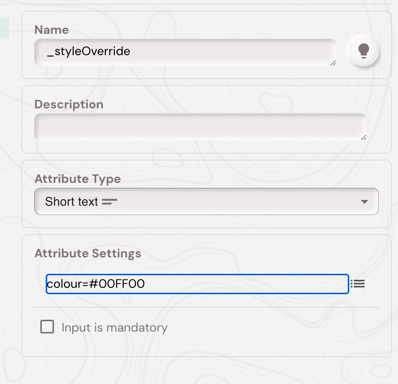
This will draw the feature using green instead of the default colour configured on the feature type.
⚠️ Important: The colour must be a six-digit hex colour, including the #. Short hex values such as #0F0 are not supported.
Example: Colour Based on an Attribute
This example changes the feature colour based on an inspection status.
-
Create or use an attribute named: IsCompleted
-
Then add a
_styleOverridetext attribute with this default code:!CALC IsCompleted == 'Yes' ? 'colour=#00FF00' : ''
This means:
If IsCompleted is set to 'Yes', the feature is shown in green.
If IsCompleted is anything else, no style override is applied and the feature uses its normal feature type colour.
Inspection Features and Styling
An inspection child feature is a feature created from an existing parent feature using the mobile app’s inspection workflow.
For example, you may have a parent feature type called Manhole, Tree, or Asset, and a related child feature type called ManholeInspection, TreeInspection, or AssetInspection. The parent represents the physical feature, while the inspection child feature records a visit, check, condition assessment, or survey against that asset.
For inspection workflows with auto styling, Soarvo Mobile automatically checks for a feature type named: {ParentFeatureTypeName}Inspection. If it exists, it is treated as an inspection based child feature type.
Once synced to the mobile app:
- Open the location containing the parent feature.
- Tap the parent feature on the map, or open it from the feature list.
- Tap Inspect.
- Soarvo Mobile starts a new child feature using the configured inspection feature type.
Fill in the inspection form and save it.
When the inspection child feature is saved, Soarvo Mobile updates the parent feature by setting _inspectedStatus = Inspected.
It also records who performed the inspection and when it happened:_inspectedBy_inspectedDate
If the parent feature type has a _styleOverride attribute and the child inspection feature includes _REPROCESS_PARENT_ON_SAVE, the parent feature can recalculate its _styleOverride value when the inspection is saved.
For example, on the parent feature type add a _styleOverride attribute with a default code of !CALC _inspectedStatus == 'Inspected' ? 'colour=#00FF00' : ''
Then, on the child inspection feature type, add an attribute named _REPROCESS_PARENT_ON_SAVE
When the inspection is saved, the parent feature is updated and recoloured.
⚠️ Important: If the child feature type name ends in Inspection and the parent does not have a calculated _styleOverride setup, Soarvo Mobile may apply a default grey override colour=#808080. This helps visually distinguish inspected parent features.
What's Next?