
Overview
Access groups limit which feature types a user can use to create or edit features in Soarvo Mobile. When group-based forms are enabled for a user, the app only shows feature types whose access_group matches one of that user’s assigned groups.
How It Works
Each feature type can include an access_group value in its metadata. Soarvo Mobile treats this as a comma-separated list of group names.
When a user opens the app, Soarvo Mobile reads the user’s tags. If the tags include GroupBasedForm:True, access-group filtering is enabled. The app then compares the user’s groups against each feature type’s access_group.
A feature type is available if at least one group matches.
For example:
User tags:
GroupBasedForm:True||Groups:Surveyors,Inspectors
Feature type access_group:
Inspectors,Managers
Result: the feature type is shown, because Inspectors matches.
There is a dedicated portion of the UI for user management that allows you to assign users to groups. Which is described below.
Setting Up Access Groups in the Portal
Firstly you will need to add the required users to a 'user group' and enable group based form access - and then apply this user group to a feature type. This limits its access to only users that are in the given access groups its assigned to.
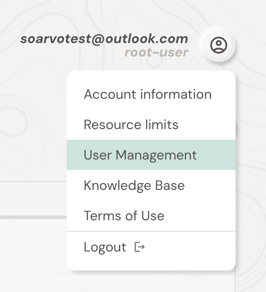
As a user that has a role that can access the 'User Management' page, select 'User Management' from the account menu dropdown by clicking the account icon button.
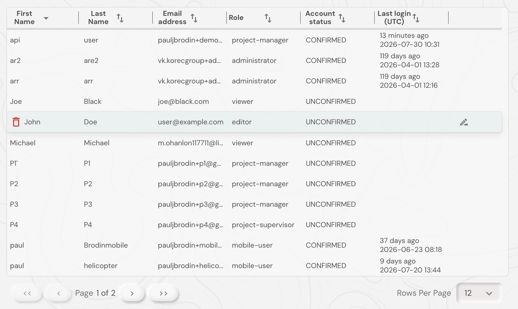
Hover over the required user, and click the pen icon button to start editing that user.
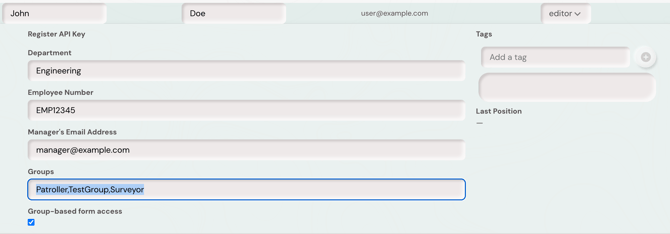
Enter the group names you want to put the user in via the 'Groups' form text box. For multiple groups this must be a CSV list - and it is always case sensitive. And click the 'Group-based form access' tickbox to enable group based form access for this user.
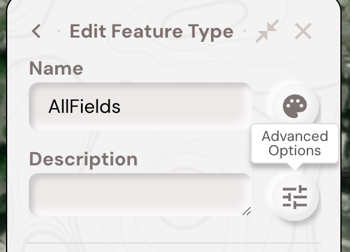
Open a location with the feature type that you want to limit access to, hover over the feature type name in the right panel and click the pen icon to begin editing it.
Click the 'Advanced Options' icon button.
Enter the group names you want to be able to access this feature type in the 'Access Group' form text box. For multiple groups this must be a CSV list - and it is always case sensitive.
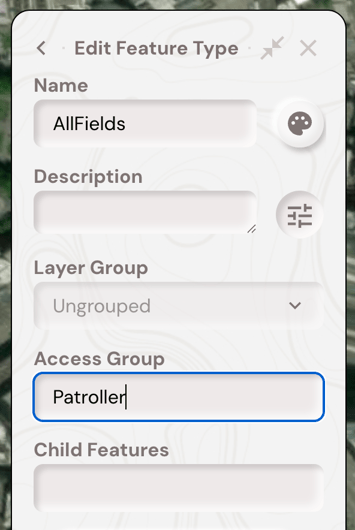
Click to top left back arrow icon button in the panel to save the feature type.
Usage in the Mobile App
Open a location that should have the access group scoped feature type, and 'pull to refresh' on the features list to update your local data for that location. This should update, among other things, user information related to the access groups.
When access groups are enabled for a user:
-
Feature types with a matching
access_groupare shown. -
Feature types with no
access_groupare hidden. - Feature types with only non-matching groups are hidden.
- Feature types with the access group
HIDE_FROM_MOBILEare always hidden from the create feature list. - Existing features may still be visible, but users cannot edit a feature if they do not have access to its feature type.
- Child feature type options are also filtered by access group.
When access groups are not enabled:
-
Feature types are shown regardless of access_group.
-
HIDE_FROM_MOBILE still hides the feature type from the mobile create-feature list.
Reserved Access Group Values
HIDE_FROM_MOBILE
Hides the feature type from Soarvo Mobile’s create feature list. This applies even if the user has access to the feature type’s other groups.
What's Next?