
Overview
Soarvo can automatically generate inspection workflows for GIS data. This creates an inspection "sub feature" form for the project feature, and then allows the user to carry out inspections and report on the results of those inspections.
If data has been imported you can automatically extract the attributes ready for creating the inspection workflow. Once imported, edit the project feature and choose generate attributes.
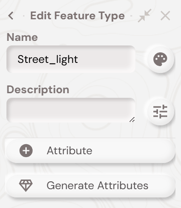
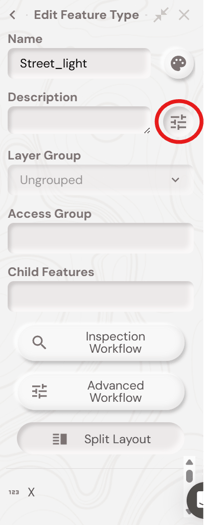
Once the attributes have been generated select the Advanced Options button and choose Inspection Workflow
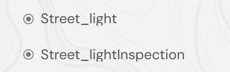
When you go back to the Feature Panel you will now see an Inspection form for the feature.
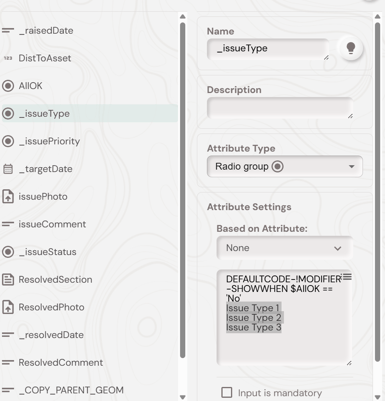
If you then edit the Inspection form, select the _IssueType field and Enter the issues you could find for this particular asset type. You can have as many options in that list as required.
When this is complete you are ready to assign data out to the mobile app using the Selection Panel
Using the Mobile App select the record and choose Inspect from the options
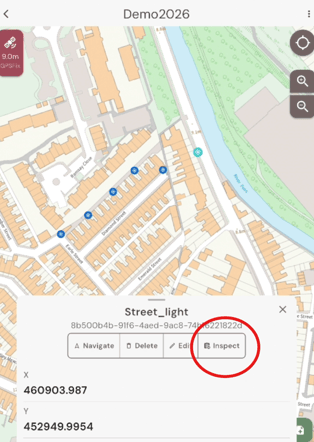
This will open the Inspection form and allow you to complete the inspection. If issues are recorded it will ask you to select the issue and take a photo.
This workflow has also generated 2 additional project dashboards for Inspection Management and Issue Management to allow for progress monitoring and issue management. See Data Review Workflows