
Set up a new project and location, then upload your GIS data and choose how the map looks. This example loads a CSV of street lights for York.
Before you start
- A Soarvo login
- Your data file (for example CSV, SHP, KML or GeoPackage)
Step 1: Log in
Go to the Soarvo portal and log in with your email address and password.
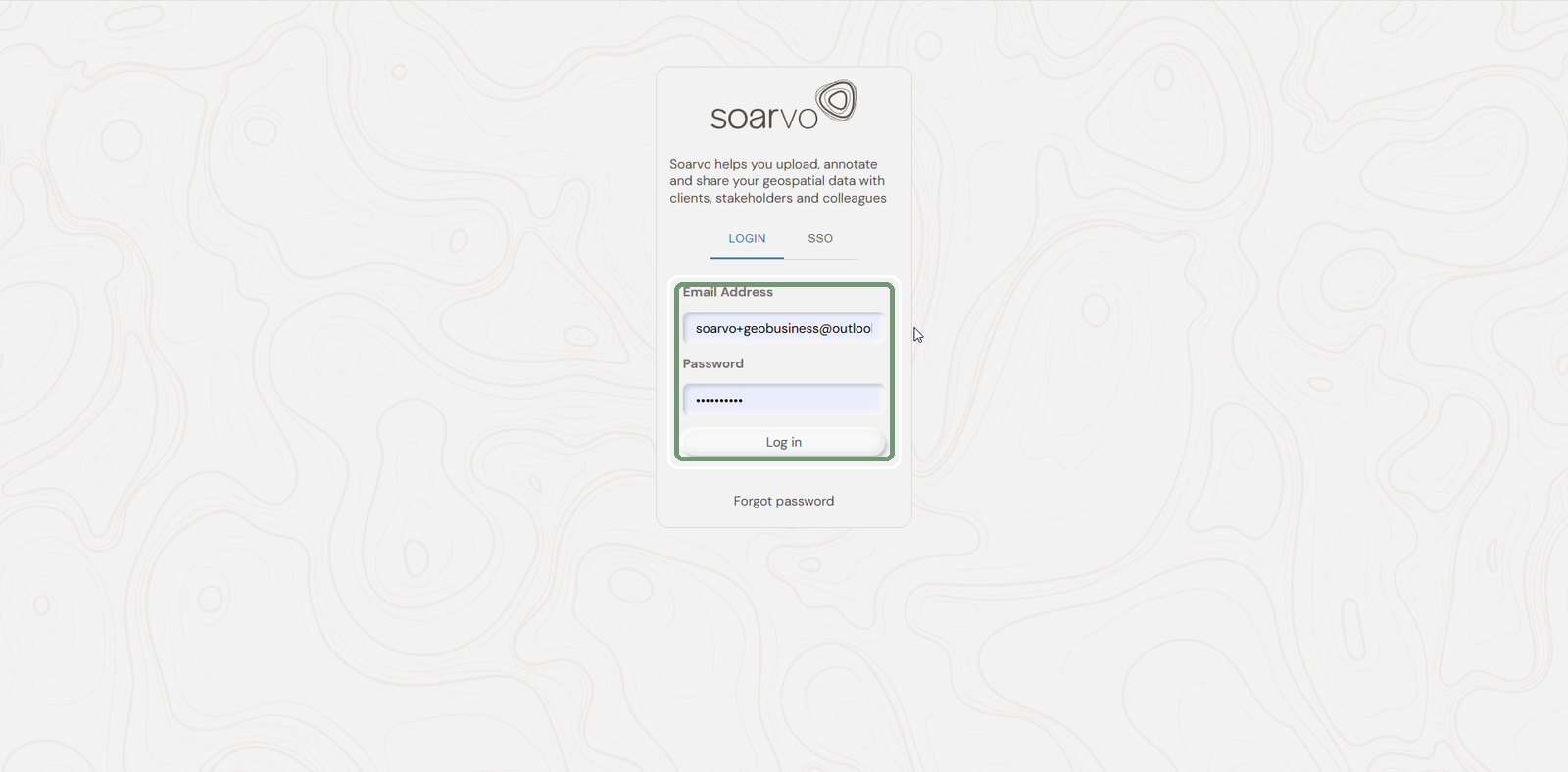
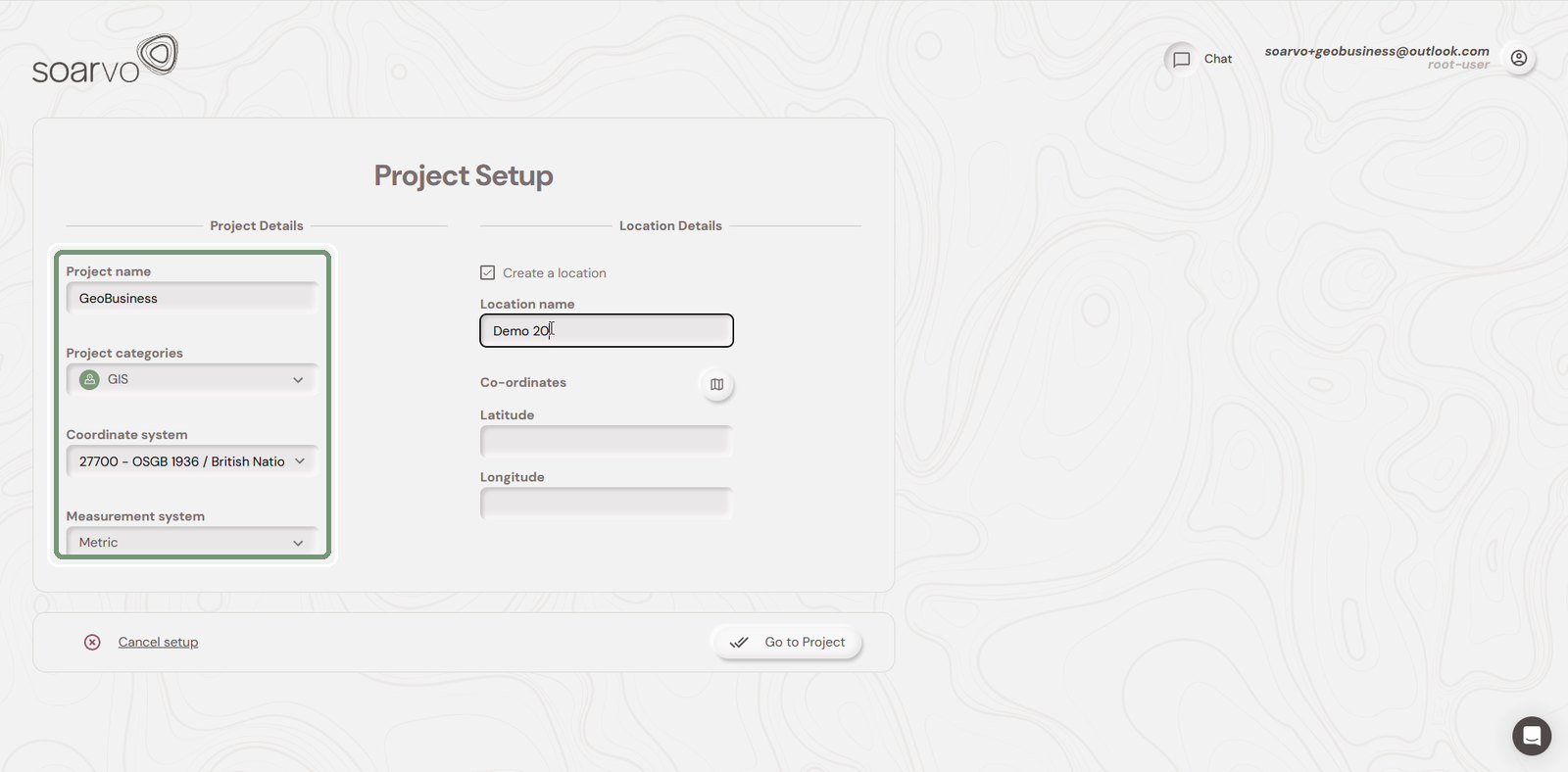
Step 2: Enter the project details
Click New Project. Enter a Project name, then choose a Project category, Coordinate system and Measurement system.
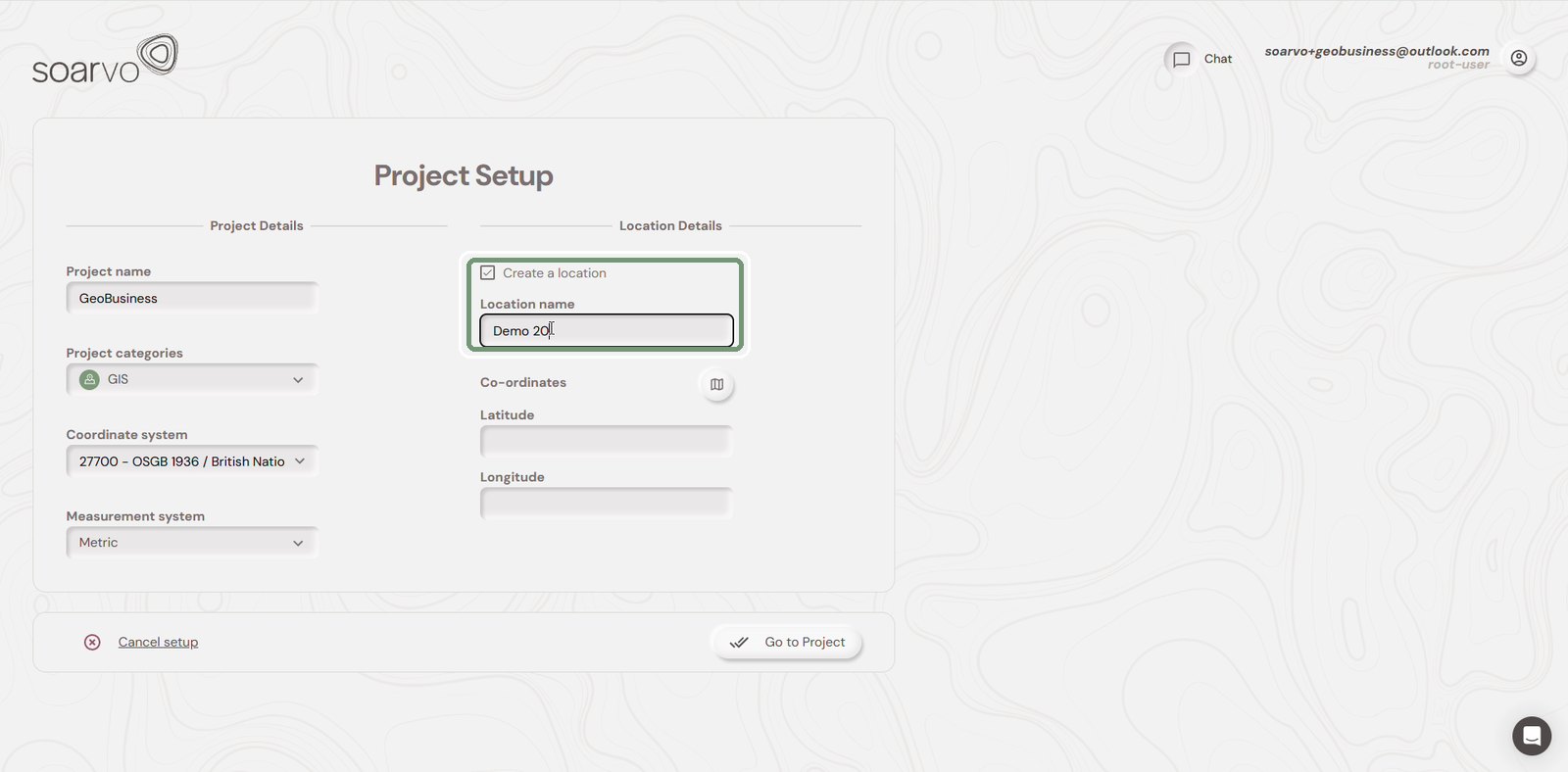
Step 3: Create a location
Under Location Details, tick Create a location and type a Location name.
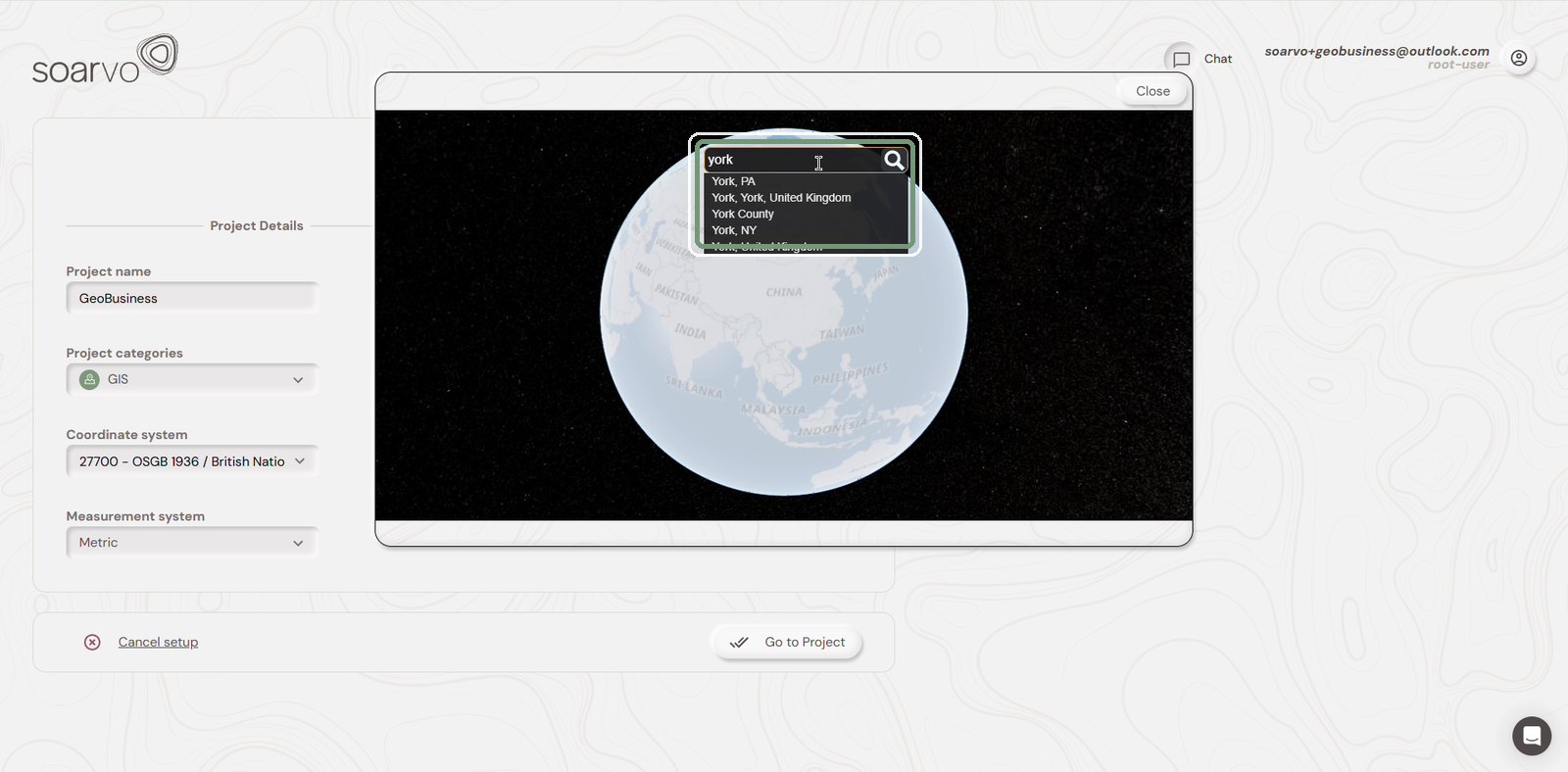
Step 4: Find the location on the map
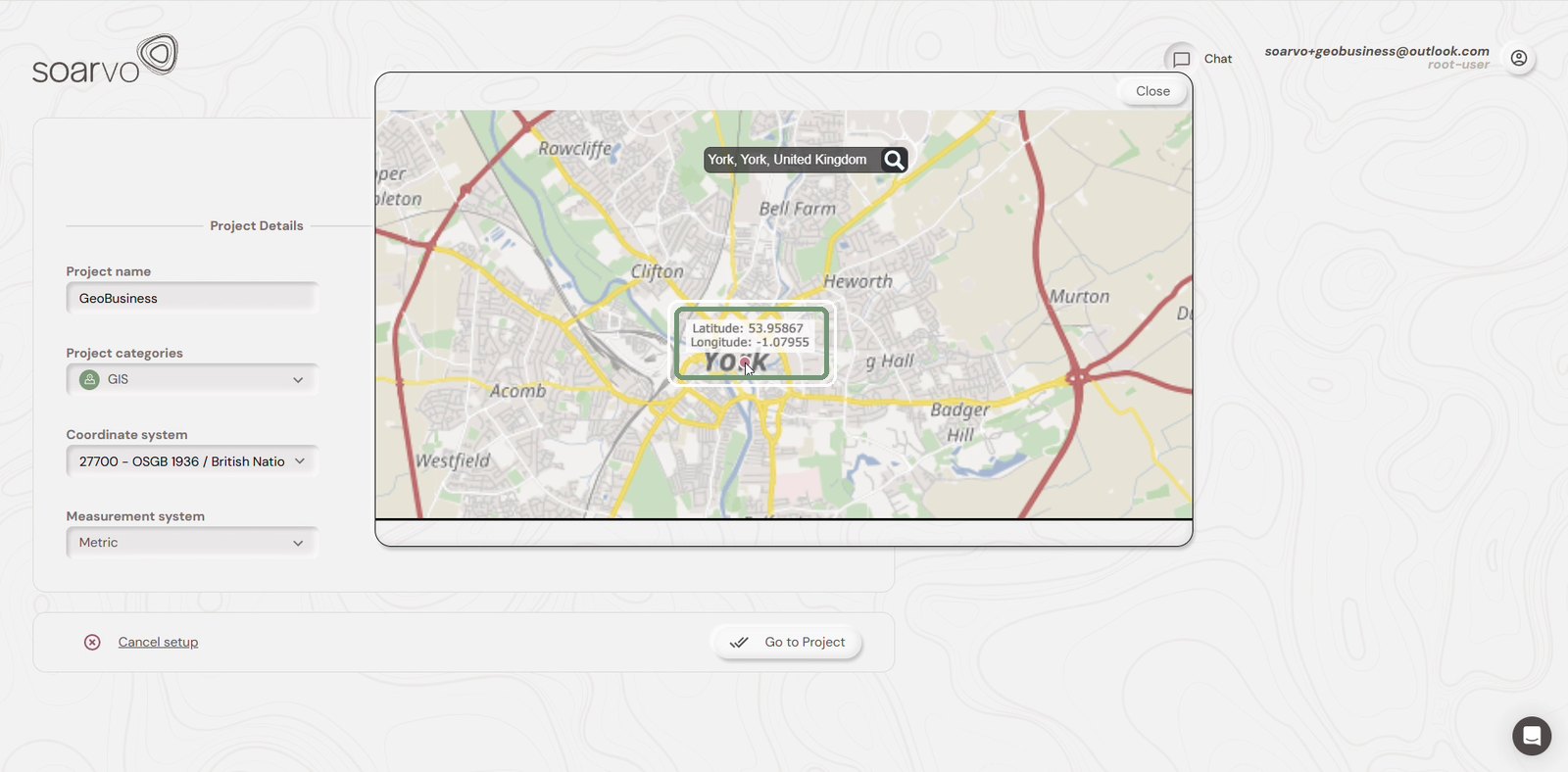
Click the map icon next to Co-ordinates. In the map that opens, search for your place name and pick it from the list.
Step 5: Drop the pin
Click the map to drop a pin. The latitude and longitude are picked up automatically. Click Close.
Step 6: Go to the project
Check the latitude and longitude are filled in, then click Go to Project.
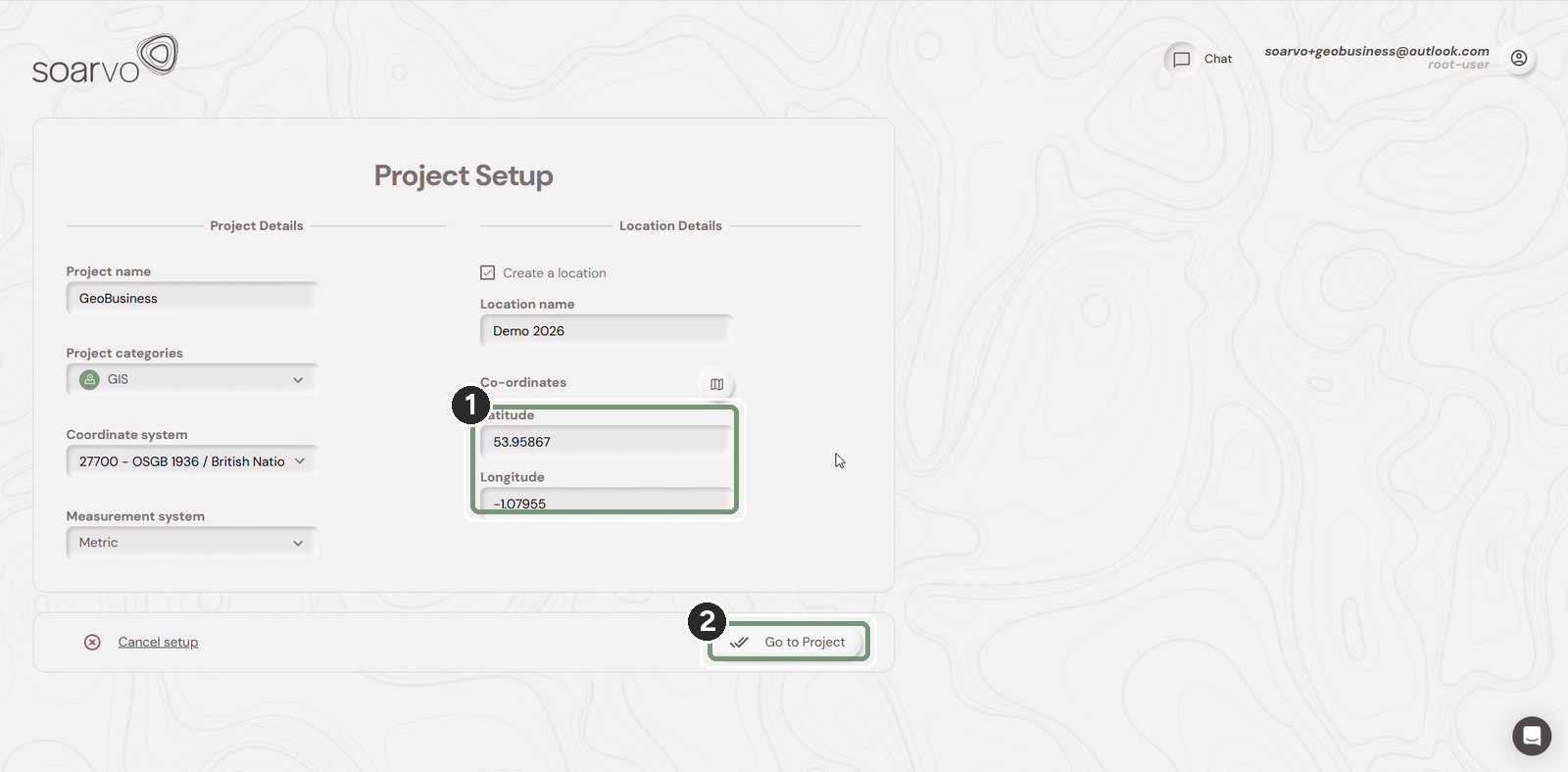
The numbered boxes show the order to work in.
Step 7: Open the location
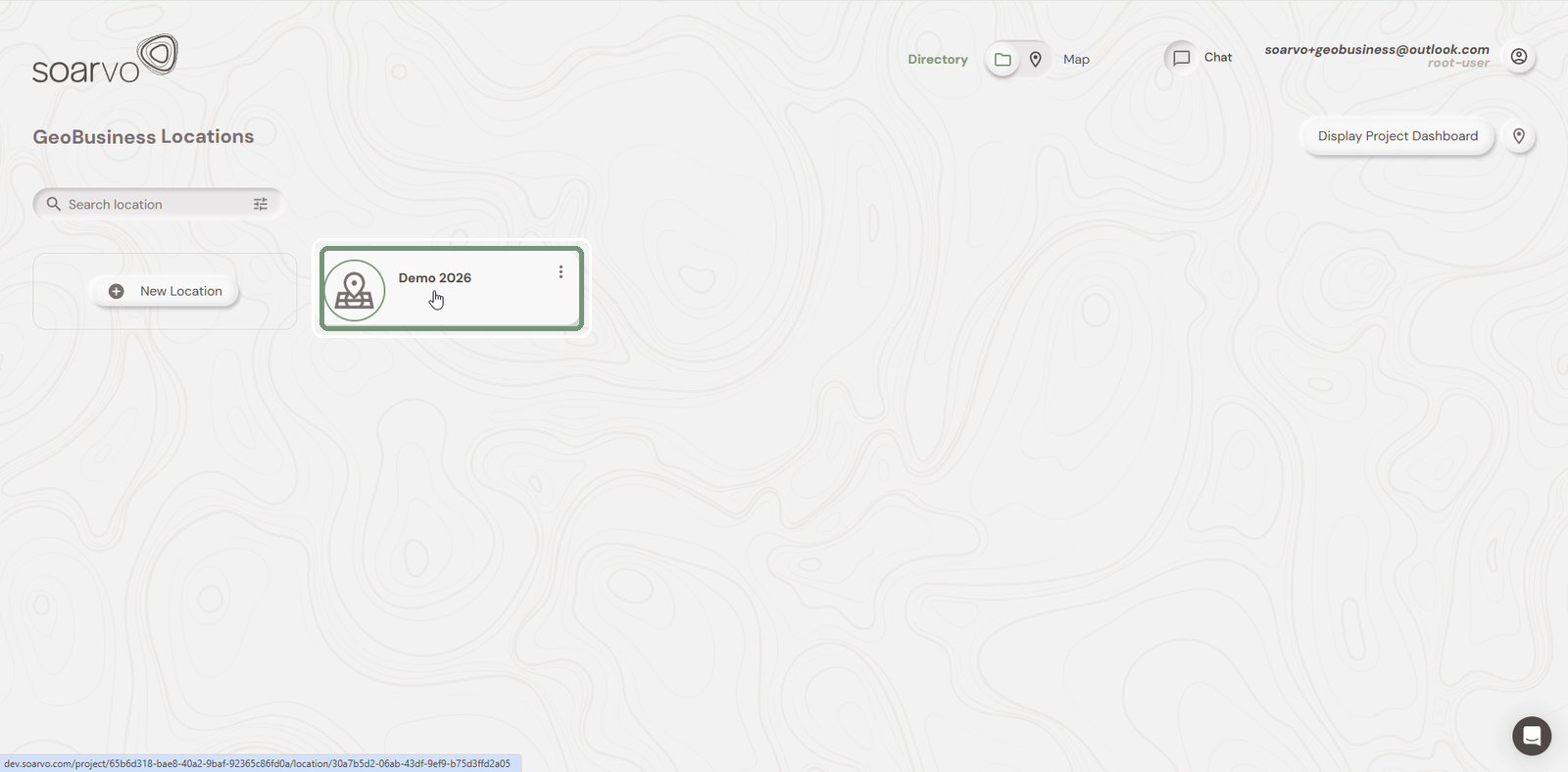
Your new location appears under the project. Click it to open the map.
Step 8: Upload your data
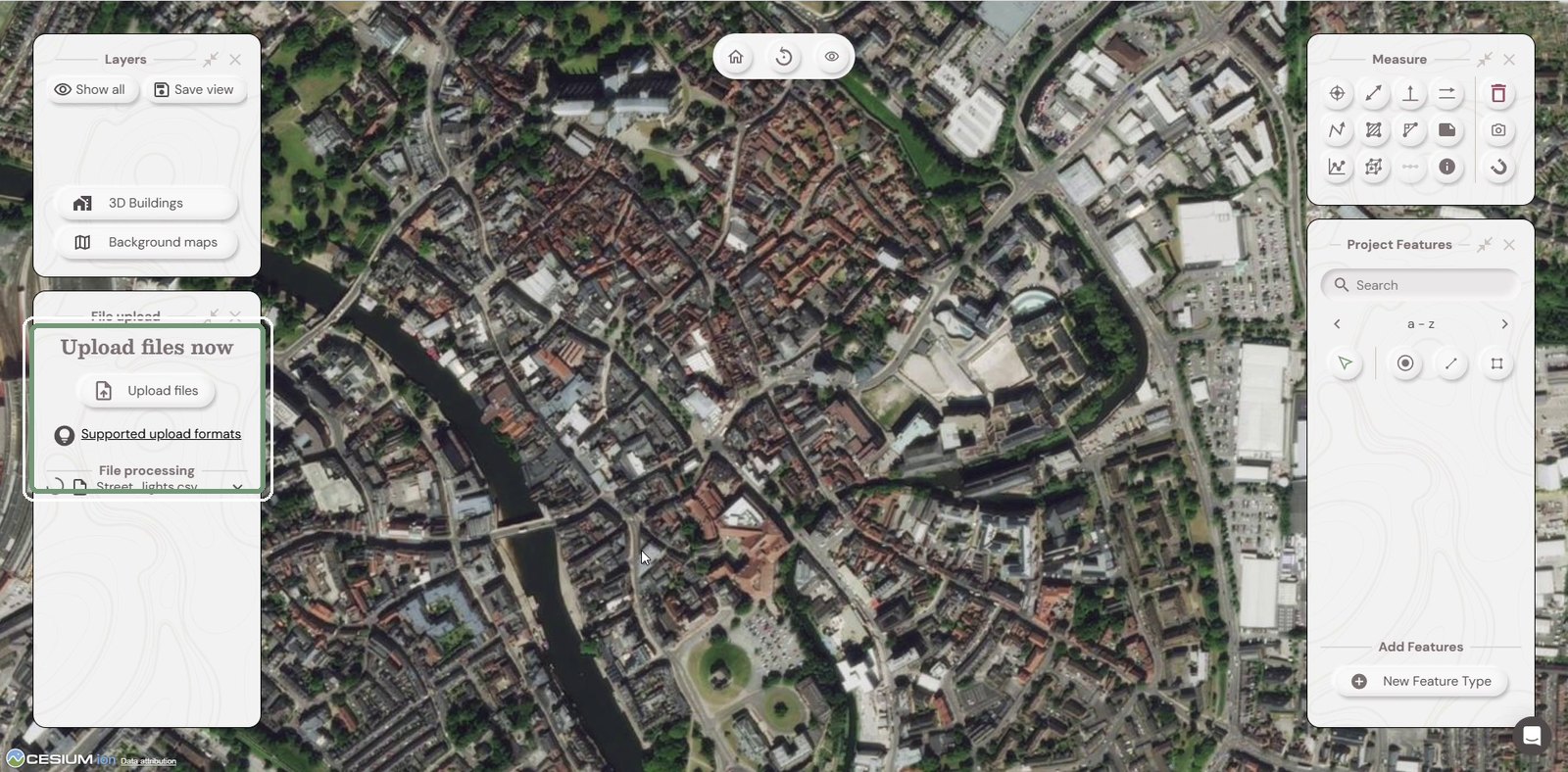
In the File upload panel, click Upload files (or drag files onto it). You can follow the progress under File processing.
Step 9: See your data on the map
When processing finishes, your data appears on the map and is listed in the Layers panel.
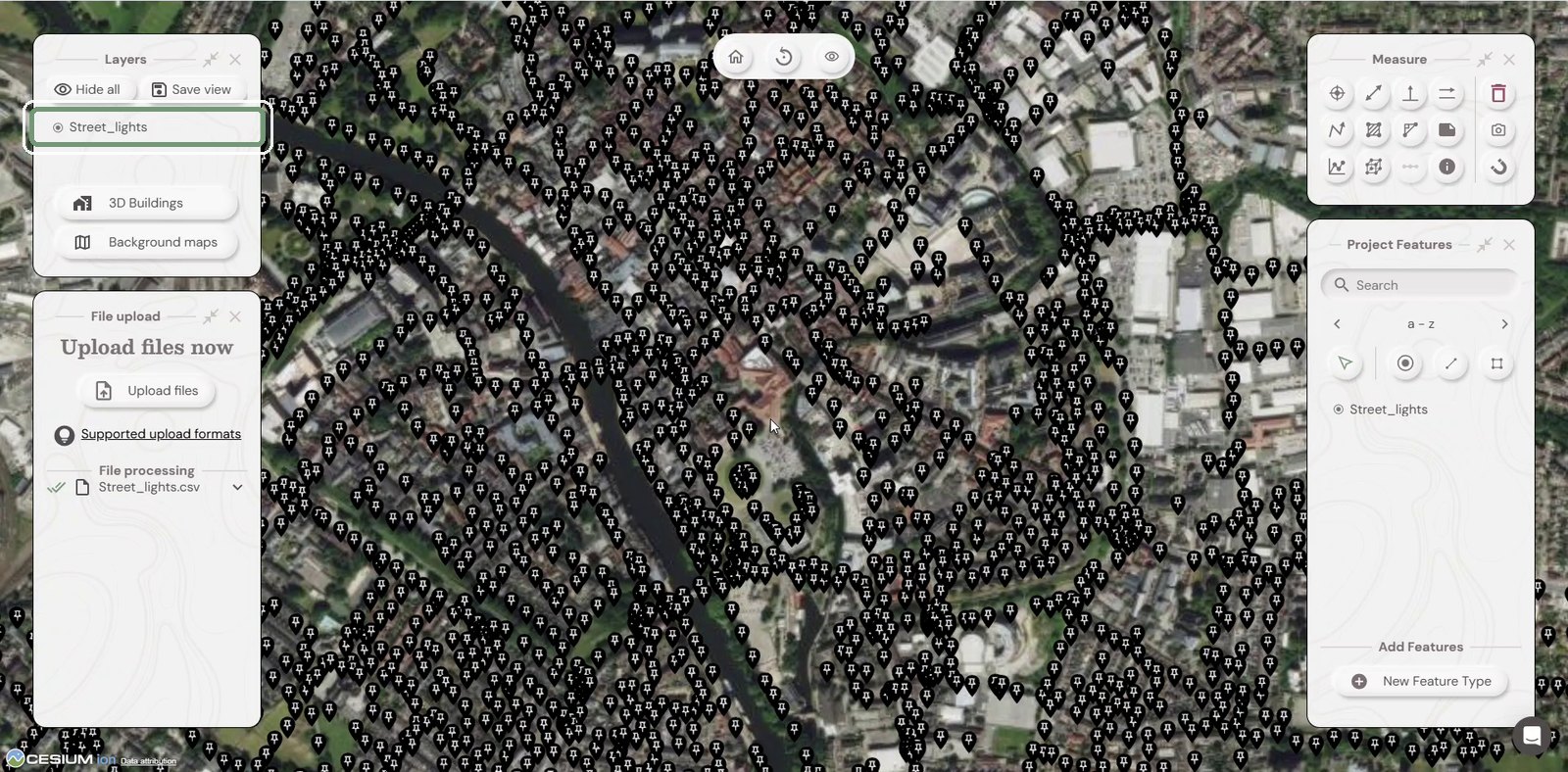
Step 10: Assign your points a colour and symbol
Click the pencil on the feature in the Project Features box to edit the colour and symbol you wish to use for the feature

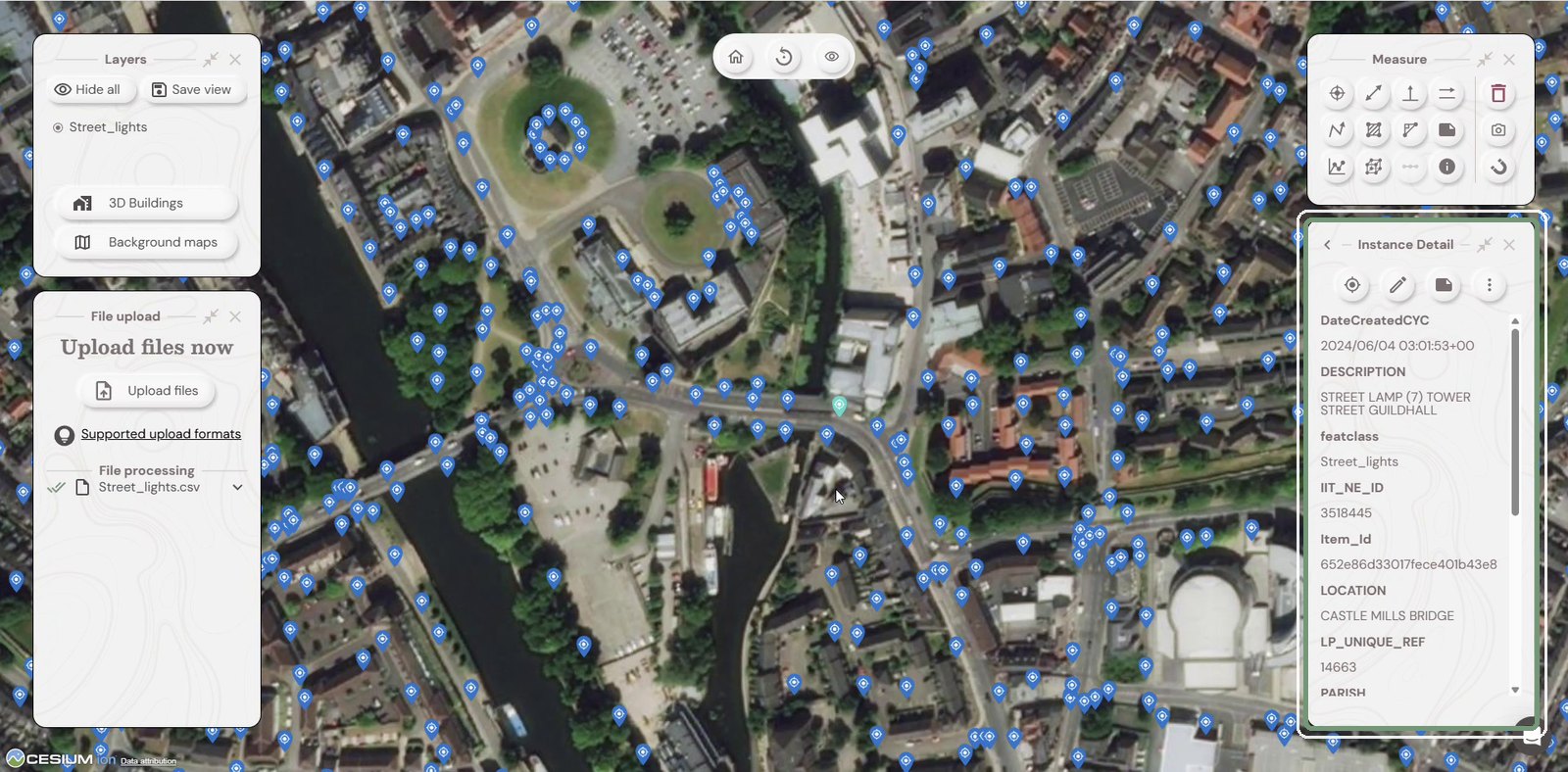
Step 11: View the features attributes
Click any point on the map to see all of its attributes in the Instance Detail panel.
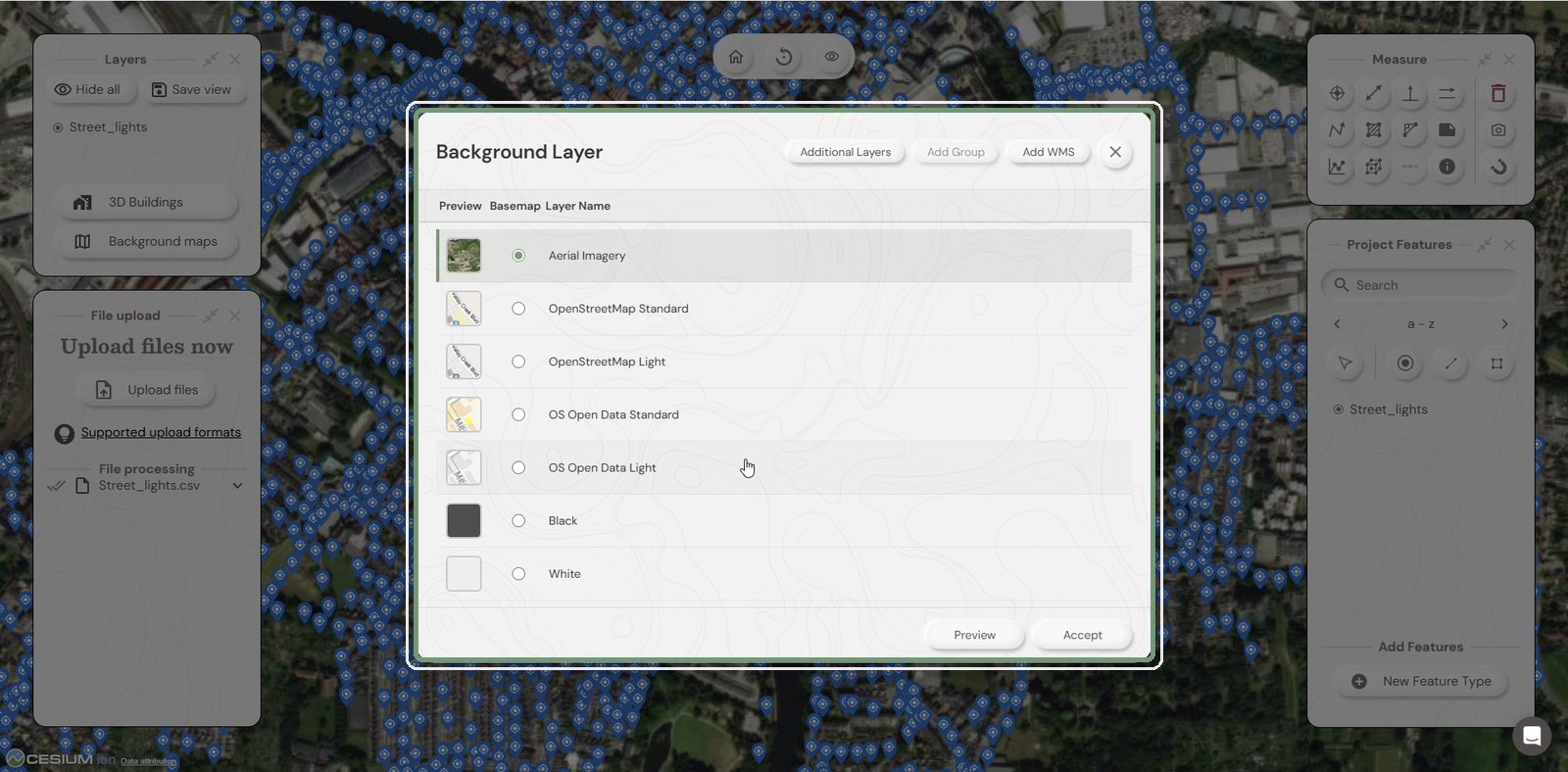
Step 12: Change the background map
Click Background maps in the Layers panel. Choose a basemap, such as OpenStreetMap or Ordnance Survey, and click Accept. Use Add WMS to connect a live map service.
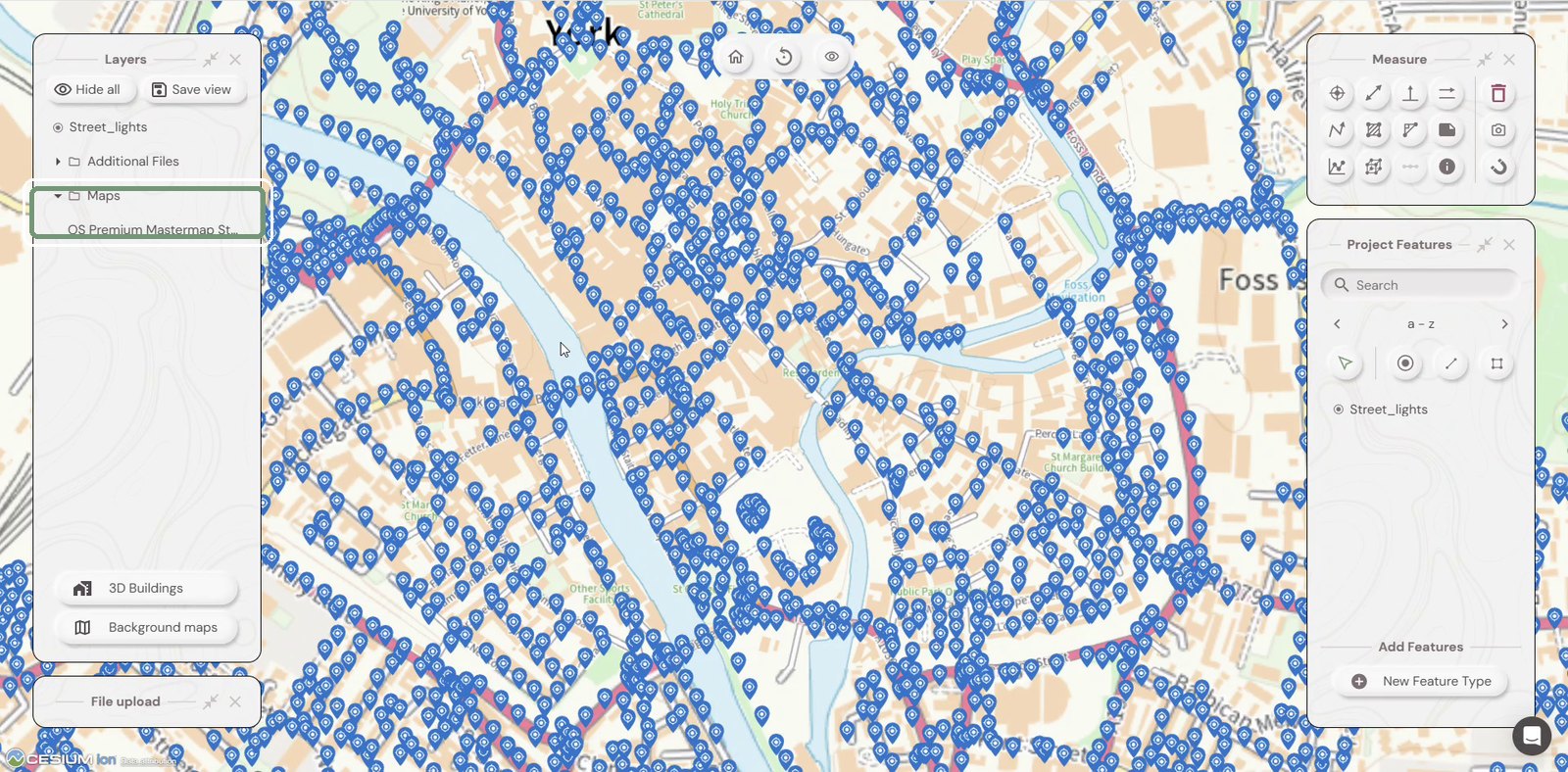
Step 13: Add a live map layer
Map services you add, such as OS Premium MasterMap, are listed under Maps in the Layers panel. Tick them on or off as needed.
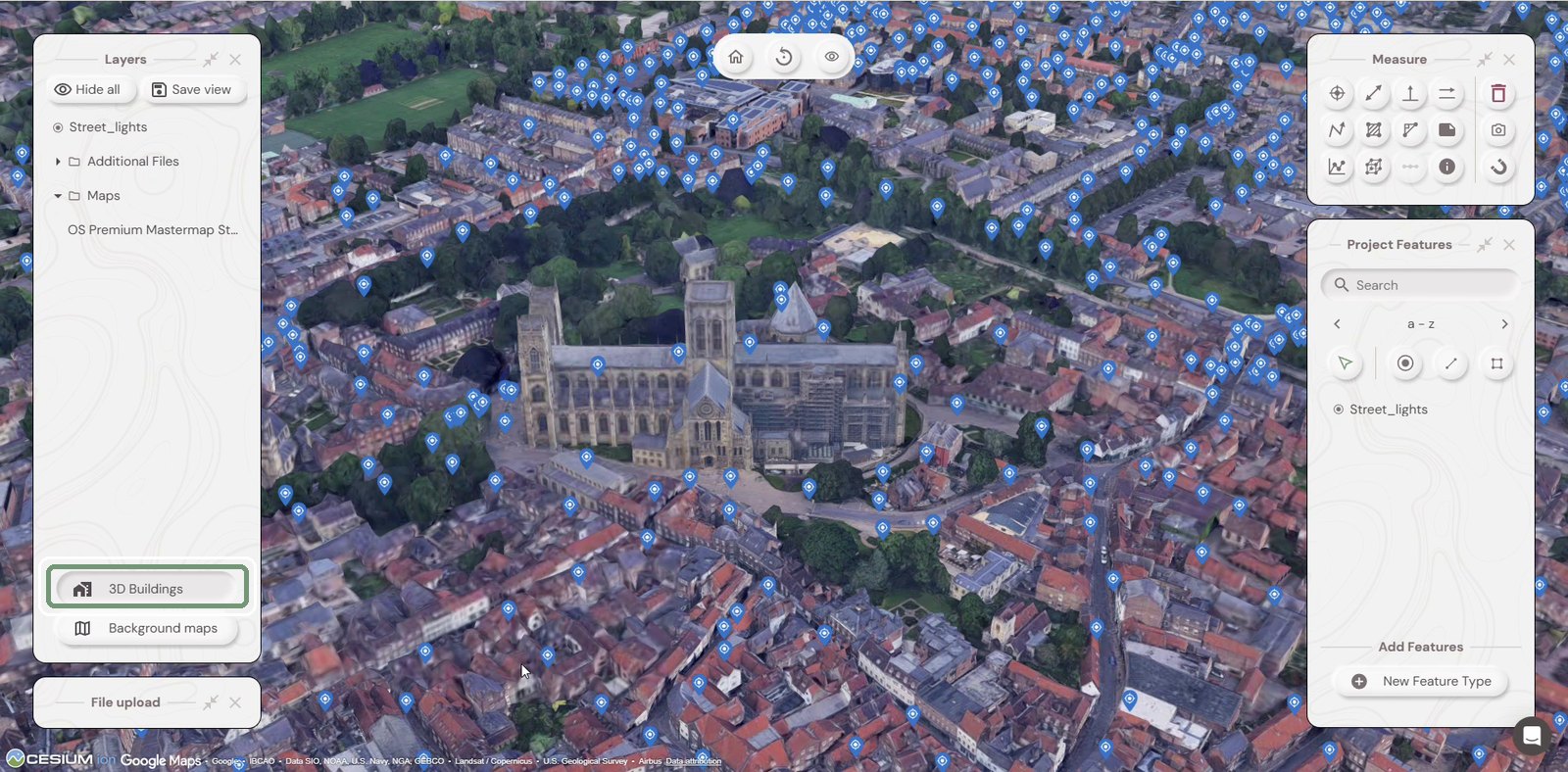
Step 14: Turn on 3D buildings
Click 3D Buildings to show buildings in 3D. Hold the left mouse button and drag to tilt the view.
Need help?
Contact the Soarvo support team, or book a demo at soarvo.com.