
Find the assets assigned to you, inspect them on site and record any issues with a photo.
Before you start
- The Soarvo mobile app, signed in
- Assets assigned to you from the office
Steps
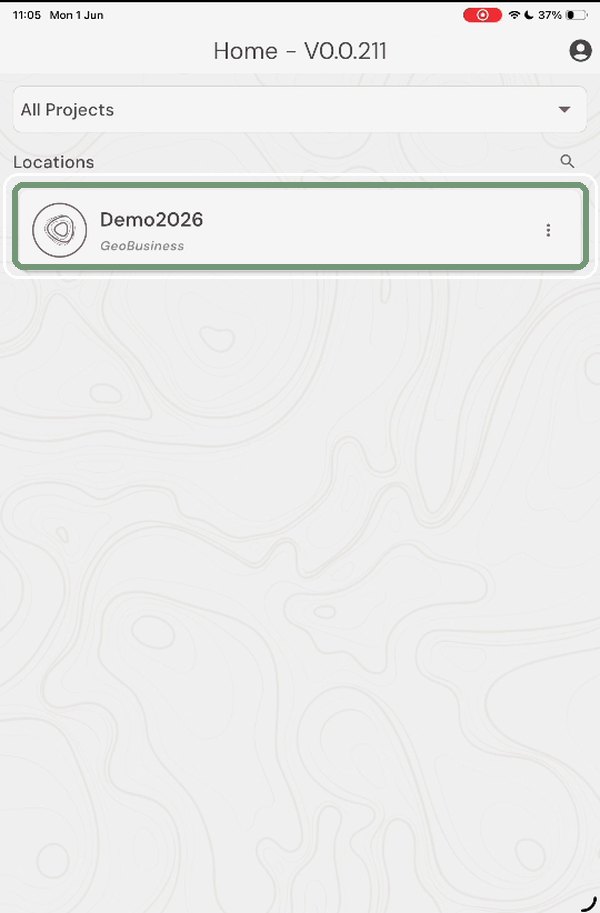
Step 1: Open your location
Open the Soarvo app and tap the location you are working in.
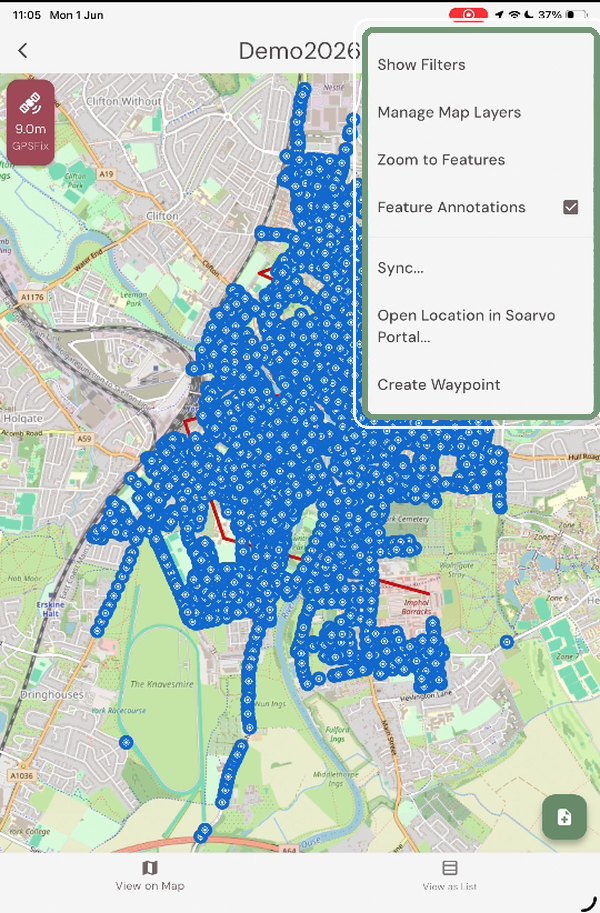
Step 2: Use the map menu
Tap ⋮ (top right) for options such as Show Filters, Manage Map Layers and Sync.
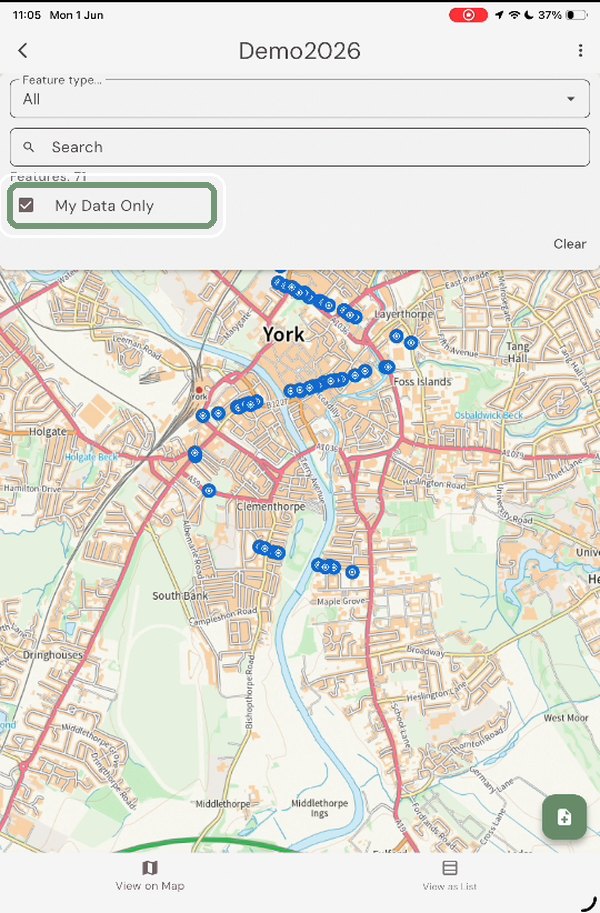
Step 3: Show only your work
In Show Filters, tick My Data Only. The map now shows just the assets assigned to you.
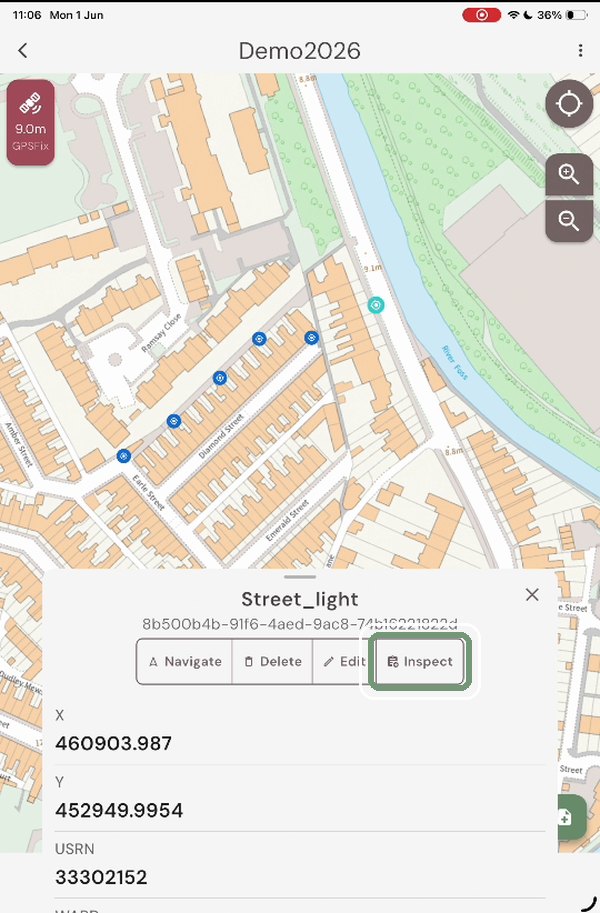
Step 4: Start the inspection
Tap an asset on the map, then tap Inspect. Use Navigate if you need directions to it.
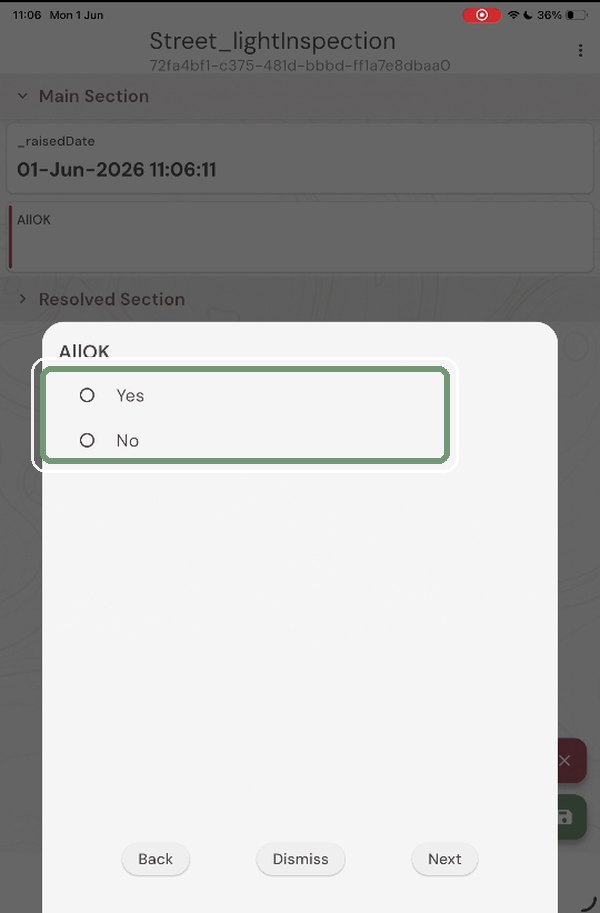
Step 5: Is everything OK?
Answer AllOK. If you tap Yes, save and move on. If you tap No, the issue questions follow.
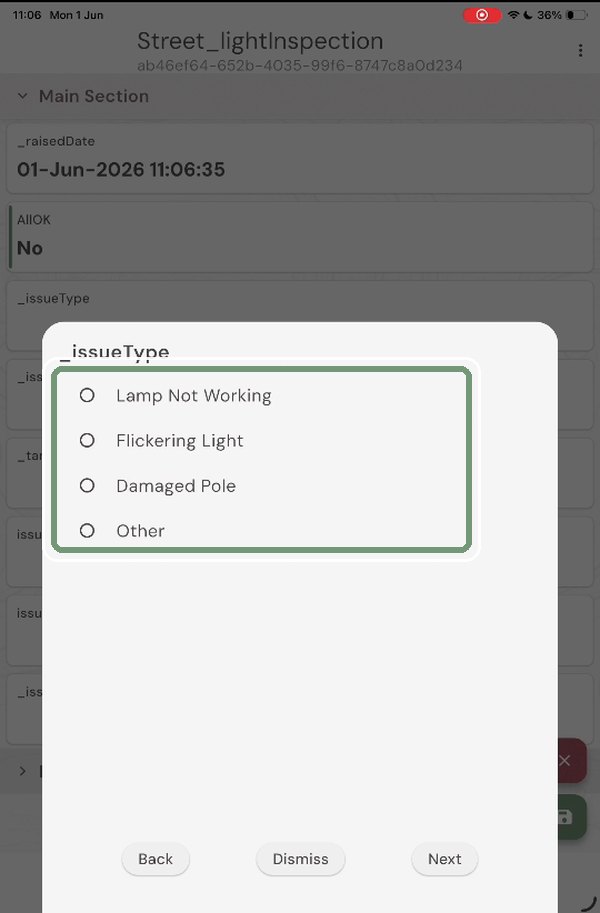
Step 6: Choose the issue type
Pick what is wrong, for example Lamp Not Working or Damaged Pole, then tap Next.
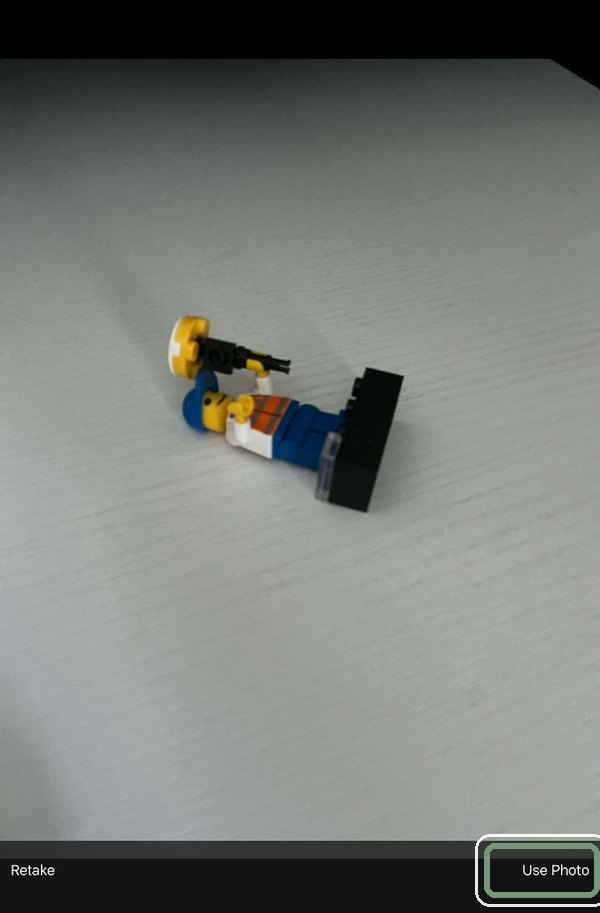
Step 7: Take a photo
Take a photo of the problem and tap Use Photo.
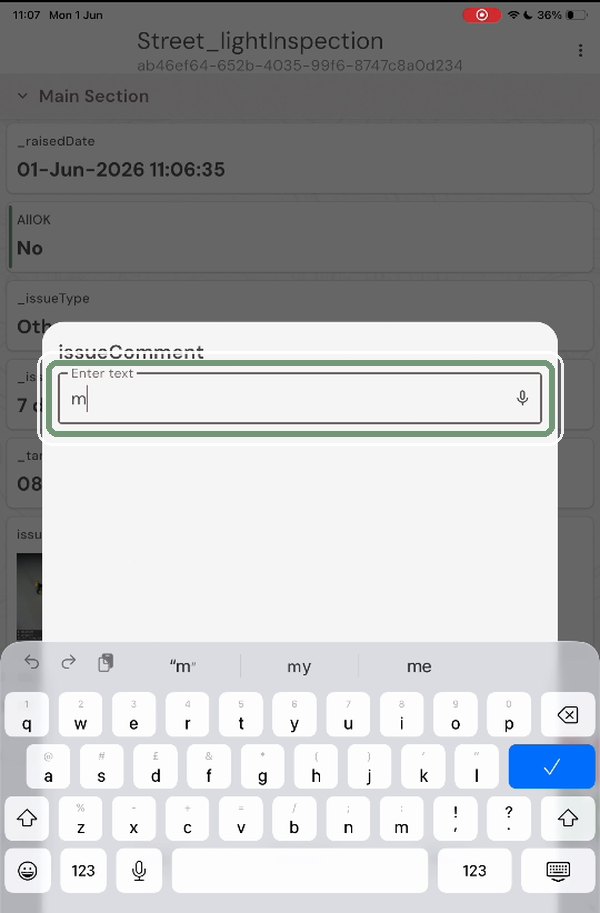
Step 8: Add a comment
Type a short comment describing the problem.
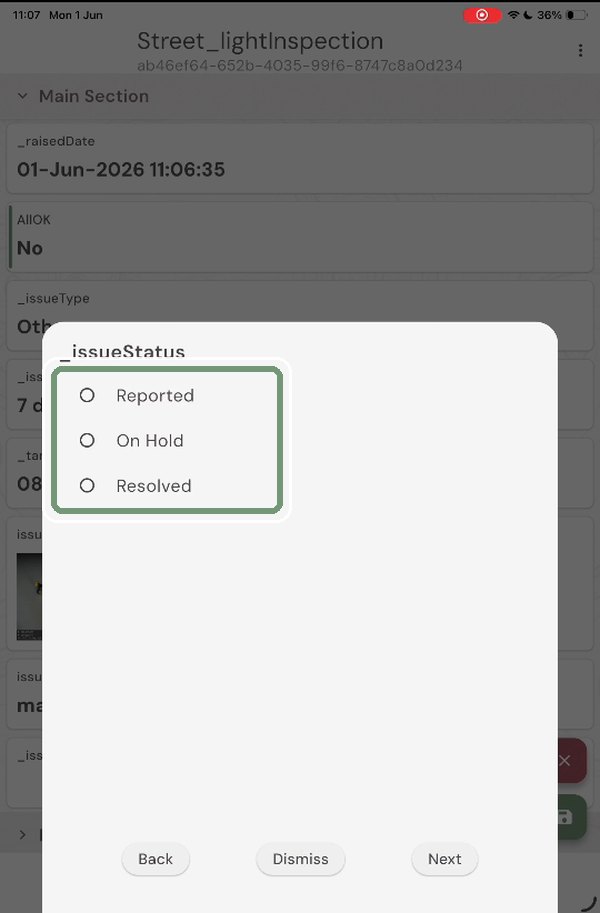
Step 9: Set the status
Choose the issueStatus, for example Reported.
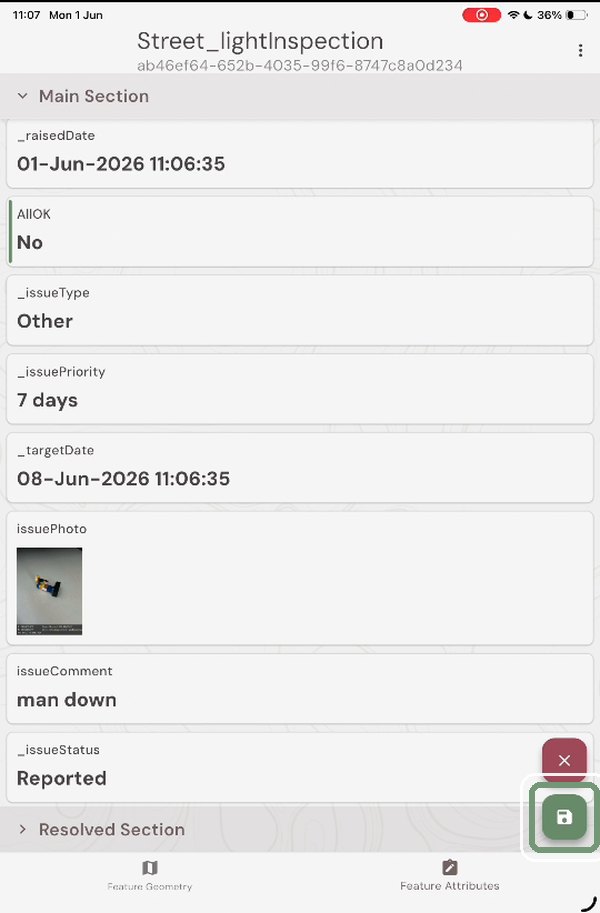
Step 10: Save the inspection
Check the answers and tap the green save button.
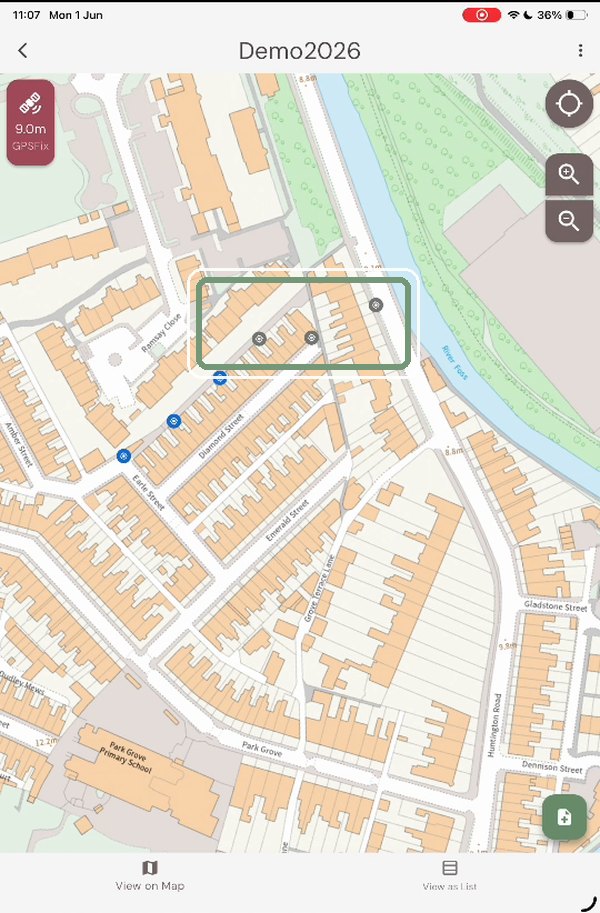
Step 11: Carry on to the next asset
Inspected assets turn grey on the map. Results are sent back to the office for the dashboards.
Need help?
Contact the Soarvo support team, or book a demo at soarvo.com.