
Invite colleagues, give them the right role, and share a location with them so they can see the same map.
Before you start
- Administrator access
- The email address of the person you are inviting
Steps
Step 1: Open User Management
Click your profile icon (top right) and choose User Management.
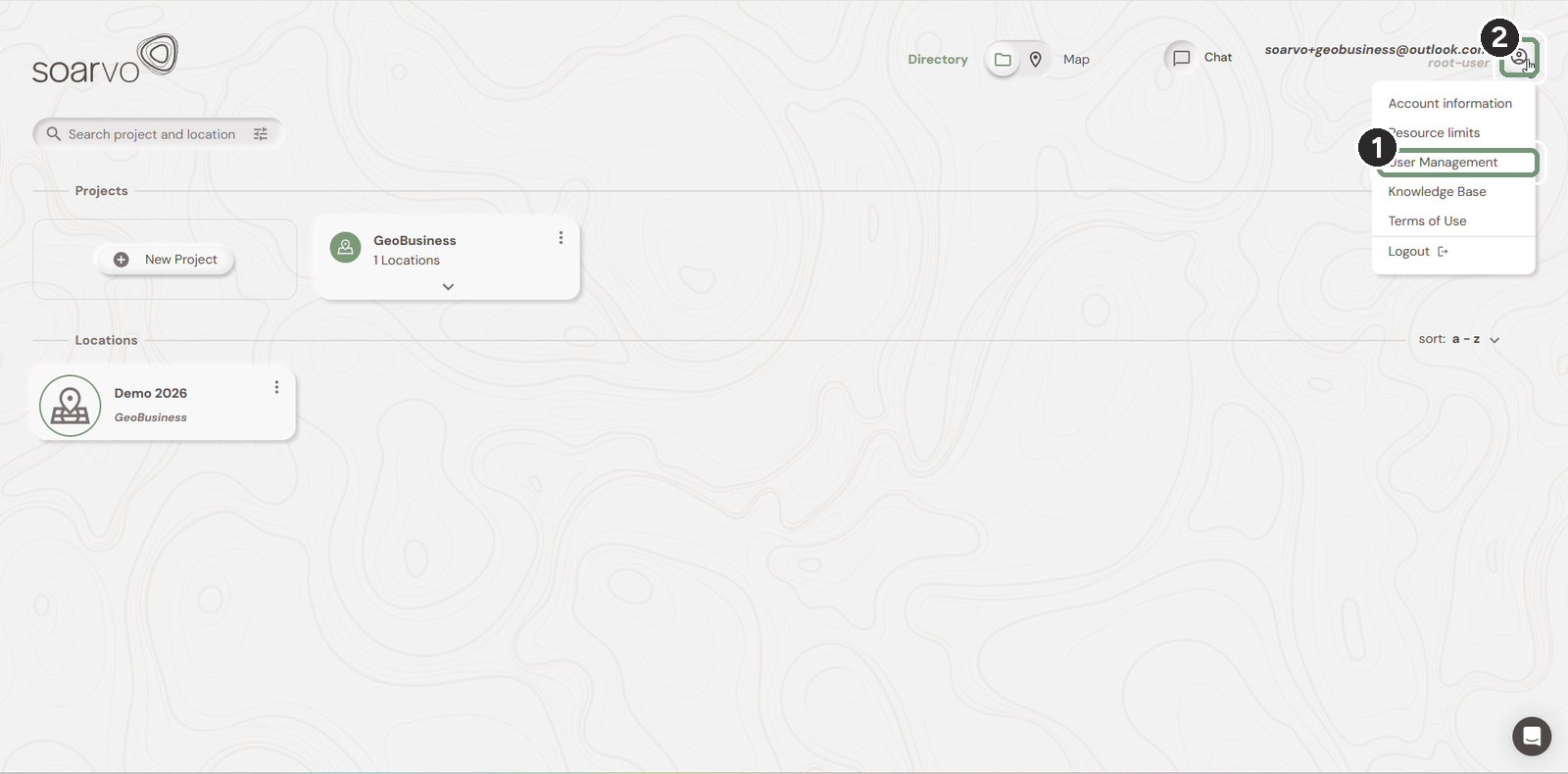
The numbered boxes show the order to work in.
Step 2: Add a new user
Click New user. Enter their First Name, Last Name and Email address.
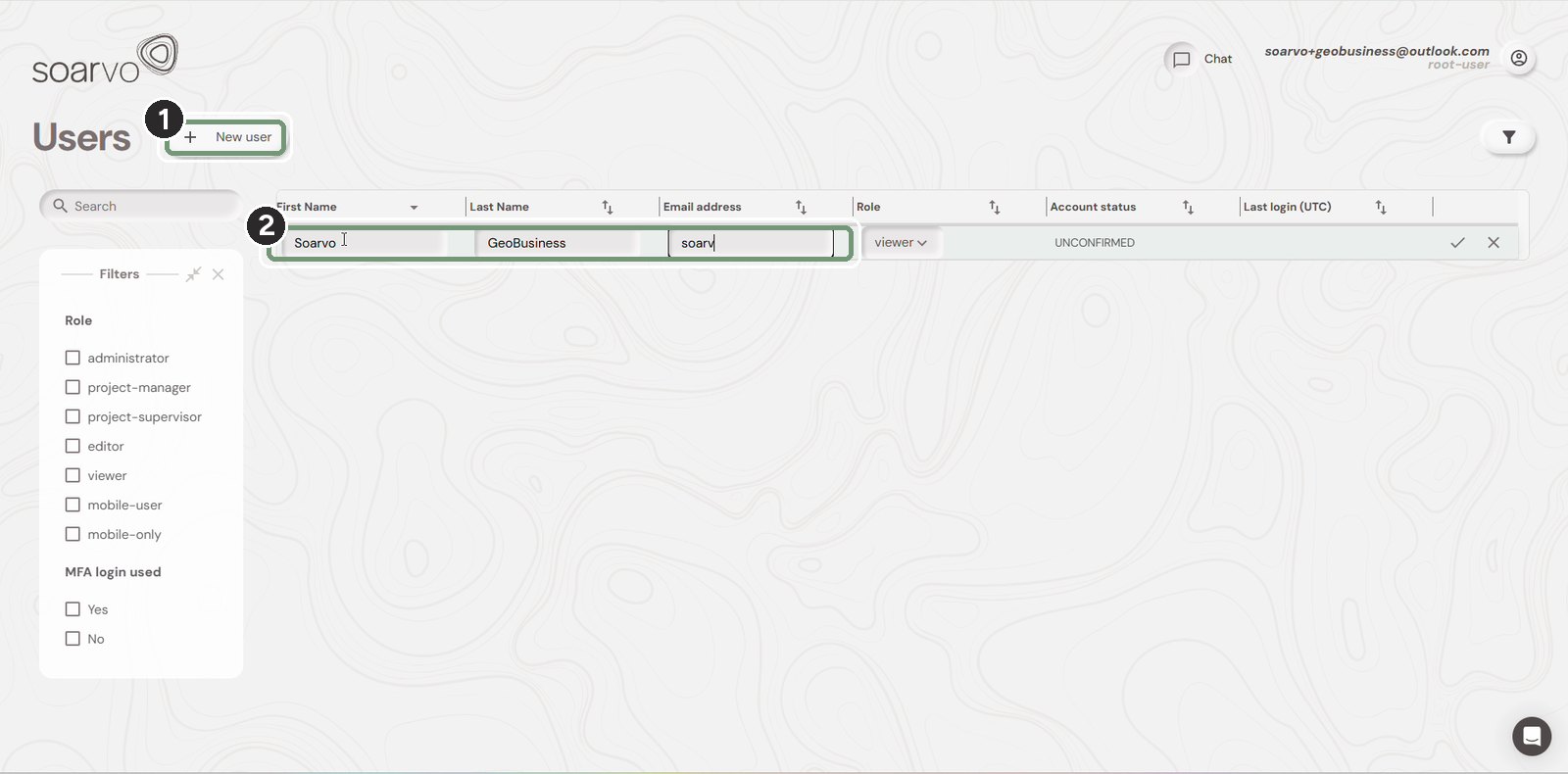
The numbered boxes show the order to work in.
Step 3: Choose a role and save
Pick a Role, for example viewer, editor or mobile-user, then click the tick to save. The user receives an email to set their password.
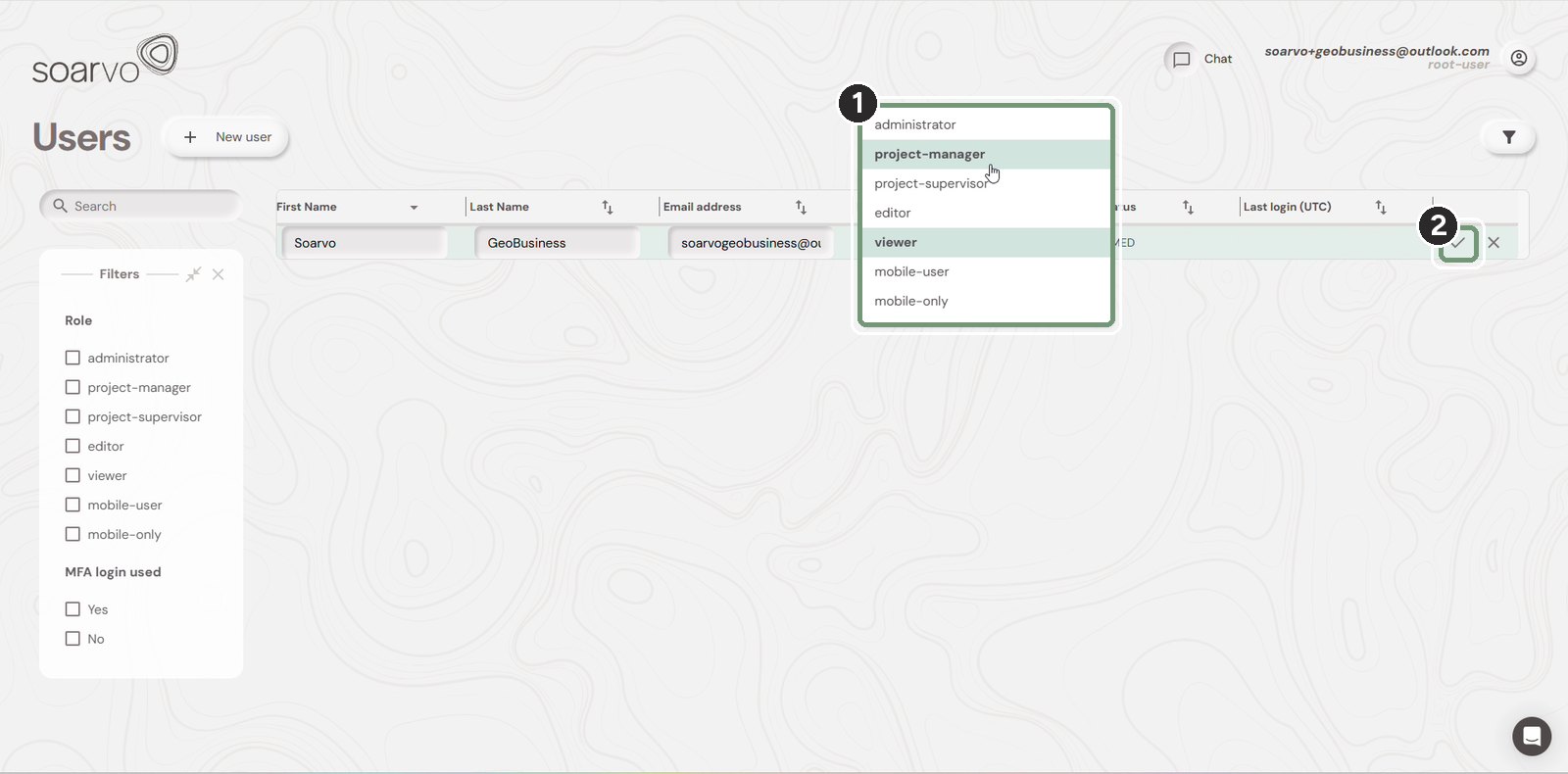
The numbered boxes show the order to work in.
Step 4: Share the location
Go back to the Directory. Click the ⋮ menu on the project and choose Share.
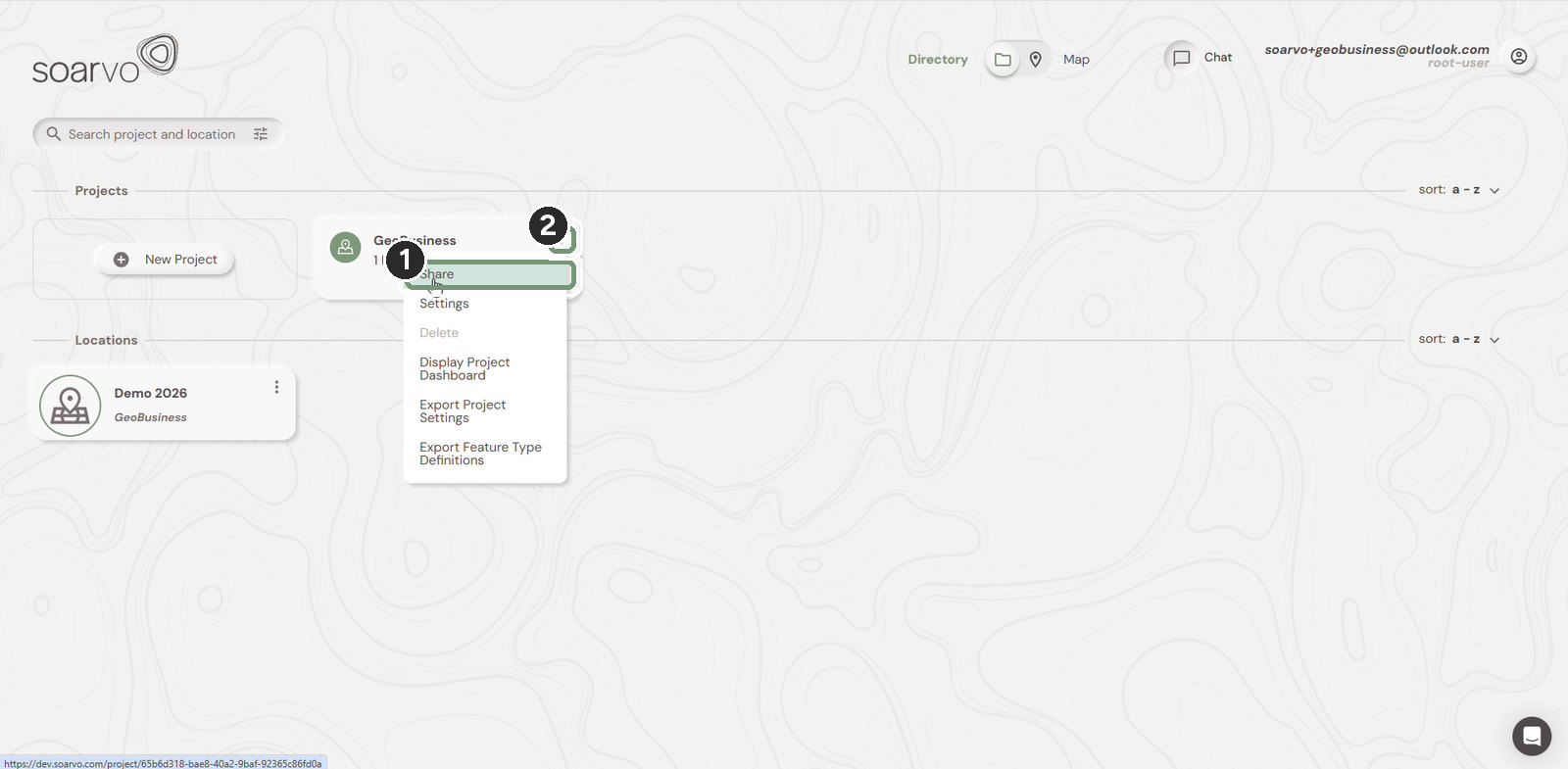
The numbered boxes show the order to work in.
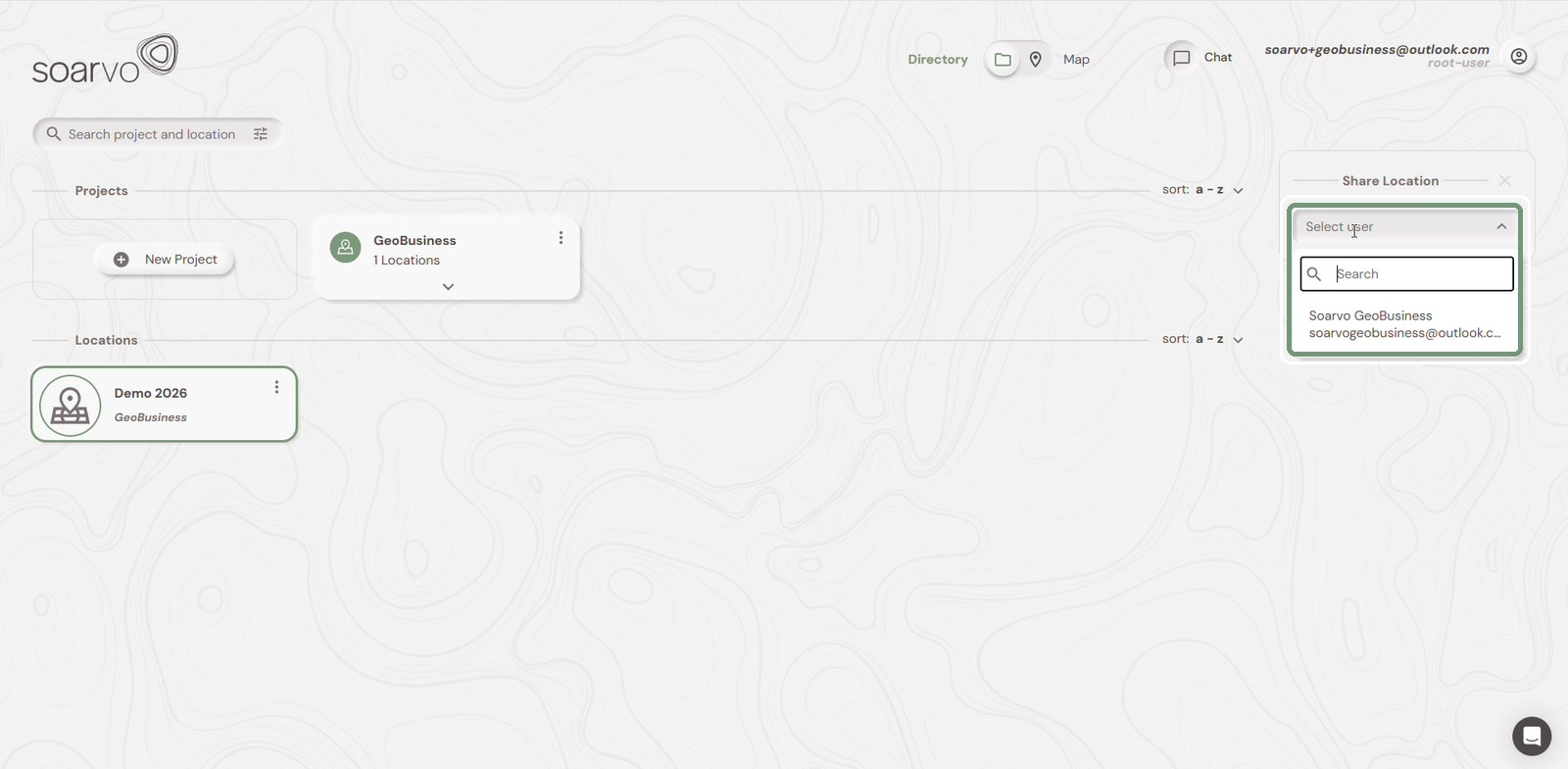
Step 5: Select the user
In Share Location, open Select user, search for the person and click their name.
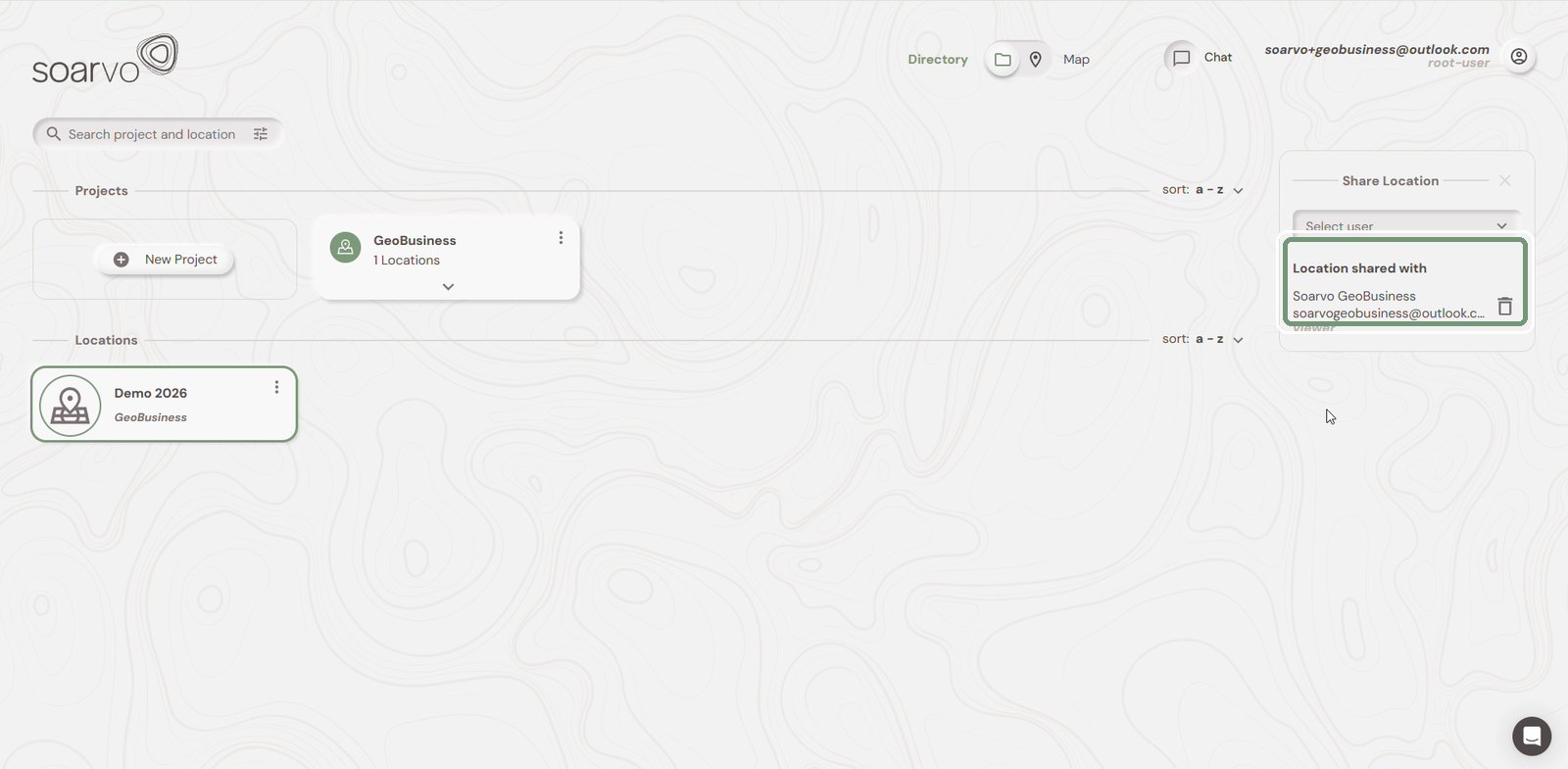
Step 6: Check who has access
They are now listed under Location shared with, with their role. Click the bin icon to remove access at any time.
Need help?
Contact the Soarvo support team, or book a demo at soarvo.com.